
Nowadays more and more people are using Android devices and looking to transfer their data from old Windows phone to the latest Android devices.
Just assume that you are happy to buy a new Android phone and you want to transfer all your contacts from the old device (Windows) to the new one (Android). But suddenly it shows an error message and you cannot transfer the data between two devices.
So if you are among those users who want to transfer their contacts from their windows phone to their new android phone then watch the given tutorial that will guide you on how to transfer contacts from Windows to Android phone.
But before moving into the transfer process, just ensure that you have a Microsoft Account (Windows Live, Hotmail, Outlook) account and if you don’t have then create one Microsoft account.
The next thing needs in transferring the contacts from one phone to other is the Google account. If you don’t have a Google account then create one Google Account.
Best Software To Transfer Contacts From Windows Phone To Android
Leaving the above two methods, there is yet another simple method that can help you to transfer contacts between two devices is by using professional software, Android Transfer. Using this software enables you to directly transfer data between Android, iOS and Windows phone.
The entire process goes smooth and it only takes less than 10 minutes to work. It works perfectly on all devices like Apple, Samsung, HTC, LG, Sony, Google, HUAWEI, Motorola, ZTE, Nokia, etc.
 btn_img
Note: It is recommended to download and use the software on your PC or laptop. It is because recovery of phone data on the phone itself is risky as you may end up losing all your data because of data overriding.
Steps to follow to transfer contacts from Windows to Android
How to move data between devices?
Step 1 - Connect Your Phone to a PC
Launch Android Data Transfer program on your PC, and choose "Phone Transfer" option among the various stated tools.
Now, get both the devices connected to each other. Here, we will take the Android & iOS device as an example. You can try Android to Android also.

Although the files will be shifted from a source device to destination one. Here, you can click on "Flip" option to exchange their place.
Step 2 - Select the Data & Begin to Transfer
Choose the files that you want to transfer. Next, click on the Start Transfer option to start the transferring process. Ensure that you don't disconnect any of the device until the transferring process gets over.
After this, you can check the box named "Clear Data before Copy" if you wish to remove data on a destination mobile before shifting the files to a target phone.
Now, all the data will be transferred to a target mobile successfully.

How To Transfer Contacts From Windows Phone To Android
From your Windows Phone, sign-in to any created Microsoft account (Windows Live, Hotmail, Outlook) and then sync your windows phone with the account.
Note: When you are syncing your Windows phone with your Hotmail account then you are syncing all the contacts from your phone to the account and contacts from account to phone. So when you access your account from computer or phone and look for the contacts page then you will find both the Windows Phone contacts and mail contacts stored.
Let’s start the contact transfer process.
| 1: Export Windows Live (Hotmail) Contacts To Android |
| 2: Transfer Windows Live (Hotmail) Contacts To Your Google Account |
Method 1: Export Windows Live (Hotmail) Contacts To Android
After syncing your Microsoft account with Windows Phone open your computer and export and save all the contacts from Microsoft Account to (”CSV” – “Comma Separated Values”) file. To do that:
1. First sign-In to your Hotmail account on your computer:

2. On the main window, press the drop-down arrow next to “Outlook” and select “People”.

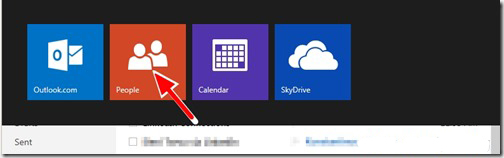
3. In the “People” page, choose “Manage” and select “Export”.

4. Now click “Save” to store the exported contacts file “WLMContacts.csv” on Desktop.

5. Close the Windows Live Mail.
Related: How to Transfer Apps from Android to another Android?
Method 2: Transfer Windows Live (Hotmail) Contacts To Your Google Account
To transfer your Hotmail contacts to your Google Account. To do that:
1. Sign-In to Gmail account on your computer.

2. On the main Gmail window, press the drop-down arrow next to “Gmail” and select “Contacts”.
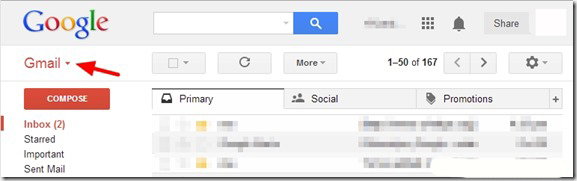
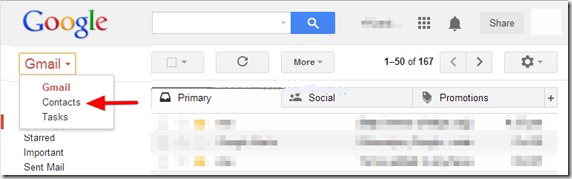
3. In Contacts page, click “More” menu and choose “Import”.

4. Now click on “Choose File” button.

5. Move to the location where you have saved the Hotmail Contacts file (WLMContacts.csv) in the previous step and “Open” it.

6. Now click on “Import” button and wait until and unless the process gets over.

Close Gmail and sync your Android phone with Gmail Account.
Also Read: Best Ways To Transfer Contacts From Android to iPhone 13, 12, 11
Bonus Tip- Import Contacts From SIM Card To Windows Phone
In fact, many users want to transfer contacts from an old device to the new one, then they can follow the below steps to easily transfer contacts from old windows phone to a new Android phone or vice-versa.
- Insert the SIM card that stores contacts to the new device
- Now click on “More > Settings > Import from SIM”
- Here you have to select the account you want and after that tap on “Next”
- Select the contacts that you want to import or select all and click on “Import” button
That’s it. Now you can check whether the contacts are imported or not on your contacts app.
Conclusion
Well, there are several users who just want to transfer their data from Windows phones to Android devices. But lack of knowledge can’t help them to transfer data from one device to another. However here in this blog, I have mentioned some of the best methods to do so.
Further, you can visit our Facebook, Twitter, and G+ page and if you have, any questions then ask it over there.


James Leak is a technology expert and lives in New York. Previously, he was working on Symbian OS and was trying to solve many issues related to it. From childhood, he was very much interested in technology field and loves to write blogs related to Android and other OS. So he maintained that and currently, James is working for androiddata-recovery.com where he contribute several articles about errors/issues or data loss situation related to Android. He keeps daily updates on news or rumors or what is happening in this new technology world. Apart from blogging, he loves to travel, play games and reading books.