
Samsung phone users often encounter software-related errors and issues while using their device. One such error message is- “Can’t open camera. Check your phone.” This error usually interrupts photography, video calls, and scanning tasks. However, the problem is easy to resolve. Thus, if you are facing can’t open camera check your phone Samsung error, you should not panic.
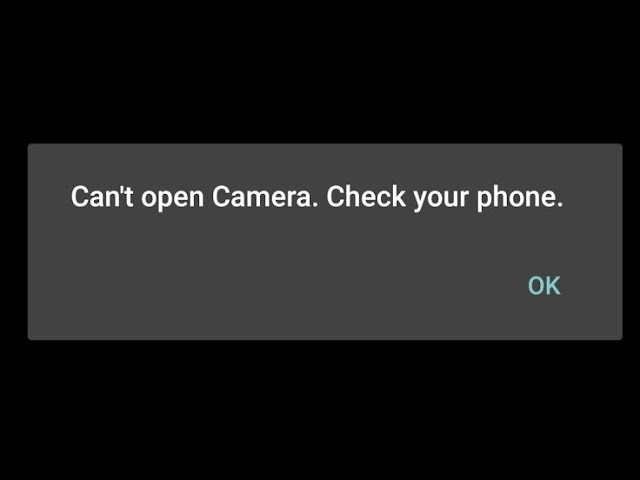
Here, I have covered a bunch of detailed solutions to fix it in all Samsung phone models. But before getting started, you must have a quick look at the reasons to understand its source & fix it accordingly.
To fix Android-related issues, we recommend this tool:
This effective tool can fix Android issues such as boot loop, black screen, bricked Android, etc. in no time. Just follow these 3 easy steps:
- Download this Android System Repair tool (for PC only) rated Excellent on Trustpilot.
- Launch the program and select brand, name, model, country/region, and carrier & click Next.
- Follow the on-screen instructions & wait for repair process to complete.
Why Is My Samsung Saying Can’t Open Camera Check Your Phone?
There are major reasons that could cause this problem in Samsung mobiles. They are as follows:
- Insufficient storage or RAM may prevent the camera application from functioning.
- Third-party apps.
- Running an outdated version of the OS.
- Lack of required app permissions.
- Wrong camera settings.
- Device or Camera app’s bug or glitch.
- Corrupted camera app cache files.
How to Solve Can’t Open Camera Check Your Phone Samsung Error?
This section covers a cluster of workarounds to get rid of this annoying error. So, follow the step-by-step advice to say goodbye to the error.
Way 1- Restart Your Camera app
Some momentary glitches have likely occurred in the camera app; that’s why you’re facing this issue on your smartphone. To overcome this situation, close the app for some time & then restart it again.
Way 2- Clear Camera App’s Cache & Data
Not clearing the camera app’s cache over time can cause it to become corrupted and can trigger such error messages. Thus, it is suggested to clear cache data timely to solve the errors and avoid facing them in the future.
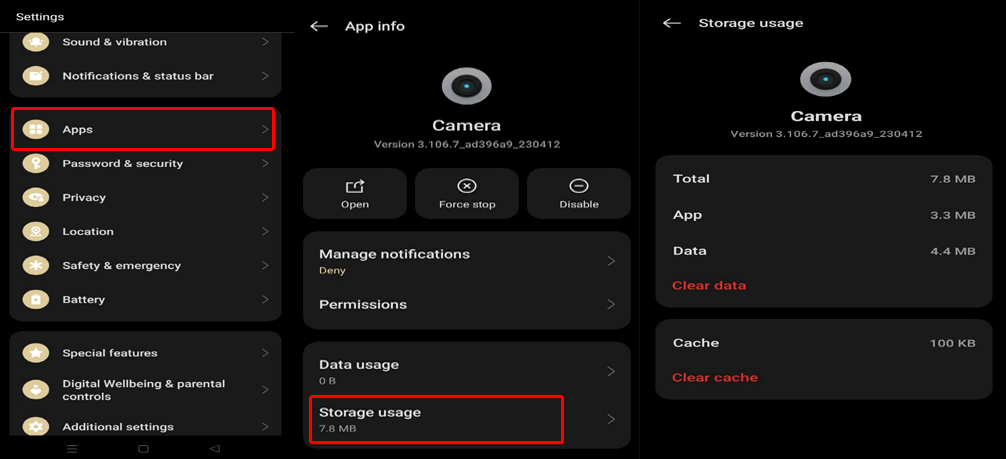
Steps to be followed to clear the cache of a Camera app:
- On the SamsungSettings app, tap on Apps
- Tap on Camera app and select it.
- Next, choose the Storage Usage.
- Tap on both Clear Data >> Clear Cache buttons.
Way 3- Restart Your Samsung Mobile
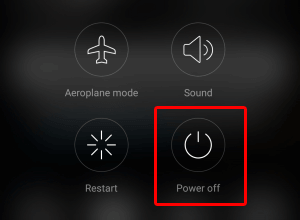
Restarting the device is the simplest solution to deal with the Samsung Galaxy can’t open camera check your phone error. This action refreshes background processes and clears temporary glitches.
Therefore, try a reboot before applying advanced troubleshooting steps. After restarting, open the camera app again carefully.
Also Read: Can’t Connect to the Camera? 7 Solutions to Get Camera Back on Track!
Way 4- Grant the Necessary Permissions to Camera App
Insufficient necessary permissions to the Camera app can even cause can’t open camera error. Therefore, allow the necessary permission to access the app without any restrictions and resolve the error.
Here are the steps to follow:
- Navigate to Settings >> Application Management or Apps.
- Choose the Camera on the app list >> tap Permissions.
- Now, check for the granted permissions. If any is mislaid, allow the same.

Way 5- Free Up Storage Space
Low storage space on your device often blocks camera operations.
Though Samsung phones require free memory to save photos and videos.
Thus, deleting unused files such as unnecessary apps, videos, and duplicate photos improves camera performance.
To check device storage, follow the steps below:
- Navigate to Settings app on your phone.
- Go to About phone
- Next, click on Storage and check for the available storage.
- Remove the unnecessary files from there.
Way 6- Check for a Third-Party App to Fix Can’t Open Camera Check Your Phone Samsung
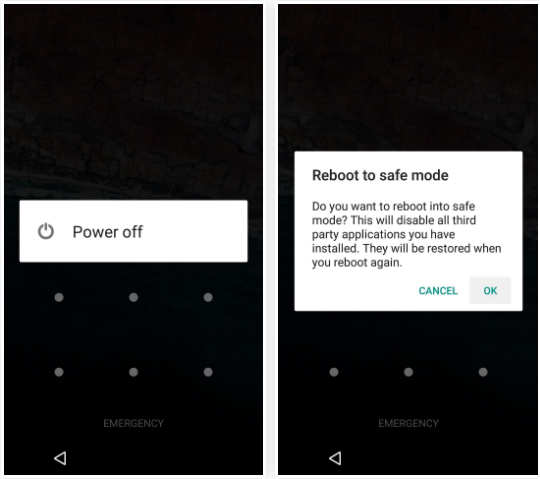
Sometimes, interfering 3rd party applications can lead to this weird error. All you need to do is to boot your device into Safe mode to check for conflicting apps.
Here are the steps to be followed:
- Press Power button of your phone for some time
- Tap & hold down a Power-off option for a couple of seconds.
- After that, the Reboot to Safe mode pop-up appears >> tap OK.
- Once you are in Safe mode, try launching the camera app and taking the cherished moments.
- If facing no issues, find the application causing the error & uninstall it immediately.
Way 7- Reset Phone’s Camera Settings
As already mentioned in the causes section, wrongly configured settings for a Camera application can result in Samsung Galaxy can’t open camera check your phone error. Reset the camera settings on your mobile to restore default configurations and solve the error.
Here are the steps:
- Open the Camera app on your device.
- Tap Settings icon >> scroll down & choose Reset settings
- Next, click on Reset option again to confirm.
- When done, close the app and reopen it.
Way 8- Update the Samsung Software
Outdated software frequently causes camera-related bugs. Samsung releases updates to fix performance & security issues. Hence, keeping software updated is always recommended.
For this:
- Go to Settings >> check for software updates.

- Now, install available updates & restart the device.
Also, update all apps from the Galaxy Store or Play Store.
Way 9- Perform a Factory Reset
Last but not least, if none of the above fixes worked, you can try performing a factory reset. A factory reset fixes deep software corruption issues. Nevertheless, this method erases all personal data permanently. So, back up all your important files before proceeding.
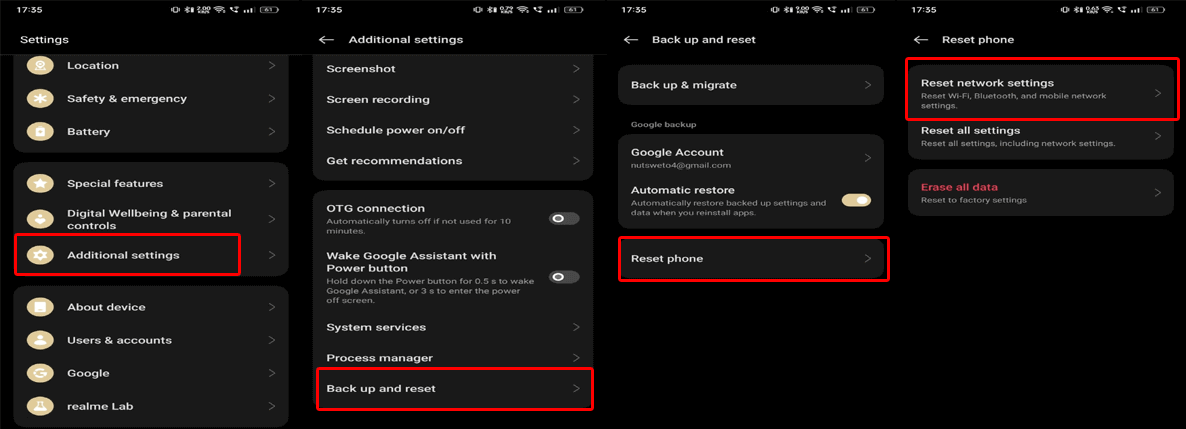
- Go to Settings >> select Additional settings.
- Tap on Back up and reset to confirm >> tap Reset phone >> Erase all data.
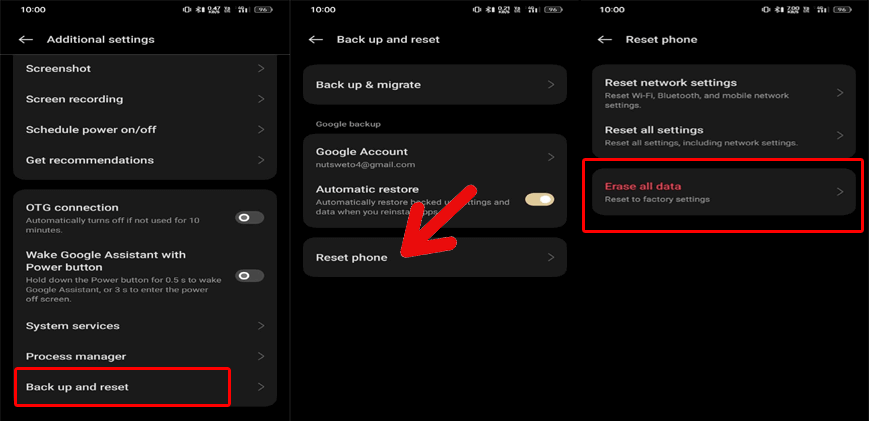
- Now, follow the onscreen instructions to complete the action.
- Enter your Samsung account password to get your job done.
Also Read: How to Fix “Warning: Camera Failed” Error? Here’s 7 Fixes To Try!
Frequently asked questions:
Why Is My Phone Saying Can't Open the Camera?
Due to insufficient device storage, your phone is saying can’t open the camera and capture the moments.
How Do I Fix My Samsung Camera Warning Failed?
You can fix the error ‘Warning camera failed’ by manually updating Google play system. Here are the steps to do so:
- Go to settings >> ‘security and privacy’.
- Choose Updates >> Google Play System update.
- Now, check update & install.
Can A Samsung Phone Camera Be Repaired?
If your device’s built-in camera is physically damaged, you have to contact the Samsung experts. They offer good pricing on out-of-warranty repairs, such as screen replacements, faulty charger ports, camera issues & more.
How to Force Reset a Camera?
To force reset the camera, you can use RESET button.
- Turn on a power of the camera.
- Use the pointed object to press & hold a RESET button with the pointed object, like a ballpoint pen, for 2 to 3 seconds >> release the button.
Final Thoughts
Can’t open camera check your phone Samsung error feels frustrating initially. However, by following the solutions outlined in this post, you can easily fix this issue.
Nevertheless, if you find this post helpful in your case, do share it with your friends, family, and relatives.
Moreover, for more appropriate guides, stay connected with us on Facebook & Twitter.


James Leak is a technology expert and lives in New York. Previously, he was working on Symbian OS and was trying to solve many issues related to it. From childhood, he was very much interested in technology field and loves to write blogs related to Android and other OS. So he maintained that and currently, James is working for androiddata-recovery.com where he contribute several articles about errors/issues or data loss situation related to Android. He keeps daily updates on news or rumors or what is happening in this new technology world. Apart from blogging, he loves to travel, play games and reading books.