
The error “Get this app from Play” often appears when trying to install or open certain applications on Android. Many users face this issue unexpectedly. Thus, if you are facing the same error, do not fret, you are on the correct webpage.
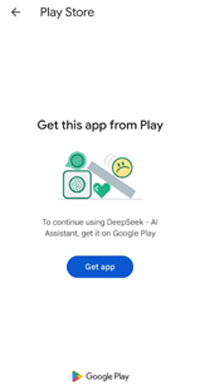
In this blog, you will learn the common causes and the most effective solutions to fix the get this app from Play Store error & restore normal app access.
To fix Android-related issues, we recommend this tool:
This effective tool can fix Android issues such as boot loop, black screen, bricked Android, etc. in no time. Just follow these 3 easy steps:
- Download this Android System Repair tool (for PC only) rated Excellent on Trustpilot.
- Launch the program and select brand, name, model, country/region, and carrier & click Next.
- Follow the on-screen instructions & wait for repair process to complete.
Major Factors of This Google Play Error
As we all know, Android devices rely on Google Play services for verification & security. So, apps sometimes refuse to run if they detect installation issues.
It happens due to various reasons, including:
- Installing applications from unofficial sources
- Running an outdated version of the Google Play Store
- Corrupted Google Play’s cache files
- Verification failures
- Device compatibility restrictions
- Google Play Services malfunction
So, these are the common causes.
How to Solve Get This App from Play Store Error on Android Phone?
Try the below step-by-step methods:
Fix 1- Reboot Your Android Phone
Sometimes, this error occurs due to a device glitch. Consequently, a simple restart of your device can solve the problem. Many background services refresh during reboot.
Steps to be followed:
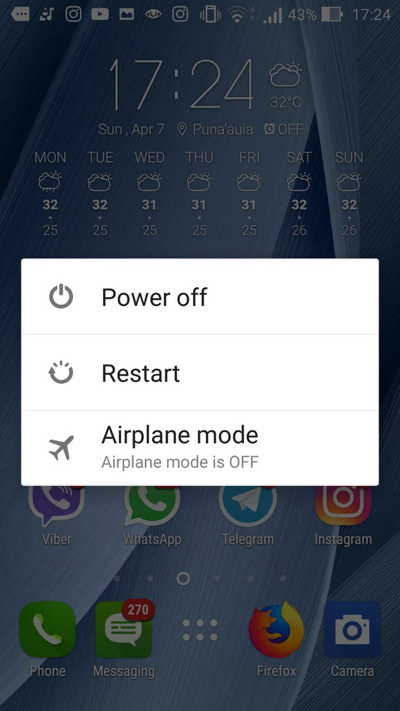
- Press the Power button on your mobile.
- Tap on the Restart option.
Also Read: Solved- Google Play Store Error Your Device Is Not Compatible on Android!
Fix 2- Clear the Google Play Store Cache & Data
Another possible solution you can try is clearing Play Store cache. Corrupted cache files often interrupt app verification.
Here are the steps to be followed:
- Open Settings >> go to Apps or App Management.
- Choose Google Play Store >> Storage.
- Tap on both Clear Cache and Clear Data.

- After completion of the steps, reopen the Play Store. Then reinstall the affected app.
Fix 3- Install App Directly from Google Store
Most of the time, users download APK files from 3rd-party websites or unreliable sources. Though apps sometimes block these installations for security purposes, it leads to get this app from Play Store error.
So, it is worth installing the application directly from Google Play.
Steps to be followed:
- Open the Google Play Store.
- Look for the application >> tap Install.
- Open the app after installation finishes.
If this method fails, try the next one.
Fix 4- Update the Google Play Services
Many of you are unaware of the fact that Google Play Services controls app authentication that helps in security checks. Thus, outdated services may trigger installation errors. Consider updating it by following the below steps:
- Open Google Play Store.
- Look for Google Play Services >> select Update if available.
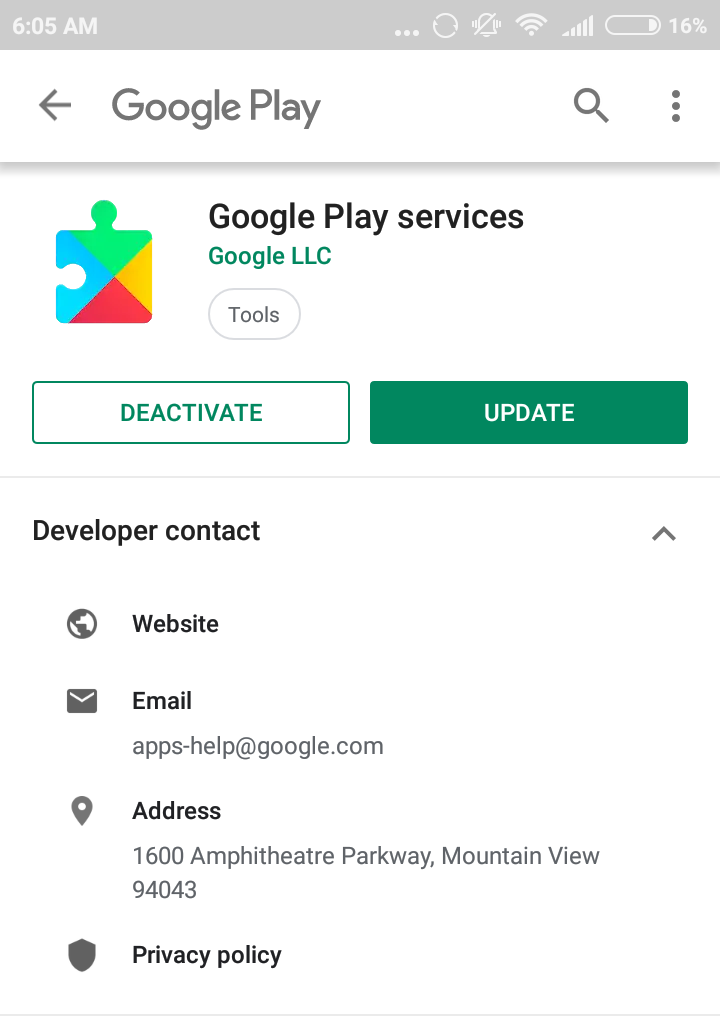
- When updated, restart the device.
Fix 5- Check the Device Compatibility
Some of the applications support limited devices or regions, due to which you may receive the get this app from Google Play error.
All you need to do is follow these steps to check compatibility.
- Open Google Play Store.
- Search for the app page.
- Read the device compatibility section.
- If the device remains unsupported, install an alternative version.
Also Read: Fix Server Error on Google Play Store Android in 7 Easy Ways
Fix 6- Enabling the Google Play Protect
If you are getting this error message on your phone due to disabled protection in the Google Play, enable Play Protect immediately.
Here are the steps to be performed:
- Open Google Play Store >> tap the profile icon.
- Choose the Play Protect.

- Enable the Scan apps with Play Protect.
- Once the feature is enabled, reinstall the app.
Fix 7- Solve Get This App from Play Store Error by Allowing App Installation Permissions
Insufficient required permissions for proper operation are a major factor for this warning. Simply grant the necessary permissions by following the instructions below carefully:
- Open Settings >> go to Apps or App Management.
- Select the app >> tap on Permissions.
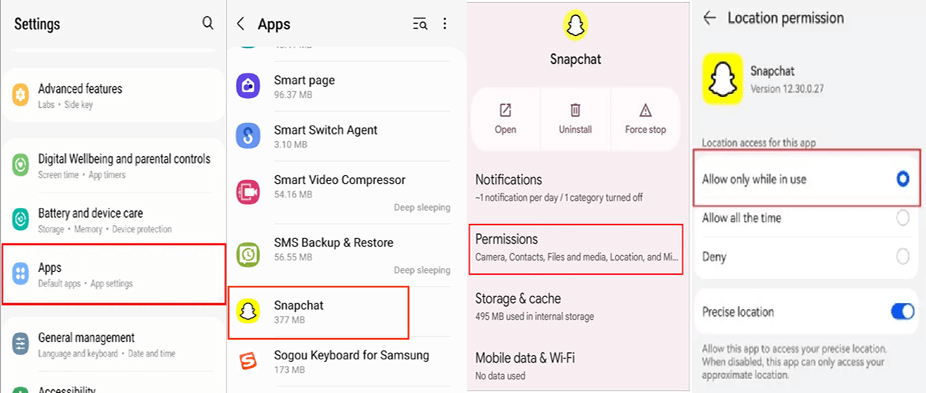
- Allow necessary permissions.
Afterward, reopen the application.
Fix 8- Remove and Reinstall the Application
Last but not least, if none of the above fixes worked for you to fix get this app from Google Play error, try reinstalling the app to resolve the issue.
Follow the steps below.
- Open Settings >> go to Apps or App Management.
- Select the problematic app.
- Tap on Uninstall.
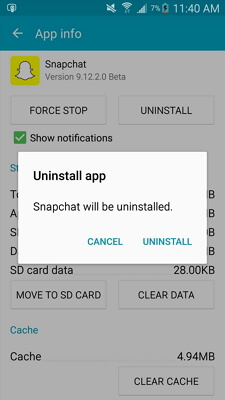
- Reinstall it from Google Play Store.
Fresh installation files eliminate many system conflicts.
Related FAQs:
How Do I Fix Google Play Not Letting Me Download Apps?
To fix Google Play Store not downloading apps issue, try the below tips:
- Check your internet connection
- Restart your device
- Clear the Google Play Services or Play Store cache
- Reset Download Manager 5. Check available storage space.
Can I Install Apps Without Play Store?
Yes, you can definitely download apps without the Play Store on Android. Some of the alternatives to the Google Play are F-Droid, APKPure, or Uptodown.
How to Find Hidden Apps in the Play Store?
To find hidden apps:
- Swipe up from a Home screen to launch the app drawer.
- Next, tap the 3rd-dot menu in the upper-right corner.
- Choose Home screen settings (depending on your launcher).
- After this, search for Hidden apps or Hide apps.
- If any applications are hidden, you'll see them listed here.
Also Read: Fix Google Play Store “No Internet Connection, Retry” on Android
Packing Up
The get this app from Play Store error appears due to verification failures, outdated services, or other causes mentioned above. Luckily, by following the methods outlined in this blog, you can solve this error and prevent compatibility conflicts.
Apply each solution step by step. Eventually, the app should open normally without any error message.
I hope you found this post useful.


James Leak is a technology expert and lives in New York. Previously, he was working on Symbian OS and was trying to solve many issues related to it. From childhood, he was very much interested in technology field and loves to write blogs related to Android and other OS. So he maintained that and currently, James is working for androiddata-recovery.com where he contribute several articles about errors/issues or data loss situation related to Android. He keeps daily updates on news or rumors or what is happening in this new technology world. Apart from blogging, he loves to travel, play games and reading books.