
Getting error code 1 PUBG Android phone? Struggling hard to tackle this situation? If it is so, then you are at the correct webpage.
PUBG stands for PlayerUknown’s Battleground. It is one of the best online multiplayer battle games which is developed by PUBG Corporation and is commonly played by youths.
Players love to play this game due to its graphics & realistic gaming mechanics. Apart from that, it’s a good choice for entertainment in your free time.
Despite having all these tremendous advantages of PUBG, still you can face numerous errors and issues while playing it. One such error is “PUBG error code 1 Android mobile”. Thus, if you are recently going through this error code, then keep on reading this article and get the best fixes to get rid of it.
Take a quick glance over the fixes:
- Restart Your Android Phone
- Clear PUBG Cache & Data
- Paste The Maps Into Subfolder & Relaunch PUBG Game
- Using The VPN
- Update to the Latest Version of PUBG
- Stop Running Apps In A Background
- Put Your Mobile Into A Safe Mode And Download Maps
- Uninstall & Reinstall The PUBG Application
What Is PUBG Error Code 1?
PlayerUknown’s Battleground error code 1 occurs when a player tries to download the map, but find that they’re not able to open a map/play in it.
Well, it is one of the annoying issues that appear due to several reasons including outdated version or cache data of the PUBG.
Therefore, it is important to fix PUBG mobile error code 1ASAP. So, below we have provided the possible solutions to troubleshoot this problem with ease.
How To Fix Error Code 1 PUBG Android Phone?
Check out the below fixes and deal with the unknown error in PUBG mobile (code 1).
Fix 1: Restart Your Android Phone
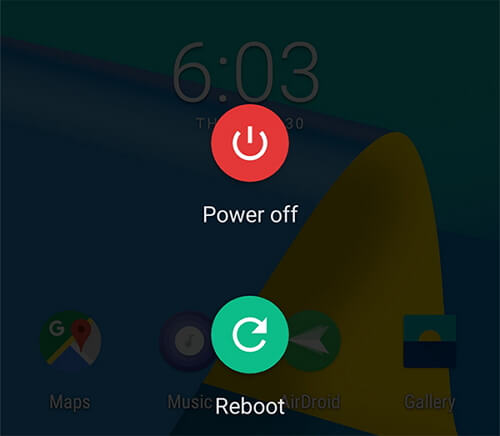
Restarting an Android phone is a primary option for each and every user when they face any errors or bugs.
Honestly speaking, this way had helped many users to fix numerous unforeseen issues on their Android devices.
Therefore, here we would also like to suggest you to restart your device to solve this error code. After rebooting it, check if the issue is fixed or not. If not, put some extra effort and try out further solutions.
Fix 2: Clear PUBG Cache & Data To Fix Error Code 1 PUBG Android
Clearing app cache and data can resolve a number of glitches on Android devices. So, you can also try to clear the cache and files of the PUBG app by following the below steps:
Step 1: At first, go to the Settings >> then Apps.
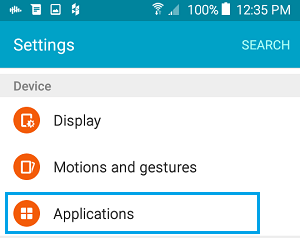
Step 2: Scroll down & then find and click on the PUBG app
Step 3: Click on the Storage option.
Step 4: After this, click on the options Clear Storage & Clear Cache one after another.
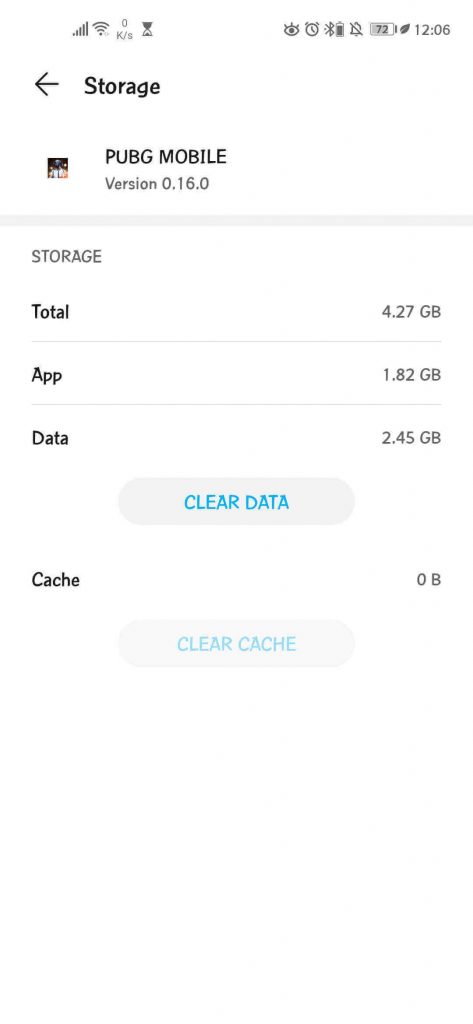
Step 5: Now, launch the PUBG application and see if error code 1 PUBG Android still persists.
Fix 3: Paste The Maps Into Subfolder & Relaunch PUBG Game
In order to resolve unknown error code 1 in PUBG, follow the below steps:
- First, go in to the Programs>> open the download folder
- Choose the maps that you’ve attempted for installing >> hit on copy
- Next, return to your application drawer & open Android folder
- At this time, go into the data folder >> search for the tencent.ig folder
- From here, you need to select the files then
- Then, select the shadowtrackerextra then shadowtracker extra
- Tap on saved > paks
- Now, paste the maps in to this subfolder
- Again open the PUBG game, and check if maps have seemed.
Fix 4: Using The VPN

Another effective method that you can apply to fix PUBG beta error code 1 is to use the VPN in order to download the maps.
There are some best VPN apps for Android available such as ExpressVPN, NordVPN, CyberGhost, etc, that you can try to download the maps for PUBG.
If this does not work, then try the next one.
Fix 5: Update to the Latest Version of PUBG
Most of the time, it happens that due to the outdated version of the application, you can face different unforeseen errors. Because whenever any corporation or company rolls out the newest updates for an app, then it comes with many issues, fixes, and some new exciting features also.
Similarly, if your PUBG is throwing error code 1 PUBG emulator, then it might be possible that your app is outdated. Thus, simply update it to the latest version and try to fix the problem.
Step 1: Launch a Google Play Store application.
Step 2: Click on Menu icon/option, followed by the “My apps and games”.
Step 3: All the applications with the available update will show with the “Update”.
Step 4: Find the PUBG app, and then click on the “Update” option.

Fix 6: Stop Running Apps In A Background
There’re so many smartphones which comes with some exciting features including disabling the applications running in a background.
Thus, here we would like to suggest you to manually do so, by following the below-given instructions:
- Simply open Settings application.
- Then go to Apps/Applications.
- Click on an Autostart
- In the fourth step, you have to disable all the applications which you don’t require to run in a background of the device.
Fix 7: Put Your Mobile Into A Safe Mode And Download Maps
Many users have found this solution helpful for fixing error code 1 PUBG Android mobile. So, you should also try to put your Android device in a safe mode & then attempt to download maps.
If this technique won’t help you, go for the next one.
Fix 8: Uninstall & Reinstall The PUBG Application
Sometimes, uninstalling then reinstalling the application can resolves minor as well as major glitches in the Android devices. Thus, you can also go for uninstalling and reinstalling your PUBG app, by trying the below steps:
How To Uninstall PUBG App On Android Mobile:
- Launch Settings application on your smartphone.
- Go to Apps/Applications.
- Locate the application known as ‘PUBG Mobile’ & tap on it.
- Click on Uninstall option to uninstall it.

How To Reinstall PUBG App On Android Phone:
If you want to install and play the PUBG game on your Android phone, then you have to first go to a Google Play Store. Then look for PUBG app, once you have found & clicked an application, you will be able to see an ‘Install’ option. After that, you have to wait until your app installation process gets finished.
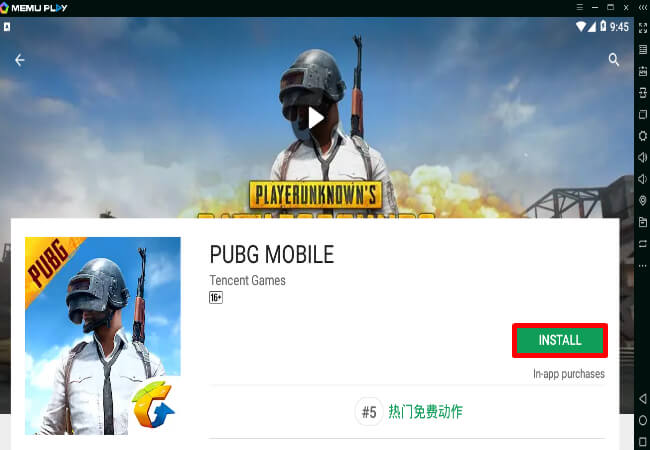
Note: Before installing PlayerUknown’s Battleground, make sure that your internet connection is stable.
Final Words
Last but not the least, all the solutions outlined above are enough to solve the error code 1 PUBG Android. These recommended methods are very simple, effective, and can be easily applied without having any technical skills.
Hopefully, you found our guide helpful to you for fixing error code 1 PUBG mobile. If so, then do not forget to give us a like and follow us on Facebook or Twitter.
That’s all…

James Leak is a technology expert and lives in New York. Previously, he was working on Symbian OS and was trying to solve many issues related to it. From childhood, he was very much interested in technology field and loves to write blogs related to Android and other OS. So he maintained that and currently, James is working for androiddata-recovery.com where he contribute several articles about errors/issues or data loss situation related to Android. He keeps daily updates on news or rumors or what is happening in this new technology world. Apart from blogging, he loves to travel, play games and reading books.