
Summary: Gboard not working on your Android device? Well, you are not the only one confronting this issue, there are many other users as well. But, here is good news for you!! In this guide, I am going to provide you the best solutions to fix the Gboard not working issue on Android. So, keep on reading this article till the end.
Gboard is a virtual keyboard app developed by Google for Android and iOS devices. Ever Since the Gboard is launched, it has become the default keyboard for many Android users.
Gboard effortlessly integrates with several Google services like translate, search, and maps, which makes it an awesome choice. But unfortunately, some of its users have complained that Gboard is not working on their Android devices.
There could be several reasons behind the Gboard not working error on Android device, such as the faulty installation of the app, corrupted cache, multiple keyboards enabled on the device, etc.
No matter what the reason is, there are numerous ways to get this issue fixed on your device. All you need to do is, simply follow the fixes mentioned below in this article and by the end, your Gboard app will get back to the working state.
How to Fix Gboard Not Working Issue on Android Phone/Tablet?
#1: Restart Your Device
Sometimes, Gboard starts working after restarting the Android device. So, try to restart your phone/tablet to check if this trick works for you or not. To do this, long-press the Power button of your phone > select the Reboot option.
Once your device is started, check if the Gboard not working issue has been resolved or not.
#2: Clear Gboard Cache Files
Mostly, caches allow the apps to work and respond fastly by storing the app’s data continuously on the local machine. However, in certain cases, the cached files get corrupted and end up with the app crashing or not working issue.
So, if the data or cache files of the Gboard app are corrupted, then it will stop the app from working properly on the device. However, there are pretty good chances to get back your app in the normal working mode by clearing the cache.
To do this, you need to follow the given below steps and fix the Google keyboard not working on Android phone:
- Open your phone’s Settings.
- Tap on the Apps.
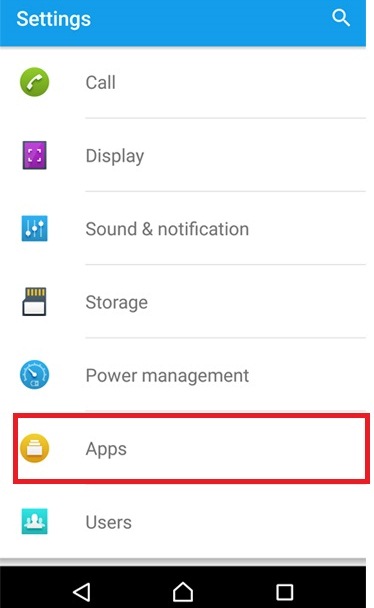
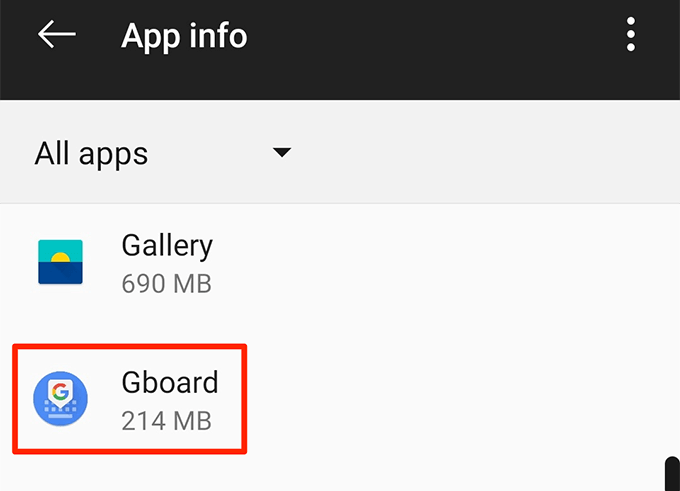
- Now, select Gboard from the list of apps.
- Tap on the Storage.
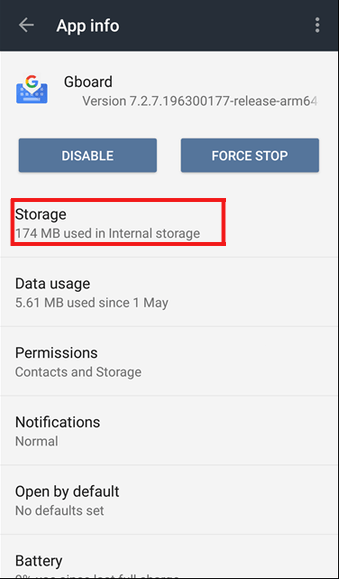
- Next, tap on the Clear Data and Clear Cache buttons.
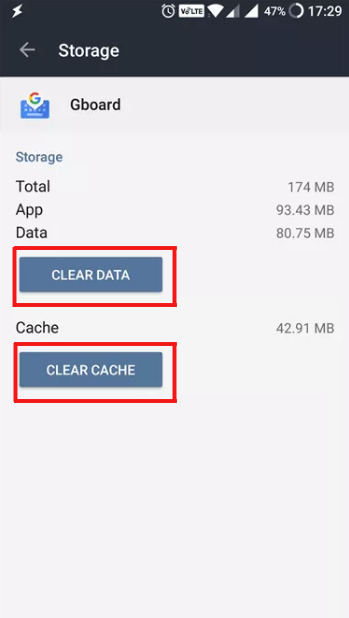
- Wait until the cache is cleared.
- Now, restart your device.
This method should work in order to fix the Gboard not working error on Android.
#3: Force Stop Gboard Application
Another yet option that you can try to troubleshoot Gboard not working Android is to force stopping the app.
Force stopping the Gboard app will eventually delete all keyboard operating & temporary configurations and also open an application again.
- First, open Settings app on your smartphone.
- Next, find & tap on the Application Manager or Apps.
- After this, find & tap on the Gboard.
- Click on the Force Stop & then confirm in order to force stop via tapping on the OK.

- Lastly, open any application where you’ve to attempt a keyboard & check whether Gboard is working or not.
#4: Uninstall Updates of Gboard App
You must know that apps frequently roll out new updates for different reasons, such as fixing bugs, patches, security reasons, improving performances, adding new features, and so on.
But sometimes, certain updates don’t go well with the apps. There could be cases, where the new updates break the app due to compatibility issues. In such a situation, you need to uninstall the updates of the Gboard app. For this, follow the given instructions:
- Launch the phone’s Settings.
- Go to the Apps/App Manager.
- Search for the Gboard in the list and tap on it.
- Now, tap on the three vertical dots given at the top-right corner of the page and select Uninstall updates option.
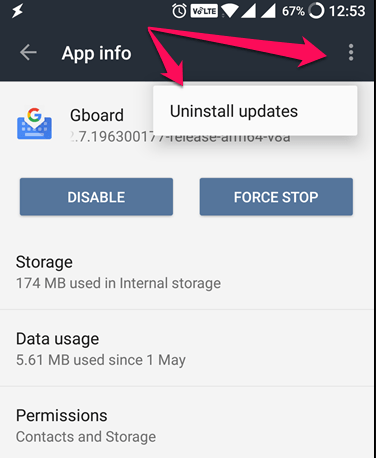
Once the update is removed, check if the Gboard is working or not. If it still not working, then move to the next solution.
#5: Disable All Other Keyboards Except Gboard
Since Android already has an inbuilt keyboard, whenever you install any new keyboard, you need to enable it in the Settings and disable all other keyboards. To do so, follow these steps and fix Android 12 Gboard not working:
- Launch your Android device’s Settings.
- Go to the System > Languages & input.

- Tap on the Virtual keyboard.

- Next, tap on the Manage keyboards.

- Now, turn on the Gboard and disable all other keyboards.

#6: Update Gboard
The Gboard not working issue on Android may also happen if you are running the outdated version of the app. Hence, it’s recommended to update the app to its latest build.
- Open Google Play Store on your Android device.
- Go to the My apps & games.
- Now, find Gboard and tap on it.
- Then tap on the Update button.
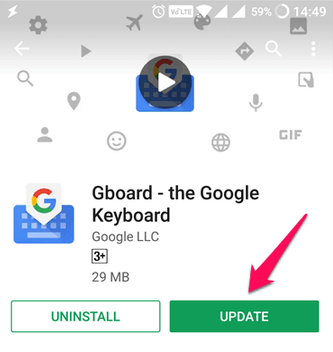
- After completing the update process, check if the Gboard stopped working problem has been resolved or not.
#7: Uninstall and Reinstall Gboard
If the Gboard is still misbehaving, then must consider uninstalling and reinstalling the app. Doing this will fix the Gboard not working issue if there is any corruption issue with the app due to the faulty installation.
- Launch Google Play Store.
- Tap on the hamburger menu > My apps & games.
- Select Gboard from the list.
- Tap on the Uninstall button.
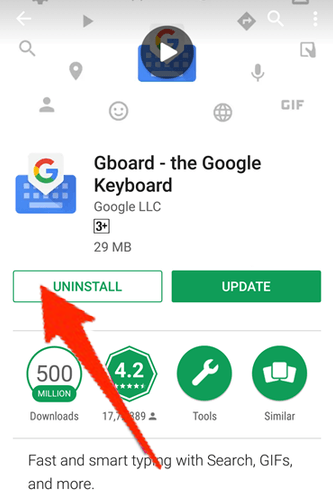
- Once the uninstallation process is finished, reinstall the Gboard.
#8: Attach Any Physical keyboard With Your Device
Even after trying the above 7 fixes, if you are still facing Gboard not working properly then sign into your phone and test a physical USB keyboard attached to it via OTG adapter.
Here are the simple steps that can help you to do so:
- Attach the OTG adapter with your USB keyboard
- Then, plug OTG adapter in to your device & see if you are able to enter the password.
#9: Perform Factory Reset
If none of the manual methods get the work done, then the last option you are left with is performing a factory reset on your Android phone/tablet.
Note: Doing this will erase all the existing data on your device. So, it is suggested to backup all the important data.
- Open your device’s Settings.
- Go to the About Phone option.
- Tap on the Backup & reset.
- Select Factory data reset option.
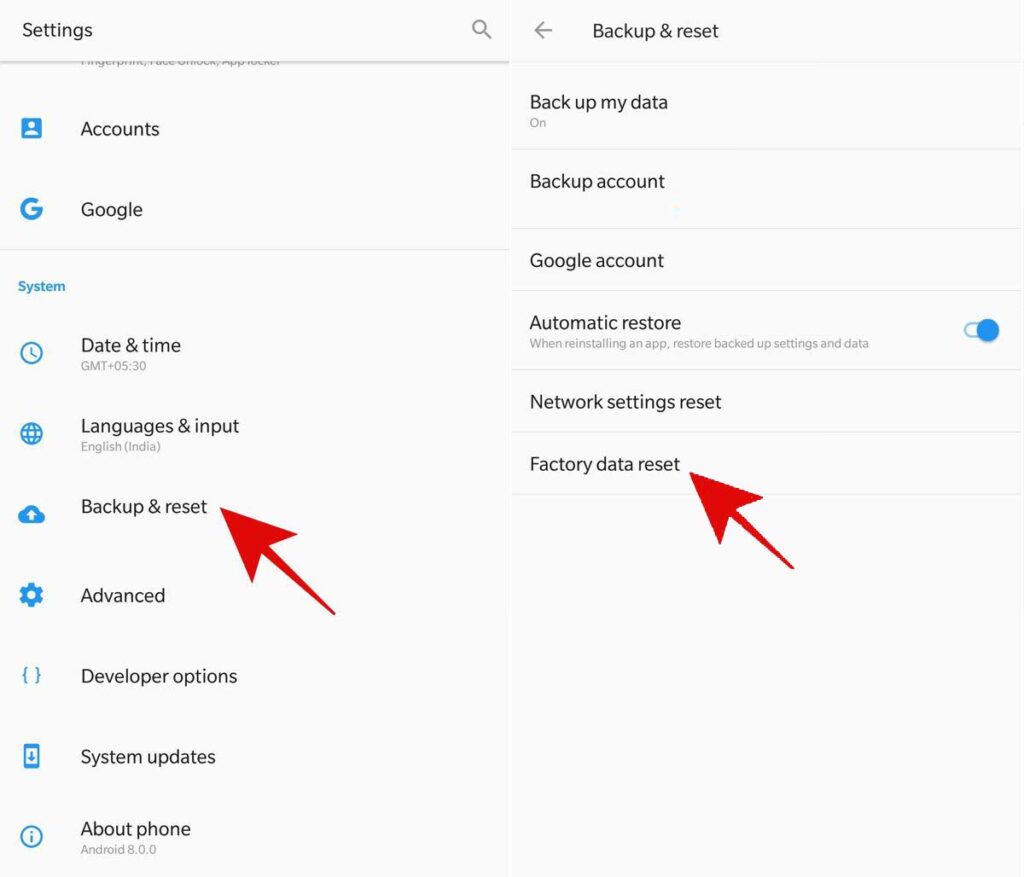
- On the next screen, you will find the different reset option. Here, select the Erase all data (factory reset) option.
- Tap on the ERASE EVERYTHING button. The device would restart automatically after performing the factory reset.
Recommended Solution to Fix Gboard Not Working Android
If you experiencing any error or issue on your Android phone/tablet and are unable to fix it, then here is an easy and best solution for you. Try the Android Repair tool.
It is a repairing tool that will help you to fix a wide range of Android errors and issues. With the help of this professional repair tool, you can fix Android errors, such as stuck on boot loop, black screen of death, apps keep crashing, and several other issues.
To use this tool you don’t require any technical skill. The Android Repair tool can be accessed easily without any hassle.

Note: It is recommended to download and use the software on your PC or laptop only.
Frequently Asked Questions:
Why My Phone Keyboard Is Not Working?
There are various causes that can lead to Google keyboard stopped working on Android including Gboard app cache, outdated version of Gboard app, etc.
How Do I Set Gboard As My Default Keyboard?
In order to set Gboard as your default keyboard in Android, you have to go to the Settings > System and then Language & Input. Next, tap on Manage Keyboards. At this time, tap on slider next to the Gboard for enabling it.
How Do I Fix Google Keyboard Stopped Working On Android?
To fix Google keyboard stopped working on Android phone, try the below tricks:
- Restart Your Device
- Clear Gboard Cache Files
- Force Stop Gboard Application
- Uninstall Updates of Gboard App
- Update Gboard
- Uninstall and Reinstall Gboard
- Perform Factory Reset
Final Verdict
All the above-outlined solutions are enough to fix the Gboard stopped working issue on Android. For your ease, I have also included the automatic solution. So, it’s your choice whether you want to apply the manual solutions or want to go with the recommended automatic method.
I hope you found this guide helpful and managed to fix the problem with the Gboard on your smartphone/tablet. If so, then don’t forget to give us a like on Facebook or Twitter.
Or, if you have any other issue with your Android device, then feel free to share it with us on our official social media handles. We will try our level best to answer all your queries.

James Leak is a technology expert and lives in New York. Previously, he was working on Symbian OS and was trying to solve many issues related to it. From childhood, he was very much interested in technology field and loves to write blogs related to Android and other OS. So he maintained that and currently, James is working for androiddata-recovery.com where he contribute several articles about errors/issues or data loss situation related to Android. He keeps daily updates on news or rumors or what is happening in this new technology world. Apart from blogging, he loves to travel, play games and reading books.