
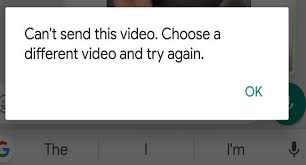
Stuck with the error message “Can’t send this video. Choose a different video and try again.” on WhatsApp while trying to share thrilling videos with your friends & family? If so, don’t fret, you are not alone in this journey! In this exclusive guide, you will be going to learn the common causes why WhatsApp can’t send this video and provide workable solutions to fix it & get those videos delivered smoothly.
To fix Android-related issues, we recommend this tool:
This effective tool can fix Android issues such as boot loop, black screen, bricked Android, etc. in no time. Just follow these 3 easy steps:
- Download this Android System Repair tool (for PC only) rated Excellent on Trustpilot.
- Launch the program and select brand, name, model, country/region, and carrier & click Next.
- Follow the on-screen instructions & wait for repair process to complete.
Why Is My WhatsApp Can’t Send This Video?
This warning message appears while sending recorded or downloaded videos. However, it happens due to a wide variety of reasons, including:
- Weak internet connection.
- Unsupported video formats cause video rejection.
- Large-sized file.
- Using the older version of the WhatsApp app.
- Insufficient phone storage.
- WhatsApp server is down.
- Not clearing the app cache for a long time.
Hope these reasons will help you to find the exact cause & address the problem ASAP.
How to Solve Can’t Send This Video Choose a Different Video and Try Again WhatsApp Error?
There are no official resolutions to troubleshoot this issue, but you must try the below-listed tricks as they effectively worked in many cases.
Way 1- Restart WhatsApp
Restarting the application solves most of the bugs with the app. Therefore, when you face WhatsApp can’t send this video error, try to resolve it by restarting the app.
Way 2- Check the Internet Connection
If your network connection is continuously fluctuating, this can also lead cannot send this video in WhatsApp. A weak connection stops video sending instantly. So, try to check your network connections, like:
- Switch between Wi-Fi and mobile data.
- Enable & disable airplane mode briefly.
- Restart your router if needed.
Way 3- Clean Data & Cache of WhatsApp
The WhatsApp cache files have also been found to be responsible for this warning. Henceforth, simply clear the cache & data of the app to overcome this hectic situation.
Here are the steps to be followed:
- Open Settingson Android > tap Applications or App Manager.
- Tap on WhatsApp app >> Storage
- Then, tap on the Clear Cache & Clear Data options.
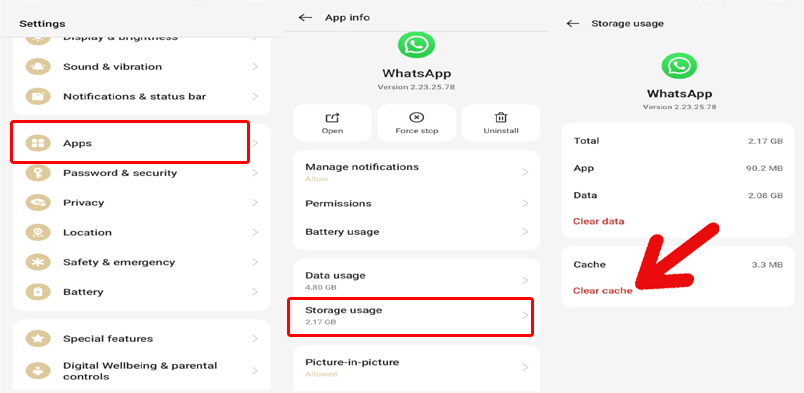
- Now, open the WhatsApp app and re-login to the account to check the problem.
Way 4- Check the Video File Size
Generally, WhatsApp allows to share video around 64 MB. If your file exceeds this limit, WhatsApp won’t allow you send a video.
To check a video size on an Android phone:
- Go to the Gallery app >> find the video that you want to share.
- Long-press on a video >> choose “Details” or “Info.”
- Locate and check the “File Size” data.
If the file size is larger than the limit, you will need to trim the video before sharing it.
Way 5- Update the WhatsApp App
Running an older version of the WhatsApp application can even hinder you when accessing the app. In such a case, try escaping the problem by getting the latest version of the app.
For this, follow the steps:
- Open Google Play Store.
- Search for WhatsApp Messenger
- Then, tap on the Update button if available to install the latest available version.

- Later, reopen the app and retry sending.
Also Read: WhatsApp Error FIXED – This Audio Is No Longer Available [100% Working]
Way 6- Check File Format Compatibility on WhatsApp
Many of you are unaware of the fact that WhatsApp supports limited video formats. Most probably, MP4 and 3GP formats work best.
However, if you try to send other video formats like MKV or AVI, they may fail.
Consequently, convert videos using trusted converters or free online tools. Thus, proper formatting ensures smooth sharing.
Way 7- Check WhatsApp Server Status
You may get can’t send this video choose a different video and try again WhatsApp error if the servers are down. Thus, make sure the WhatsApp server is up & properly working. To check it, simply visit the DownDetector website. If found servers are undergoing any maintenance, wait until they are restored.
Way 8- Free Up Storage Space on Your Device

Low storage in your Android device interrupts WhatsApp functions, or you can’t send videos. To tackle it, opt for deleting the unused applications, removing duplicate photos & videos, clear temporary system files.
Way 9- Fix WhatsApp Can’t Send This Video by Reinstalling the App
When the above solutions fail to fix the video sharing error, you must reinstall WhatsApp. Sometimes, during the installation process, the installation files become corrupted, which can later cause these issues. To resolve this issue, try reinstalling the software.
- Go to the WhatsApp app icon >> long-press on it.
- Next, tap on the Uninstall option.

- Now, reinstallit from Google Play Store.
You are done!
Unique FAQs:
Why Does WhatsApp Say This Video Cannot Be Used?
It might be possible that you are using an outdated version of the WhatsApp app, that’s why you are facing this video cannot be used error.
Is There a Limit to Sending Videos in WhatsApp?
Yes, WhatsApp's video sending limit is usually up to 2 GB when sent as a Document.
Can I Send a 45 Minute Video on WhatsApp?
Frankly speaking, there is no limit on how long a video sent over WhatsApp can be. Though, do remember that the longer your video is, the larger a file size.
How to Fix WhatsApp Video Problem?
To fix WhatsApp video problem, follow the below steps:
- Launch WhatsApp, tap the 3-dot menu >> select ‘Settings.’
- Then, tap ‘Storage and data’ >> select 'When connected to Wi-Fi.
- Tap the checkmark beside ‘Videos.’
- Navigate to Settings, select ‘Chats,’ >> enable the ‘Media visibility’ toggle.
Also Read: Fix “This Account Is Not Allowed to Use WhatsApp Due To Spam” Error
Wrapping Up
Can’t send this video choose a different video and try again WhatsApp error can appear anytime on your Android phone. Auspiciously, there are numerous potential fixes to solve it.
Above, I have shared all possible methods. Follow the above-given fixes and get past this error. However, if you still have any queries, feel free to ask us on Facebook or Twitter.
Thanks for reading!


James Leak is a technology expert and lives in New York. Previously, he was working on Symbian OS and was trying to solve many issues related to it. From childhood, he was very much interested in technology field and loves to write blogs related to Android and other OS. So he maintained that and currently, James is working for androiddata-recovery.com where he contribute several articles about errors/issues or data loss situation related to Android. He keeps daily updates on news or rumors or what is happening in this new technology world. Apart from blogging, he loves to travel, play games and reading books.