
ChatGPT is a popular AI platform that is mainly used to get any information you want. But sometimes, while trying to generate response using OpenAI you may face a peculiar error message, “Request is not allowed. Please try again later.” The error indicates a temporary restriction.
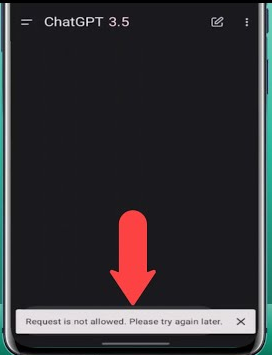
Well, in this post, I will discuss the exact solutions to fix request is not allowed please try again later ChatGPT on Android along with the major causes.
To fix Android-related issues, we recommend this tool:
This effective tool can fix Android issues such as boot loop, black screen, bricked Android, etc. in no time. Just follow these 3 easy steps:
- Download this Android System Repair tool (for PC only) rated Excellent on Trustpilot.
- Launch the program and select brand, name, model, country/region, and carrier & click Next.
- Follow the on-screen instructions & wait for repair process to complete.
Why Does My ChatGPT Say Request Not Allowed?
It is always essential to extract the common causes for better resolution. Similarly, I will shortlist the major reasons for this error:
- Weak network connection.
- Running an outdated version of the ChatGPT app
- Corrupted app cache
- Session conflicts
- Too many requests in a short time
- Temporary OpenAI servers may face an outage or heavy traffic
Understanding the reason helps resolve it faster.
How to Solve Request Is Not Allowed Please Try Again Later ChatGPT Android?
This warning message rarely means permanent suspension. Instead, it reflects a short-term limitation. However, by following the steps below, you can fix it easily.
Way 1- Check the Internet Connection
ChatGPT needs a strong internet connection to function properly. Before opting for complex solutions, it is recommended to check your cellular network or Wi-Fi connection. If your internet is slow, try restarting your router. On an Android device, you can try enabling and disabling Airplane mode.
Way 2- Clear ChatGPT’s Mobile App Cache
ChatGPT’s app stores data in a device’s internal storage as a cache, similar to its web counterpart. Such cache data sometimes gets corrupted and leads to request is not allowed error. All you need to do is clear the ChatGPT application cache to fix this problem:
- Open the Settings app on your phone.
- Navigate to Apps or Applications > ChatGPT
- Then, tap on Storage >> Clear Cache & Clear Data.
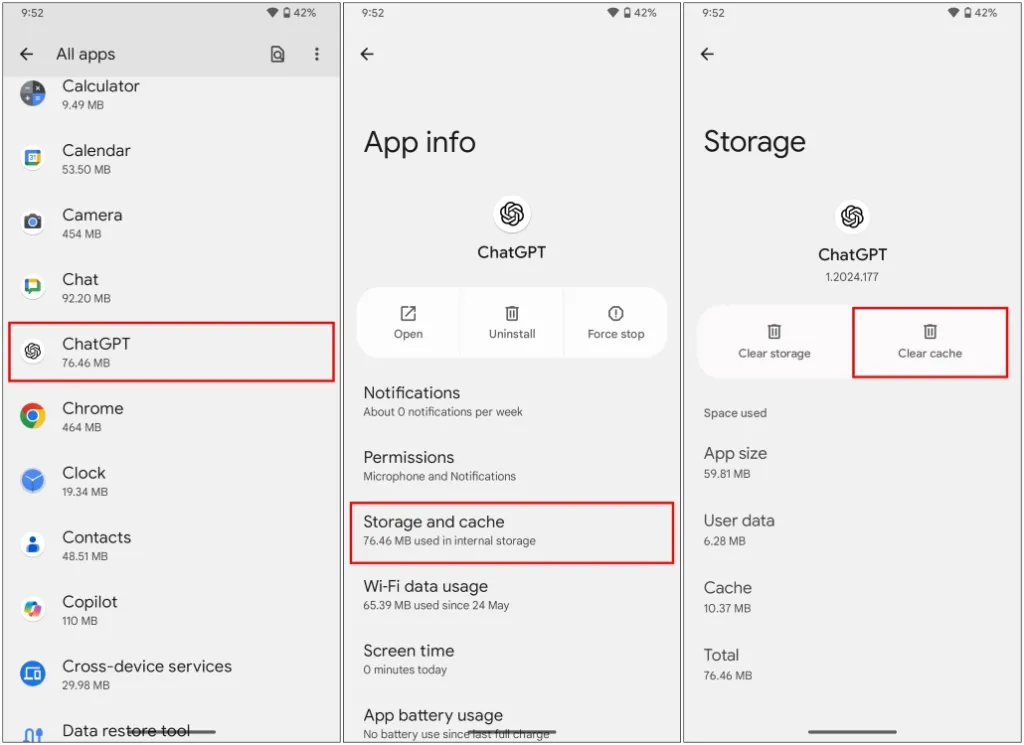
- This will eliminate all the cache files.
Way 3- Wait & Retry After Some Time
Since you are getting this error while trying to input a specific query to generate information, there may be a server issue. If this is the case, you have to wait until the server restores. Patience often saves effort.
Also Read: 8 DIYs to Fix ChatGPT “There Was an Error Generating a Response” on Android!
Way 4- Update ChatGPT Mobile Application
OpenAI often releases updates to solve bugs & enhance performance in the ChatGPT for mobile devices.
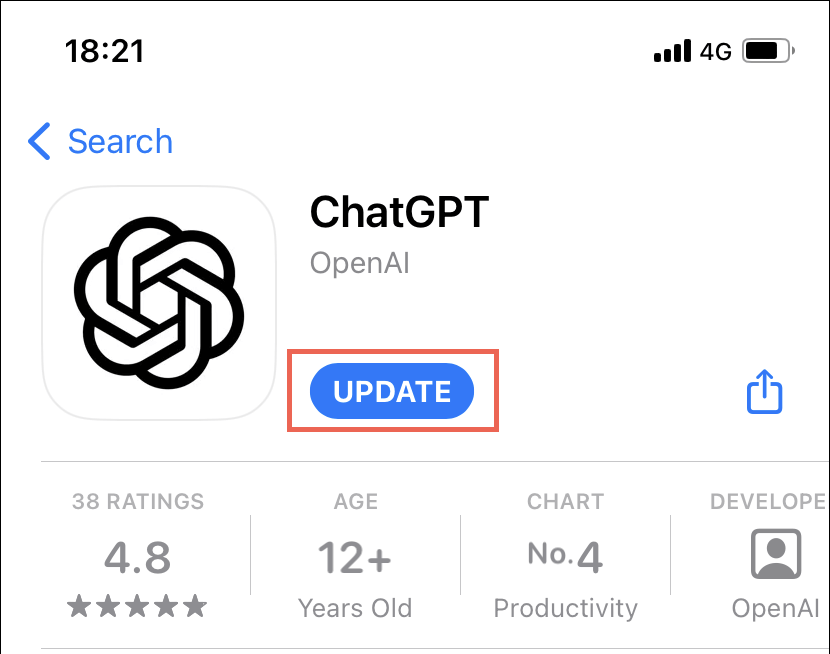
Thus, if you don’t have the latest update of the app on Android and due to this facing request is not allowed please try again later ChatGPT error, consider updating it.
Here are the steps to be followed:
- Go to the Google Play Store on your Android.
- Look for the ChatGPT application in the search.
- If an update is available, simply tap Update.
Way 5- Reduce Prompt Frequency
When you send fewer prompts in short intervals, this can trigger this annoying message. All you need to do is to pause between requests deliberately and avoid copy-pasting repeated messages. This behavior stops rate limit triggers. As gradual usage restores normal access.
Way 6- Log Out & Log Back into Your Account
Another working solution you can try is logging out and logging in again after some time into your ChatGPT account. This step resolves authentication conflicts, and many users have found this method useful in their cases.
- To log out of your ChatGPT account, open the app.
- Go to the menu, scroll, and find the “Log out” option.
- Enter your account details to log in again.
Way 7- How to Fix ChatGPT Request Is Not Allowed Error by using a Different Device or Browser
If you’re an Android mobile user, switch to a desktop or vice versa. This method isolates whether the issue is device-specific. In addition, you can even try a web browser instead of the ChatGPT mobile application, such as Firefox or Microsoft Edge.
Also Read: Something Went Wrong Error in ChatGPT on Android – 100% Working Fixes!
Way 8- Contact OpenAI Support
Even after trying the above solutions, if the request is not allowed please try again later ChatGPT Android error persists; it’s time to get support from OpenAI.
- Simply visit the OpenAI Help Center.
- Next, go to the Chat> Messages
- Choose the ChatGPT> Other > Report a Bug or Error as responses.
- Describe your problem there or attach a screenshot of the error, and wait until you get reply from OpenAI.
You are done!
Frequently Asked Questions:
ChatGPT does not allow content that exploits/harms children. For illustration- Generation of hateful, violent content, harassing, and high-risk-of-physical-harm content.
It might be possible that you violate the usage policies of ChatGPT that’s why it does not allow you to generate a response or terminate your account.
Yes, if you are using a free version of ChatGPT, its usage limit is 10 messages every 5 hours.
ChatGPT's limits usually reset every 3-4 hours. After the given time period, you can try again to get information.
Stimuli that might encourage actions against ChatGPT's Terms of Use & Usage Policies could be blocked. What Is Not Allowed on ChatGPT?
Why Am I Not Allowed to Use ChatGPT?
Does ChatGPT Have a Request Limit?
How to Reset ChatGPT Limit?
What Kinds of Requests Are Blocked on ChatGPT?
Wrapping Up
After going through this in-depth guide & following the given potential resolutions, you will be able to fix ChatGPT request is not allowed error without any issues.
Furthermore, if you know any other solution, then share it with us on Facebook or Twitter.


James Leak is a technology expert and lives in New York. Previously, he was working on Symbian OS and was trying to solve many issues related to it. From childhood, he was very much interested in technology field and loves to write blogs related to Android and other OS. So he maintained that and currently, James is working for androiddata-recovery.com where he contribute several articles about errors/issues or data loss situation related to Android. He keeps daily updates on news or rumors or what is happening in this new technology world. Apart from blogging, he loves to travel, play games and reading books.