
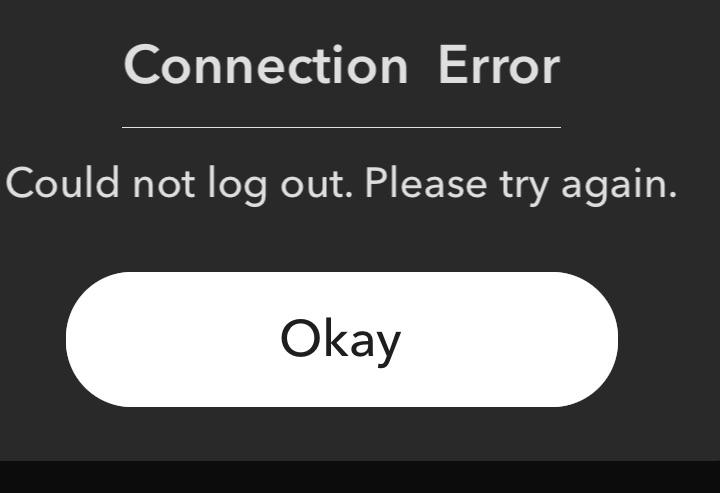
If you’re trying to log out of your Snapchat account but getting the “Connection error: Could not log out. Please try again.” message, it must be due to poor internet connectivity or a server outage. Here, using a steady network connection, checking the Snapchat server, or applying other fixes will help you escape the issue. However, check out this post for precise solutions to fix could not log out Snapchat error.
Read further to know more…
To fix various Android problems & errors, we recommend this tool:
This effective tool can fix Android issues such as boot loop, black screen, bricked Android, etc. in no time. Just follow these 3 easy steps:
- Download this Android System Repair tool (for PC only) rated Excellent on Trustpilot.
- Launch the program and select brand, name, model, country/region, and carrier & click Next.
- Follow the on-screen instructions & wait for repair process to complete.
Why Can’t I Log Out of Snapchat?
Exchanging snaps is truly a fun way for sharing unforgettable moments with friends and relatives. But at times, Snapchat won’t allow you to log out due to numerous reasons, like:
- Slow internet connection
- Snapchat cache and data block the logout process
- Outdated Snapchat app
- Slow performance of the device
- Glitches in the Snapchat application
- Activated VPNs
- Server problem.
Therefore, identifying the root cause helps you fix the issue faster.
How to Fix Could Not Log Out Snapchat Error?
In order to deal with this error, follow each and every method provided in this blog.
Method 1- Check Your Internet Connection First
This resolution might sound silly, but it is possible that your phone’s internet connection is disabled because of this, and your Snapchat is displaying “Connection Error.”
Therefore, enable and disable mobile data or switch between Wi-Fi and mobile data. Then, restart your router if needed.
Besides, you can enable Airplane mode for 30 seconds. Turn it off and reopen Snapchat to check for the problem.

Method 2- Restart the Snapchat
Temporary glitches within the app often cause logout errors. Simply close Snapchat application completely from recent apps and wait a few seconds before reopening it.
If the problem stays, restart your Android mobile. This action refreshes background processes instantly.
Method 3- Clear Snapchat Cache & Data
It’s true that removing an app’s cache not only improves your device’s performance but also fixes the specific app-related errors. The same applies to the Snapchat app. Try clearing out the cache to solve the connection error could not log out Snapchat.
Steps to be followed:
- Go to the phone’s Settings
- Tap on “App Management” >> “App List”.
- Locate and tap on Snapchat app from the app list.
- Tap the “Storage Usage” option.

- Lastly, tap both “Clear Cache” and “Clear Data.”

After clearing the cache, try logging out again.
Method 4- Force Stopping the App
Once, try to force stop the Snapchat app and open it again. This action shuts down all background processes instantly and fixes the warning message.
For this, go to the Settings >> tap Apps/App Manager. Find the Snapchat app >> tap “Force Stop”.
Method 5- Fix Could Not Log Out Snapchat Error by Checking the Snapchat Server
Sometimes, Snapchat servers may experience temporary downtime that can lead to a ” could not log out error. You can simply verify server status through online outage trackers like the DownDetector website.
If servers are down, wait until services resume. Many users have found this method useful in their cases.
Method 6- Update Snapchat Application
Using an outdated app version causes various issues. Thus, try using an updated version of the Snapchat application to avoid such problems.
Follow the steps below carefully:
- Open the GooglePlay Store
- Then, tap on Profile icon >> Manage apps & devices.
- After that, tap Updates available
- Now, find the Snapchat app and hit the Update button if any update is available to install.

Method 7- Disable VPN or Proxy Services
Most of the time, activated VPN connections can interfere with servers and can lead to the ” could not log out Snapchat error. If you use a VPN, then consider disabling it temporarily. Then, reopen Snapchat and try logging out again.
Likewise, remove any proxy configurations to get your job done.
Method 8- Reinstall the Snapchat App
Uninstalling and then reinstalling the Snapchat app can help you to escape the connection problem. All you need to do is to follow the steps below:
- Go to the Home screen & hold a Snapchat app icon.
- Tap on Uninstall option & confirm the same.

- When uninstalled successfully, you have to go to the Google Play Store & search for the Snapchat app.
- Now, tap on Install button to download it.
And you are done!
Method 9- Contact Snapchat Support If Needed
If none of the solutions work, contact the Snapchat support team. Provide detailed information about the issue. Mention your device model name and app version clearly.
Support teams usually respond with specific troubleshooting steps.
Related FAQs:
It might be possible that your username and password are not spelled correctly that’s why you are getting the error when trying to log in.
When you log out of a Snapchat account and can't load back into it, you have to wait up to 48 hours before logging in again.
Yes, you will receive an email alert or app notification from the Snapchat that someone logged into your account.
Snapchat log out for 48 hours before trying to log in again. Why Does Snapchat Say Error When I Try to Log In?
What to Do When You Log Out of a Snapchat Account and Can't Load Back into It?
Will I Know If Someone Logs into My Snapchat?
How Long Does Snapchat Log You Out For?
Closure Time
Connection error could not log out Snapchat while logging out is a common hiccup. However, they are usually easy to fix by applying the methods specified above. Start with the basic tip internet checks. Then, clear the cache, update the app, and try other ways to enjoy snaps.
And for further queries and assistance, contact us on Twitter or Facebook.


James Leak is a technology expert and lives in New York. Previously, he was working on Symbian OS and was trying to solve many issues related to it. From childhood, he was very much interested in technology field and loves to write blogs related to Android and other OS. So he maintained that and currently, James is working for androiddata-recovery.com where he contribute several articles about errors/issues or data loss situation related to Android. He keeps daily updates on news or rumors or what is happening in this new technology world. Apart from blogging, he loves to travel, play games and reading books.