
Dexcom is a well-known companion app that aids users to track the glucose level of their blood. It has an advanced sensor & transmitter to move data readings from a sensor to the compatible devices like Android or iOS. No doubt, the Dexcom app is handy, but still, some users are encountering and reporting about Dexcom server error on Android devices.
Thus, if you are also experiencing a Dexcom app server error on your Android phone then this post will definitely help you to get rid of it. This article contains 10 tried and tested fixes that are enough capable to solve the Dexcom server problem.
How To Fix Dexcom Server Error On Android Phone?
Dexcom app server error mainly occurs due to incorrect Android OS configuration, outdated OS version, or wrong regional & language settings on your phone.
Regardless of the reason behind the occurrence of this issue, you can easily get rid of it by applying the below-listed solutions.
- Check The Internet Connection
- Restart Your Android Phone
- Update Dexcom Companion Application
- Edit Regional & Language Settings On Your Android
- Change Phone’s Date & Time
- Try A Different Network To Access The Dexcom Application Server
- Update Android OS To The Latest Version
- Remove Conflict Application From Android Mobile
- Reinstall Dexcom App
- Check The Dexcom Application Server Status
Fix 1: Check The Internet Connection
Since ‘cannot access the Dexcom server please try again later’ is a server error so it is important to check your internet speed.
You should ensure whether you’ve constant internet connection & speed or not. For this, you need to follow the below tricks:
1- Turn OFF & Again ON Mobile Data
If you are getting Dexcom companion app server error while using mobile data, then you should first turn OFF your mobile data. After some time, again turn it ON and check for the problem.
2- Switch To Strong Wi-Fi Connection
Even after enabling and disabling the mobile data doesn’t help, you need to switch to any strong Wi-Fi connection.
3- Enable & Disable the Airplane Mode
Another basic method to fix network connection and server issues is to enable the Airplane Mode & then disable it. Therefore, here you can also try this to deal with the Dexcom App server error on Android phone.
- Open ‘Quick Settings’ menu in your phone by swiping up or down your phone screen
- Click on the icon ‘Airplane Mode’ to turn it ON.
- Again, click on the ‘Airplane Mode’ to disable it
- After that, enable ‘Mobile Data’ or ‘WiFi’ & ensure ‘Bluetooth’ is already disabled.
- Now, open the ‘Dexcom App’ & see if you are now able to access Dexcom application server.
Fix 2: Restart Your Android Phone To Fix Dexcom Server Error on Android
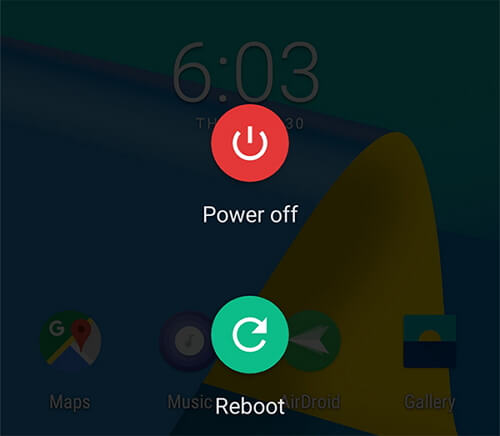
It might possible that you are experiencing this Dexcom G6 app server error due to minor glitches on your phone. Though, you can easily eliminate it by restarting your phone.
For this, just long-press a Power button, choose the Reboot/Restart option from various options. Let your mobile restart completely and then check if the error is fixed or not.
Fix 3: Update Dexcom Companion Application
You might come across the Dexcom server error on Android mobile if your Dexcom application is outdated. Thus, updating Dexcom application could resolve the problem.
Here is how you can do so:
- Go to Play Store >> open the menu (simply by tapping on your user image icon which you can see in the top right corner).
- Click on the My Apps & Games >> choose Installed tab
- Next, open the Dexcom >> click on an Update option (if there is any update available).
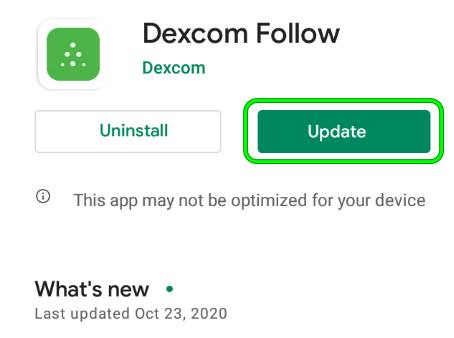
- After updating the Dexcom app, open it & check if the server error is solved.
Also Read: 6 Ways to Fix Fitbit Versa Won’t Turn On After Shutdown
Fix 4: Edit Regional & Language Settings On Your Android
Another foremost reason that can result in ‘cannot access the Dexcom server please try again later’ is incorrect device’s language & regional settings.
Nevertheless, changing the phone’s language & regional settings can assist you to troubleshoot the problem.
- On your Android, open ‘Settings’ >> go to the ‘Language & Input’ settings.
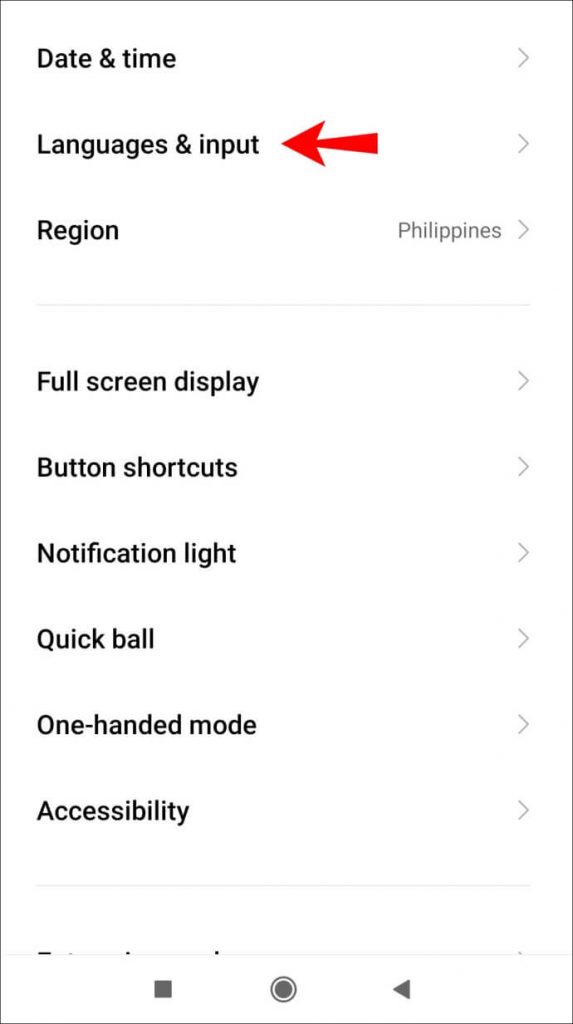
- Choose ‘Language’ >> select language from the list that you understand better. For ex- select ‘English (United States)’

- After this, try to open Dexcom Application and see if you can access Dexcom application server.
Fix 5: Change Phone’s Date & Time
An incorrect date and time might also throw such sorts of irritating errors on your smartphone. Changing the date & time can help you to get rid of this problem.
- Launch Settings >> go to ‘Date & Time’
- Then, enable both the options- ‘Automatic Date & Time’ & ‘Automatic Time Zone’ if they are disabled.

- Click on ‘Select the Time Zone’, also ensure that it’s correct as per your location.
- Lastly, open the Dexcom App on your Android & check if Dexcom server error on Android is resolved.
Fix 6: Try A Different Network To Access The Dexcom Application Server
Sometimes, it happens that the (ISPs) Internet Service Provider or organization network hindering from accessing the Dexcom Application server on Android. In such a situation, trying a different network can help you to get rid of the issue.
- Firstly, disconnect your mobile from the present active network. Suppose, if you’re connected to the ‘WiFI’ network then you need to disconnect the WiFi network
- Then, try switching to another strong WiFi Network.
- Also, you can try the Mobile Data in order to access the internet & access Dexcom application server.
- Moreover, you can contact your (ISP) Internet Service Provider or unblock the Dexcom App server to access it.
- If the error still persists, then attempt accessing the ‘VPN Client App’ for solving the error.
Fix 7: Update Android OS To The Latest Version
Most of the users have found this method helpful in fixing numerous bugs in their Android devices. Once, you should also try to update your Android device to the latest version and troubleshoot Dexcom server error on Android.
But before that, ensure your mobile’s battery is completely charged. So, here is how you can update your Android OS:
Step 1: Open ‘Settings’ then go to the ‘About Phone’ option.

Step 2: Click on the ‘System Update’ >> tap on the ‘Check for updates’. Here, if there is any newest update available, just download & install it on your device.
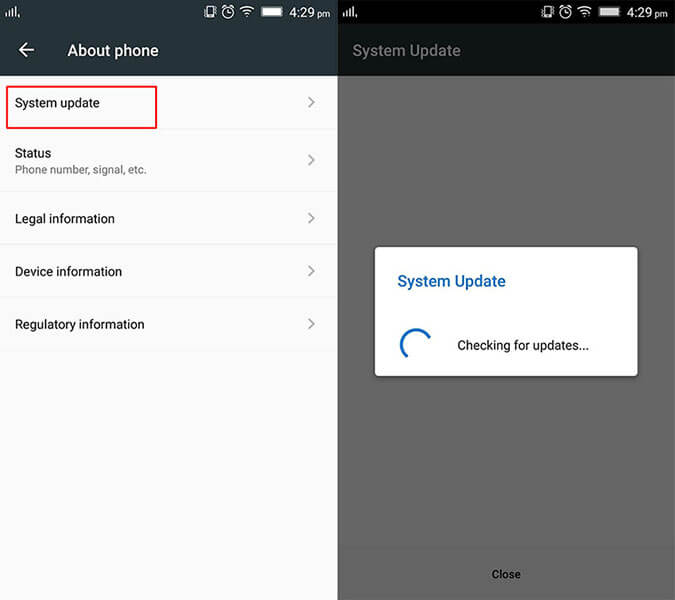
Step 3: After the OS update process is finished, restart your smartphone and open Dexcom Application. Now, check if you can access it without any error.
Fix 8: Remove Conflict Application From Android Mobile
Dexcom server problem might also happen due to the conflict issue among Dexcom Application & other similar applications that are installed in your device. In such circumstances, uninstalling the conflict apps such as ‘xDrip’ or ‘Hostfile Adblocker’ from a phone can assist you to tackle the situation effectively.
- Open ‘Settings’ >> go to the ‘Applications’, ‘Application Manager’ or ‘Apps’
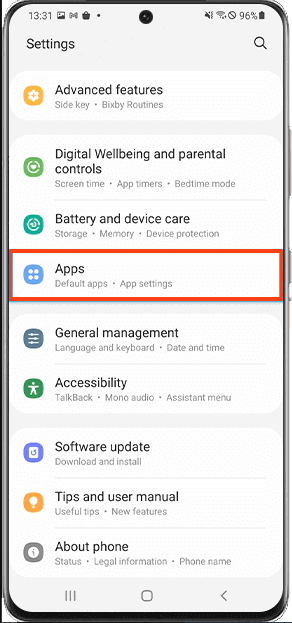
- Locate & select ‘xDrip +’ or ‘xDrip’ application >> tap on the ‘Uninstall’ Follow the on-screen directions to uninstall app.
- Else, if you want to uninstall or remove other conflicting applications from your mobile phone then repeat the same instructions to uninstall it.
- After finishing this, restart your mobile & open the Dexcom App & check if the problem is fixed.
Fix 9: Reinstall Dexcom App
When it comes to solving app crashing/lagging or app-related errors, it is always suggested to once uninstall and then reinstall it. So, you should also do the same thing that means uninstall Dexcom App and install it again on your phone.
But before applying this method don’t forget to take back up of your vital Dexcom app data.
- Open Settings >> Apps/Application Manager >> tap on Dexcom application.
- Then tap on Uninstall option next to force stop >> confirm in order to uninstall Dexcom app
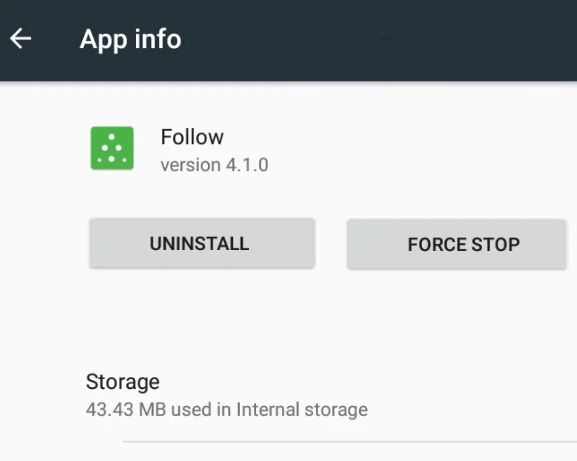
- After uninstalling it successfully, reboot your Android device.
- Next, go to Google Play Store >> in a search, you have to type Dexcom. Tap on the first result and Install it.
Even after reinstalling the app issue still persists, you can use any 3rd party application (like Nightscout).
Fix 10: Check The Dexcom Application Server Status
If none of the above techniques work for you to solve the Dexcom App server error on Android phone, it might possible that there’s a problem with Dexcom Application server itself.
Henceforth, you need to ensure that the Dexcom application server is running fine. You could check the Dexcom server status simply by visiting to ‘Dexcom App server-status official page’.
Frequently Asked Questions:
When ‘Dexcom App server error’ occurs in your Android phone, it means you can’t access the Dexcom App server due to improper configuration of your OS and wrong regional & language settings.
In order to fix share Dexcom account error, you have to follow the below tips:
The Dexcom app might say server unavailable error because of incorrect Android OS’s configuration, outdated OS version or wrong regional & language settings on your phone.
Yes, of course, the Dexcom App is compatible with almost all the versions of Android devices. What Does Server Dexcom App Server Error Mean On My Android Phone?
What Do I Do To Fix Dexcom Share Account Error On My Android?
Why Does Dexcom Say Server Unavailable?
Does Dexcom App Work On Android?
To Wrap Up
So, this is all about how to fix the Dexcom server error on Android phones.
As you can see, we have listed here 9 possible fixes to tackle the situation without any tech skills. All you need to do is to try them one by one until your Dexcom G6 server error gets resolved.
However, if you find this article helpful in your case then do share it with your friends, family, and relatives.
Besides, if you are facing any other issues on your Android device, then do let us know on Facebook or Twitter. We will surely help you to solve it in all possible ways.

James Leak is a technology expert and lives in New York. Previously, he was working on Symbian OS and was trying to solve many issues related to it. From childhood, he was very much interested in technology field and loves to write blogs related to Android and other OS. So he maintained that and currently, James is working for androiddata-recovery.com where he contribute several articles about errors/issues or data loss situation related to Android. He keeps daily updates on news or rumors or what is happening in this new technology world. Apart from blogging, he loves to travel, play games and reading books.