Have trouble with the touch screen on your Huawei device? A malfunctioning touch screen can be frustrating and hinder your ability to navigate and use your phone effectively. In this guide, we’ll discuss some troubleshooting techniques to fix the Huawei touch screen not working problem.
To recover data from unresponsive Huawei screen, we recommend this tool:
This effective tool will recover lost, deleted, inaccessible data from any data loss situations in no time. Now recover your lost and deleted data in just 3 easy steps:
- Download this Data Recovery Tool (for PC only, for Mac) rated Excellent on Pcmag.com.
- Select the storage media you wish to recover data from and click on Scan.
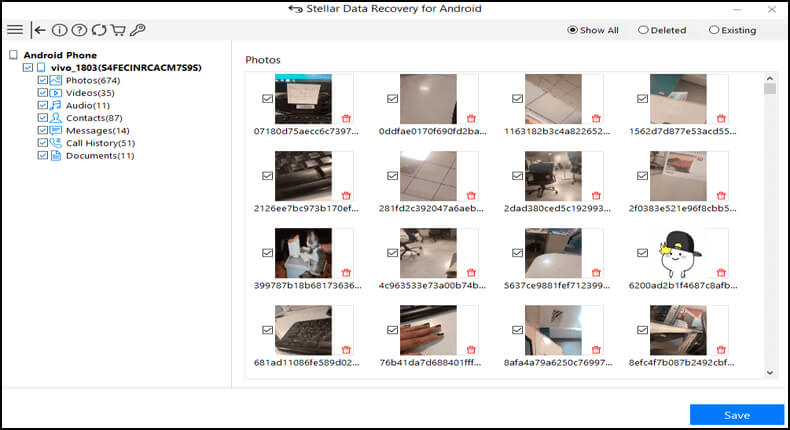
- Preview the files before recovery and choose Recover option to restore deleted data from Android.
How To Fix Huawei Touch Screen Not Working?
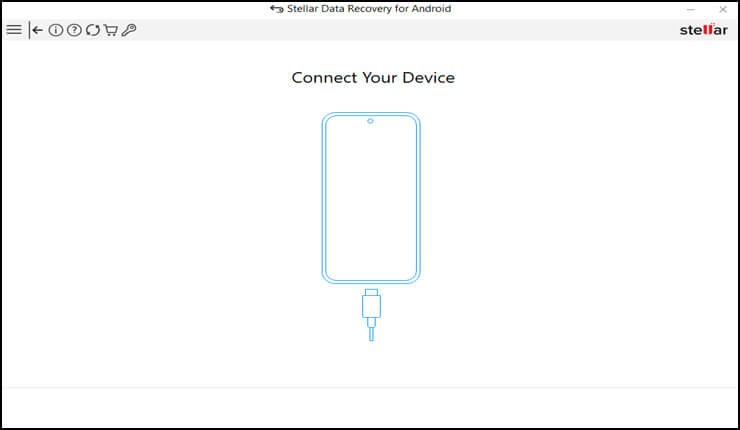
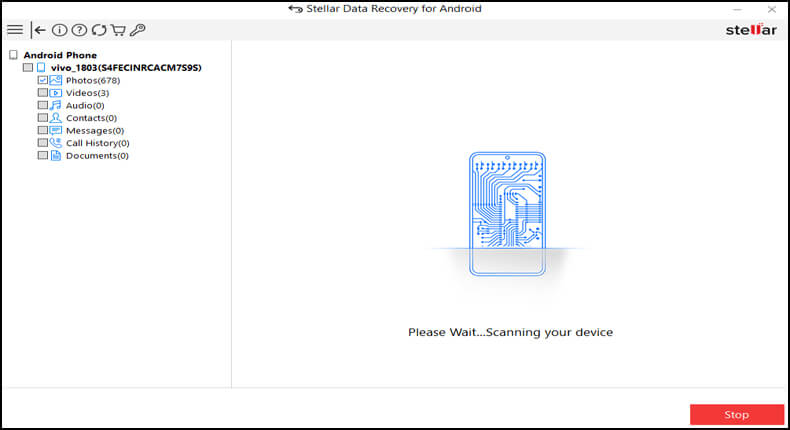
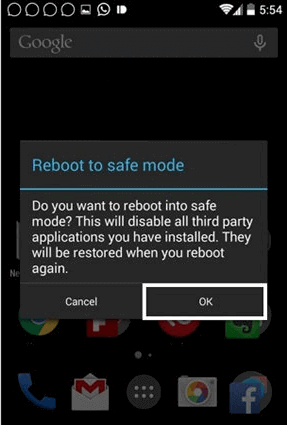
Sometimes, a simple restart can resolve temporary glitches. Turn off your Huawei phone, wait for 4-5 seconds, and then turn it back on. Once turned on, try accessing your device and see if the touch screen is working fine this time or not. If you have a screen protector or case installed on your device, try removing it temporarily. Sometimes, these accessories can interfere with the touch sensitivity. Also, visit this link for a more descriptive and effective solution to troubleshoot the unresponsive or jumpy screen on a Huawei phone/tablet. The next thing, you need to check is for any physical damage on the screen or the cables connected to it. If there is any broken cable connected to the screen or the screen itself is damaged, you face difficulty accessing it. So, carefully examine the screen. And for checking any cable damage, we suggest you visit the nearest service center, if you are not confident of opening the phone case. There they will check for damage and repair if any is there. Huawei devices usually have a built-in touchscreen calibration tool that helps them realign the touch sensors and improve the touchscreen’s overall performance. Here’s how to calibrate the touchscreen on your Huawei device: Booting your Huawei device into safe mode can help troubleshoot touchscreen issues caused by third-party apps or software conflicts. Here are the steps to follow: Have you ever wondered what if your phone touch screen is damaged or not working at all? Unfortunately, in this case, you won’t be able to access your data anymore unless you use powerful data recovery software. So, if you want to recover data from an Android phone when the touchscreen is not responding at all, then you must use the shot to Android Data Recovery Tool. This tool can recover various kinds of data from Android phones, such as text messages, music, photos, lost contacts, videos, WhatsApp messages, etc. So, go ahead and use this tool before you lose the data on your phone forever. Note: It is recommended to download and use the software on your PC or laptop. It is because recovery of phone data on the phone itself is risky as you may end up losing all your data because of data overriding.
Yes, you can calibrate your Huawei touch screen at home. Follow the steps mentioned in this guide and get you Huawei screen calibrated from the comfort of your home.
It depends on the damage caused. Minor damages can be self-repaired, but major ones may require professional assistance. Know when to DIY and when to seek expert help.
Be assured, clearing the cache doesn’t delete your apps. It just wipes the temporary data collected over time with the usage of your device, apps, browsing, and others. In conclusion, by applying the above techniques, the Huawei touch screen not working problem can be solved. However, if you fail after trying every trick, it indicates a deeper hardware problem that requires professional inspection and repair. So, in such cases, it’s recommended to consult the user manual of your device or reach out to Huawei customer support for further guidance. James Leak is a technology expert and lives in New York. Previously, he was working on Symbian OS and was trying to solve many issues related to it. From childhood, he was very much interested in technology field and loves to write blogs related to Android and other OS. So he maintained that and currently, James is working for androiddata-recovery.com where he contribute several articles about errors/issues or data loss situation related to Android. He keeps daily updates on news or rumors or what is happening in this new technology world. Apart from blogging, he loves to travel, play games and reading books.Solution 1: Rebooting Your Device

Solution 2: Remove the Screen Protector or Case
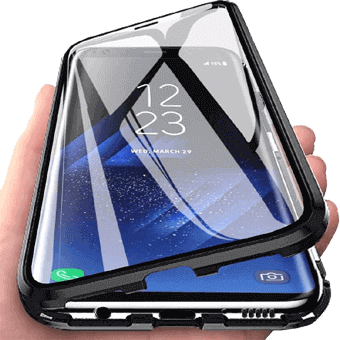
Solution 3: Check for The Physical Damage
Solution 4: Calibrate the Touchscreen


Solution 5: Boot Your Device to Safe Mode
Recover Data from Huawei Phone When Touch Screen Not Working
 btn_img
Steps For Android Data Recovery Tool
FAQs
Can I calibrate my Huawei touch screen at home?
Is physical damage repairable?
Will clearing cache delete my apps?
Wrap Up: