
As we all know, Snapchat is the most popular social media platform apps for sharing snaps & chatting with friends. But while using this app, many users encounter a frustrating error that says, “This message is no longer available.”

This warning can be confusing, but don’t fret- you can solve it easily with some effective methods mentioned below in this post.
To fix Android-related issues, we recommend this tool:
This effective tool can fix Android issues such as boot loop, black screen, bricked Android, etc. in no time. Just follow these 3 easy steps:
- Download this Android System Repair tool (for PC only) rated Excellent on Trustpilot.
- Launch the program and select brand, name, model, country/region, and carrier & click Next.
- Follow the on-screen instructions & wait for repair process to complete.
Why Does Snapchat Say This Message Is No Longer Available?
To come up with the best solution to any issue, you must first know the root cause of that problem. Therefore, here are some of the major factors why you are getting this Snapchat error:
- Sender deletes a message before you open the chat to see it.
- Weak or unstable network connection.
- Snapchat messages disappear automatically after being viewed or after 24 hours, depending on chat settings.
- App-cached data can cause message-loading errors.
- Running an outdated version of the Snapchat app.
How to Solve Snapchat This Message Is No Longer Available Error?
Follow the methods below to get your Snapchat working smoothly again.
Way 1- Check Your Internet Connection
Weak internet connections often trigger such warning messages. So, if you’re having any type of network problems on your device, do the following things:
- Turn OFF & ON the mobile data.
- Enable & disable the Airplane mode.
- Switch from mobile data to the WiFi connection or vice versa.
Way 2- Restart the Snapchat App
Since the error occurs while using the Snapchat app, it is vital to completely close and relaunch it. This method will help you refresh the chat and remove temporary glitches.
Way 3- Clear Snapchat Cache & Data
An overloaded cache on the Snapchat app gets corrupted over time and interferes with the app’s operations, triggering this message: “Is no longer available Snapchat error.“
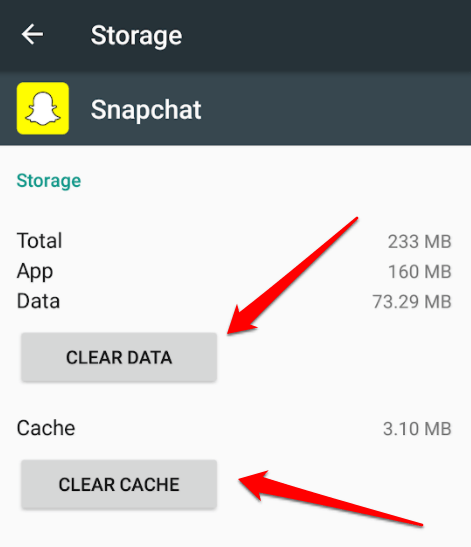
Here, I will recommend clearing the cache & data to escape the problem.
To do so:
- Launch Settings app on your phone.
- Navigate to Applications or App Manager>> select Snapchat.

- Tap on Storage usage>> Clear Data >> Clear Cache
Way 4- Checking Chat Settings in the Snapchat
Many of you are unaware of the fact, Snapchat allows to set the message deletion preferences. In case, if chats are set to “Delete After Viewing,” then messages will disappear quickly.
So, if you want to adjust it:
- Go to Snapchat & open the chat with your friend.
- Tap their name >> Chat Settings, then tap on Delete Chats.
- Now, change the setting to “After 24 Hours of Viewing”.

- This action will prevent the messages from disappearing instantly.
Also Read: Troubleshooting “Please Check Your Connection and Try Again” Snapchat
Way 5- Update the Snapchat
Still can’t fix message no longer available error on Snapchat? Try updating the Snapchat app. It is a perfect solution to fix bugs in the app that might be triggering this error on your Android.
To do this, follow the steps below carefully:
- Open the Play Store on your phone.
- Next, Manage Apps & device >> Update available >> find and tap on Snapchat.
- After that, tap on the Update button (if available).

- Now, you have to wait for the process to finish.
Way 6- Uninstall & Reinstall Snapchat App
Another resolution you can try is uninstalling & reinstalling the Snapchat app to overcome this particular problem.
Here’s how you can do so:
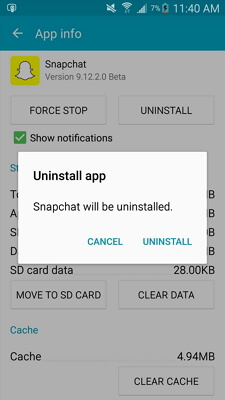
- Navigate to Settings >> Apps/Applications
- Select Snapchat, then Uninstall.
- Open Google Play Store>> search for Snapchat & tap on it.
- At this time, tap on Install button & it will be installed on your mobile successfully.
This ensures a fresh installation without old data conflicts.
Way 7- Fix Snapchat This Message Is No Longer Available Error by Contacting Snapchat Support
If none of the above solutions work, reach out to Snapchat Support team. For this:
- Open Snapchat app >> go to
- Then, tap on Support >> I Need Help >> Contact Us.
- Now, describe your issue clearly, and the team will help you resolve it.
And you are done!
Also Read: Fixing “Due To Repeated Failed Attempts or Other Unusual Activity” Snapchat Error!
Frequently Asked Questions:
No, blocking someone does not automatically erase messages on Snapchat; messages still visible to you where they were saved in the chat before you blocked them.
To know if someone blocked you on Snapchat, simply search for their username. If the username won't show up, it is likely you're blocked. There are some other signs like their name not appearing in your friends list or their chat history vanishing from your conversations tab.
If you delete the chat feed, the messages will still be existing in the conversation & are still visible to the other person.
It might be possible that someone calls you using Snapchat & you don't answer, it’ll show a notification until you tap on the missed call & view it in the chat page. Do Snapchat Chats Disappear When Blocked?
How Do You Know If Someone Blocked You on Snapchat?
Does Deleting a Chat Hide It on Snapchat?
Why Do I Have a Notification on Snapchat but No Message?
Time to Verdict
So, these are a bunch of fixes to solve Snapchat this message is no longer available error on Android. Try them step-by-step & get the error fixed to enjoy snaps & chatting on Snapchat.
For further queries & assistance, feel free to contact us on Twitter or Facebook.


James Leak is a technology expert and lives in New York. Previously, he was working on Symbian OS and was trying to solve many issues related to it. From childhood, he was very much interested in technology field and loves to write blogs related to Android and other OS. So he maintained that and currently, James is working for androiddata-recovery.com where he contribute several articles about errors/issues or data loss situation related to Android. He keeps daily updates on news or rumors or what is happening in this new technology world. Apart from blogging, he loves to travel, play games and reading books.