
If you are an Android user then you might come across several errors on your Android phone, right? Even you might have experienced also but many users have reported that they have come across an error while installing any apps from Google Play Store.
According to the users, “error code 924” was occurring while downloading or installing any apps from the play store.
The error that was displayed on the Android screen was “Can’t download app” and “Can’t update app” etc.
So if you are experiencing error code 924 in Google play store and looking for solutions then this blog is for you. Here I guide you few best solutions that will help you to fix error 924 in Google play store on Android.
-
Restart Your Android Phone
-
Clearing Data And Cache Of Google Play Store
-
Check Internet Connection
-
Disable Battery Saving Mode
-
Uninstall Play Store Update
-
Remove And Add Google Account
-
Factory Reset Your Device
-
Best Way To Solve Error 924 In Google Play Store
Reason Behind Error 924 In Play Store
Android users come through this error but they actually don’t know why it popups. Generally, the error 924 occurs because of poor network connection or when a Wi-Fi connection is not good.
Even when there is a problem on data and cache of Google play store the also the below error message occurs:
“App can’t be updated. Try again, and if the problem continues, get help troubleshooting. (Error code: 924)”
How To Solve Error Code 924 On Google Play Store?
Now, its time to go through the solutions that will help you to get rid of Google play store error 924 on Android. All these are manual fixes that you should follow to tackle the issue easily.
So let’s move ahead and check out the fixes.
Solution 1: Restart Your Android Phone
One of the best and most suggested to fix any kind of error on Android is to restart your Android phone. This is simple and can solve any kind of problem or issue on Android phones.
Restarting generally refreshes the phone memory and all apps running in the background will be cleared.
So before you go for any other solutions, first restart your Android device and check if the error resolves. Hold down Power button and select Restart or Reboot option. After this, check if you can access the play store app without error.
Method 2: Clearing Data And Cache Of Google Play Store
You might know the use of cache data that helps to load the application faster. But many times, this data gets corrupt and error 924 can occur. Many users have reported that they have solved the error by clearing the cache and data of Google Play Store.
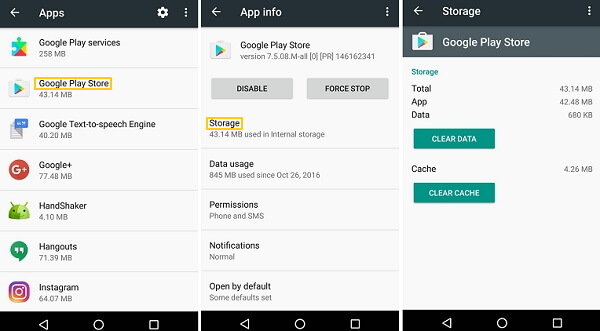
- First, go to Settings > open Manage Apps/Apps
- Now search for the application named Google Play Store and open it (when you have multiple tabs choose “All” in settings)
- Next, click on Storage inside Google Play Store
- Then, click on Clear Data and select Data and Cache of play store
- After clearing the app data, once reboot your device, go to Google play store and try to download any app
Method 3: Check Internet Connection
Internet connection is a big issue for the error message you are coming across. So you should check whether your phone has a stable internet connection or not.
Especially when you use Wi-Fi then it must check that your device has a good connection. You can also perform a speed test so that you can get a strong internet connection.
Method 4: Disable Battery Saving Mode
Another important factor that can cause error 924 on Google play store is the battery saving mode. If this feature is enabled then it can really lead to error 924. This feature will use few resources and also close the apps running on the background.
Users have reported that after they have turned off this feature, they have resolved the error 924 easily. Here are the steps to follow:
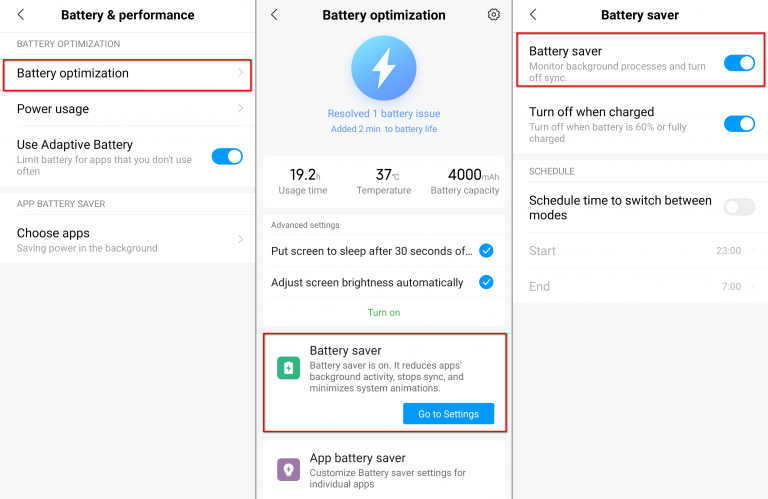
- Pull down quick menu or notification bar to disable battery saving mode and then click on battery saver icon

- When you don’t get this option then simply go to Settings
- Here look for Battery & Performance and then open it (Some devices have Battery option in Settings and inside you will get Power saving mode)

- Next, click on Battery Optimization > now open Battery saver option
- Here you need to toggle off the button
That’s it. Hopefully, you will now be able to download the application from play store
Method 5: Uninstall Play Store Update
When the above method does not solve the error then you can try to uninstall Google play store update. Follow the below steps:
- First, go to Settings > open Apps & notification
- Now open All app and search Google Play Store in the list
- After that, click on three vertical dots and choose Uninstall Updates option
- When its done, go to play store and try to install any apps or update them and see if the same error popups again

Method 6: Remove And Add Google Account
The issue can be from the Google account that you have on your phone. So you should once remove it and again add it by following the below steps:
- First, open Settings on your phone
- Then open Accounts and choose Google option
- Here choose primary Gmail address and click on three vertical dots
- Then choose “Remove account” and click on OK option

- Now again go to Accounts option and click on Add account
- Here, select Google account and choose existing
- Next, add your Gmail account in your phone
Once done, go to Google play store and try to install or update any app
Method 7: Factory Reset Your Device
When all the above methods do not work then only one option left and that is doing Factory reset. This is the last method to fix error 924 in Google play store.
But make sure you have backed-up all your essential contents from the phone because this method wipes away all data from the phone.
After backing all data, follow the below steps:
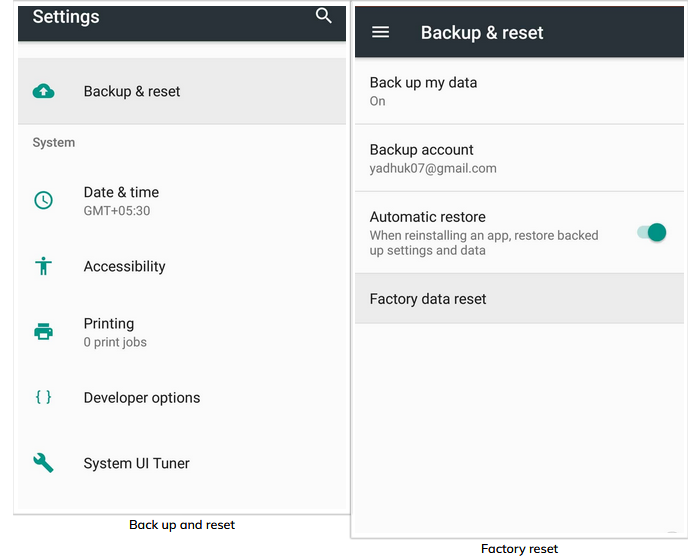
- First, go to Settings > look for Backup and reset > then click on it
- Now click on Factory data reset under “Backup and reset” option
- Here, ensure all data are saved on other device and finally, tap on “Reset Device”
Method 8: Best Way To Solve Error 924 In Google Play Store
Apart from all the above methods, one of the best ways to get rid of error code 924 in Google play store is by using Android Repair. This professional tool helps to solve any kind of issues on Android without any problem. It can really help you to deal with the situation and you can access Google play store once again for updating or installing any new apps or games.
It has solved several other errors on Android phones and has the ability to resolve error code 924 in play store on Android. So simply Download Android Repair software and troubleshoot error 924 in Google play store.

Note: It is recommended to download and use the software on your PC or laptop only.
Conclusion
So this blog completely describes error code 924, reasons behind it, and the best ways to solve Google play store error 924 on Android phones. After following the above methods, hopefully you will be able to access Google play store and can install or update any apps you want.
When nothing goes on your way then use Android Repair software to tackle the situation and to get rid of error 924.

James Leak is a technology expert and lives in New York. Previously, he was working on Symbian OS and was trying to solve many issues related to it. From childhood, he was very much interested in technology field and loves to write blogs related to Android and other OS. So he maintained that and currently, James is working for androiddata-recovery.com where he contribute several articles about errors/issues or data loss situation related to Android. He keeps daily updates on news or rumors or what is happening in this new technology world. Apart from blogging, he loves to travel, play games and reading books.