
With the role out of the Android version 11, a huge hype was created about the chat bubble or chat heads feature. It’s the feature that got me excited too about the updates. However, many users are complaining about Android 11 bubbles not working.
But don’t sweat it too much; I have some pretty simple fixes to solve this issue. But before you learn about the solutions, you should have a brief knowledge about the feature and the update of Android 11.

What Is Android 11 Chat Bubbles Feature?
Chat bubbles are a feature associated with the messenger apps in your phone like WhatsApp, Telegram & Messenger, etc. Usually, when you receive a text from someone on one of the messaging/chatting apps and you tap on the notification, the chat opens in the application.
But if you have the chat bubbles feature enabled in your device then when you tap the message notification, a pop-up window will open and you can reply and chat in that.
The application will not open instead an overlay window will pop up over the current application you were using.
Once you are done replying, just tap on the bubble and the chat will shrink to a bubble floating on the top of the application you were using. If you get a new text then simply tap on the bubble again and the bubble will expand to become an overlay of the chat.
This nifty bit of feature helps you to multitask. Chat and play games or browse the internet without having to switch to and fro between the apps.
This feature is available in the Facebook Messenger app since forever.
Necessary Checks Before Going To The Solutions
Before you jump to the solutions, there are a few things you need to check first. This is necessary to do in order to make sure we are on the same page.
1: Check your Android version- Before going to the technical solutions, I recommend you to check the android version of your phone. Because if your phone is in Android 9 or 10 then, whatever you do doesn’t matter. The chat heads not working problem will not go away. The feature has been added in the Android 11 update onwards.
To check the version of your Android just go to the Settings app and navigate to the About section. There you will find your Android version mentioned.
2: Check the Application Compatibility– Android 11 has been introduced with some new features that don’t mean that all the applications have adapted to it too.
While big names like WhatsApp and Telegram have implemented the chat bubble feature in their apps others might not be so quick to react.
Thus, it will be wise to check the information about the app you want to use the chat bubble feature in.
If the developers have made the application compatible with this feature and you are unable to use it then move to the solutions part of the article.
3: Restart your device- Restarting a device sets any malfunctions or bugs in the system right. While this is a very simple thing, it works like charm in solving most of the problems. Thus, it will be wise to restart and check if the problem is gone before moving to more complex fixes.
That being said let’s look at the solutions to fix the Android 11 bubbles not working issue.
How To Solve Android 11 Bubbles Not Working issue?
Solution 1: Update the Applications
To implement the changes required to accommodate the new features, the developers make changes in the patch of the application. Then they push updates. If you have just updated the software to Android 11 then update all your apps to their latest versions too. Especially, the messaging or chatting apps in this case.
To update the applications just open the Play Store and tap on the menu button on the top left corner of the screen. Then select the My apps and games option. Go to the updates section and tap on the update all option.
Let all the apps get updated and then check if the chat bubble not working in WhatsApp or other apps problem was solved.
Solution 2: Enable the bubble notification feature on your phone
It goes without saying that in order to use the feature you have to have it enabled on your device first. To enable the feature after your Android 11 software update follow these steps:
- Go to the settings application
- Then navigate to the Apps and Notifications tab
- Then select the notifications
- The move to the bubbles section and enable the Allow apps to show bubble options

Now restart the app and check if the Android 11 chat heads not working problem was solved.
Solution 3: Enable chat bubbles for all conversations
The chat bubble feature comes with ample of customizable options. If the chat bubbles don’t work in any particular conversation or application then this might mean that the chat bubble feature is disabled specifically for that application or contact.
In that case, follow these steps to rectify the issue:
- Open the settings application in your Android Device
- Move to the Apps and Notifications tab
- Go to the application showing the problem
- Open it and move to its notification section
- Select the bubbles section and enable the all conversations can bubble option

Now check if the chat bubbles not working in one conversation issue was gone.
Solution 4: Go back to the default Stock Android launcher
If you have some third-party fancy launcher installed in your Android device, it is likely to be conflicting with the new Android 11 update and could be causing the chat bubbles not working issue.
Thus, in order to use the chat bubbles feature you should uninstall the launcher and move back to the stock android launcher.
To do the switching back to Stock Android launcher, follow the steps:
- Open the settings application in your android device.
- Then move to the apps and notifications section.
- Select the default apps option
- Go to the Home app and choose the default launcher.
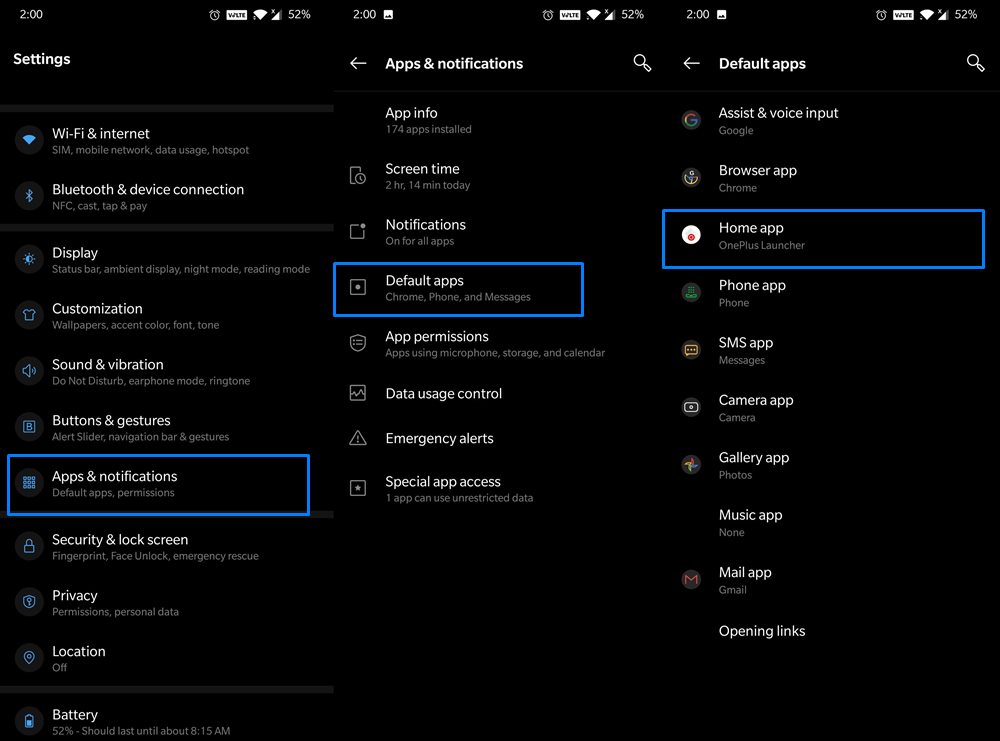
Now restart the device and check if the Android 11 chat bubbles not working issue was solved.
Solution 5: Clear App Cache and Data
Sometimes a lot of temporary files pile up in the app’s data. This can cause the application in question to malfunction. Though this is highly unlikely still you should try clearing the data to be sure it’s not the cause of the problem.
To clear the app Cache and data follow these steps:
- Open the Settings application on your Android device
- Then move to the apps and notifications section
- Select App Info.
- Tap on the application in question and choose the storage and Cache option
- Press Clear Data or Clear Storage

This will clear all temp files. Now check if the chat bubbles not working in Android 11 problem still persists.
Solution 6: Reset the Device to solve Android 11 bubbles not working issue
If none of the above-mentioned methods solve the issue for you then resetting your device is like a last resort. In this process, all the installed applications will be lost and any data in your internal storage will too unless you back it up.
If you still think chat bubbles are worth the effort to reset the device then follow these steps:
- Back up your device in safe mode. to do so:
- Turn off your device. If the phone doesn’t turn off by holding the power button then remove the battery from the device if possible. Otherwise, simulate a battery disconnection by holding the volume down button and the power button together till the phone screen goes off.
- Now long-press the power button to turn on the device.
- As soon as the screen lights up release the power button and hold the volume down button until the device restarts completely in safe mode. (safe mode will be written in the left bottom corner of your home screen)
- After the phone boots up in safe mode navigate to settings and select advanced settings.
- Then go to the backup and reset option
- And in there press backup now.
However, sometimes the system backup has been seen to fail the full back up, hence it is advised to use the Android Backup & Restore tool to back up your important data saved on the Android device.
- Now that the data is backed up open the settings application.
- Go to System section and press on the Erase all data (Factory Reset).
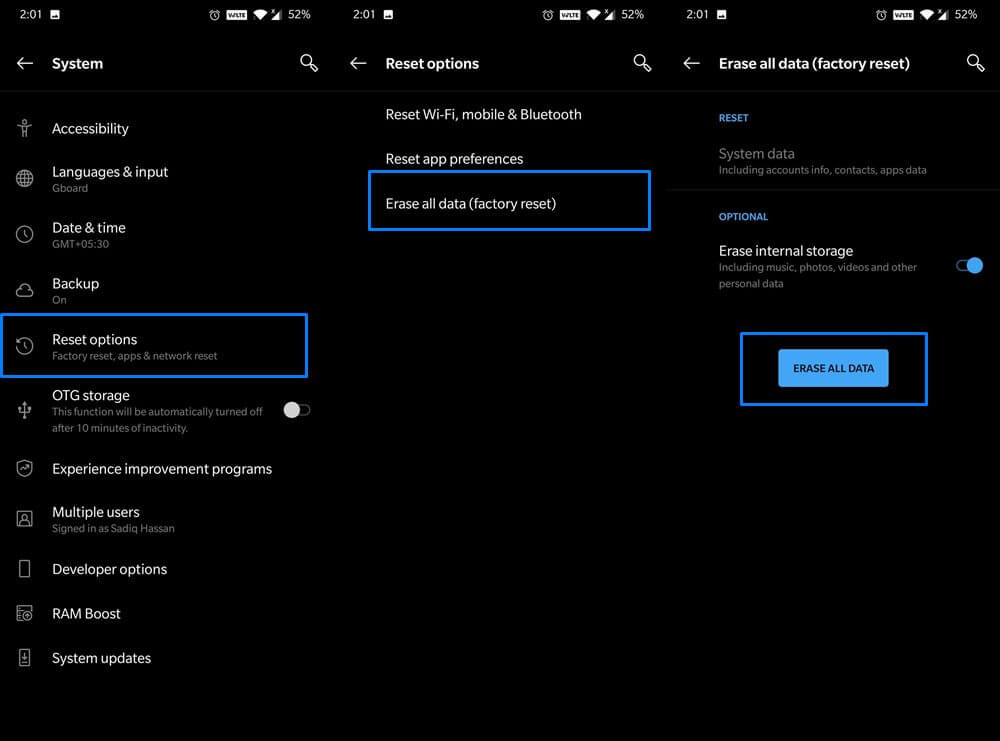
- On completion of the reset, the problem should be gone.
Extra Note: To Repair any Android Related Issues?
As this android version is new, there have to be some bugs in it. It is not always possible for us to diagnose each problem in our device ourselves. Lucky for you there is a tool that will repair your android device for you automatically.
For this, all you need to do is install the Android Repair Tool on your device and use it to fix the Android 11 Bubbles nor working issue. Not just this, but you can also use this tool to fix many other app and Android errors.
So, it’s worth giving it a try. To know how this tool works, you can see through its guide.

Note: It is recommended to download and use the software on your PC or laptop only.
Video Tutorial: Fix Chat Notification Bubbles Not Working on Android
Conclusion:
This is a relatively new update and some problems will be tackled by Google in the later updates. If you had the chat bubble issue I hope it’s working now.
If you liked the article and found it to be helpful then feel free to share it with others facing the same issue.
You can share your experience with us on Facebook and Twitter.
Thank you for reading!

James Leak is a technology expert and lives in New York. Previously, he was working on Symbian OS and was trying to solve many issues related to it. From childhood, he was very much interested in technology field and loves to write blogs related to Android and other OS. So he maintained that and currently, James is working for androiddata-recovery.com where he contribute several articles about errors/issues or data loss situation related to Android. He keeps daily updates on news or rumors or what is happening in this new technology world. Apart from blogging, he loves to travel, play games and reading books.