
The Android phone lets the users save the WiFi password on the phone so that it can automatically get connected to the same network the next time whenever available. But there are times when users by mistakenly reset the saved network and get stuck with connecting issues because they forgot the WiFi password. So, if you are in the same situation and looking for how to recover WiFi password on Android, scan the Wi-Fi QR code for WiFi password recovery.
Well, this is a rare case. However, we have tried our best to provide the users with enough ways to find WiFi password on Android phones whenever faced with such a situation. So, go ahead and read this blog completely to find the Wi-Fi password.
How to Recover WiFi Password On Android?
Below are some ways of recovering WiFi passwords on different Android device versions or models.
How to Recover WiFi Password on Android 10 & Above Phone?
Regardless of which phone model you are using, if you want to view the WiFi password on Android 10 & above phones, follow the below-given procedure:
- Open Settings on your phone.
- Go to the Network & Internet.
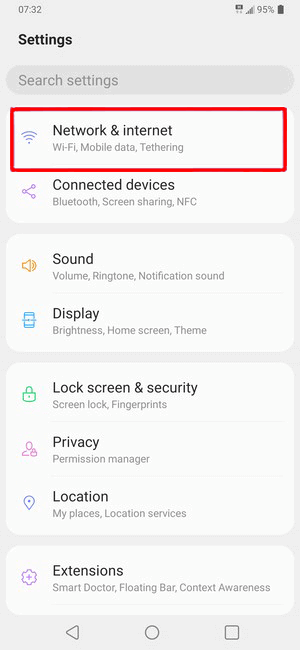
- For Android 10 and 11 users, tap on the WiFi. And Android 12 users click on the Internet.
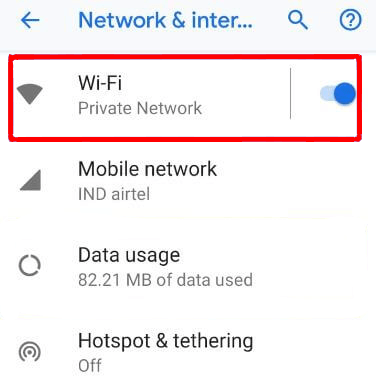
- Now, you will see the list of WiFi networks. Here, select the WiFi network to see the password.
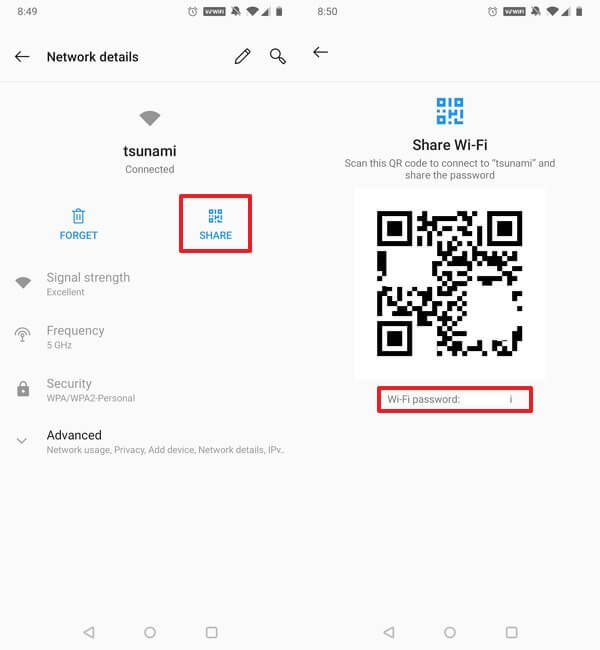
- Next, tap on the Share button.
- Enter the password/pin/pattern/fingerprint to confirm.
- After doing this, you can see the WiFi password below the QR code.
How to View WiFi Password on Android 9 or Older Phone?
Recovering the WiFi password on Android 9 or older phones is comparatively difficult. To know the WiFi password on Android 9 and older devices, you need root access on your phone. It means you first need to root your phone to recover WiFi password on Android.
After rooting your phone, follow these steps to check the WiFi password on Android 9 or lower OS phone:
- Before moving through this process, you need to make sure your phone is properly rooted. You can check this by using the third-party tool also. There are plenty of apps available in the Google Play Store to check if the phone is rooted or not. So, download any of those apps and make sure your phone is rooted.
- Once you are sure the phone is rooted correctly, enable the Developer Mode. For this, open Settings > System > go to About phone > tap 7 to 8 times on the Build Number. Now, you will see a message on your phone screen saying you are now a developer.

- Now, go back to the System page and tap on the Developer options.
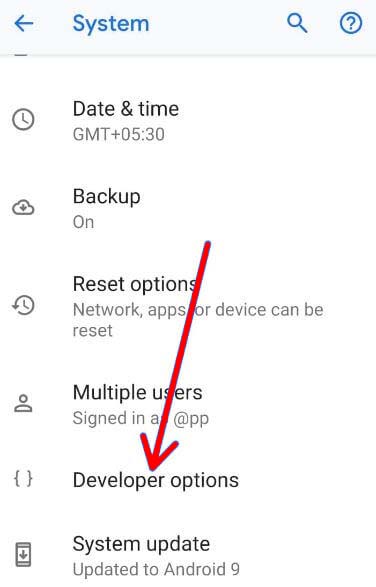
- Enable the USB Debugging option.

- Then, install the Universal ADB Drivers on the PC. It will help you to establish the connection between your PC and Android phone over a USB connection.
- Now, connect your phone to the PC using a USB cable, and make sure to select the data transfer option instead of the charging option.
- After this, download and install the Minimal ADB and Fastboot Tool on the PC.
- Launch the Minimal ADB and Fastboot app on your PC. It will be open as the Command Prompt.
- Enter the following command in the Command Prompt and press the Enter key:
adb pull /data/misc/wifi/wpa_supplicant.conf
- Go to File Explorer > open the folder.
- Open the wpa_supplicant.conf file with the Notepad.
- In this file, you can see the password of all the saved WiFi networks.
Also Read: Fix WiFi Keeps Disconnecting On Android 11
How to Find WiFi Password on Google Pixel Phone?
If you want to see the saved wifi password on Google Pixel phone, then follow these methods:
- Go to Settings > tap on the Network & Internet.
- Choose WiFi.
- Click on the Wi-Fi network for which you want to see the saved password.
- Tap on the Share button.
- You may be asked for authentication with a PIN or fingerprint. So, authenticate yourself and move to the next step.
- Now a QR code will appear on your phone screen to share your Wi-Fi password with others. And, right below that QR code, you can see the password of WiFi.
Also Read: Authentication Error WiFi On Android
How To See WiFi Password on Samsung Phones?
For Samsung users with Android 10 and above OS, follow these steps to recover WiFi password on a Samsung phone:
- Open the Settings app on your Samsung phone.
- Go to the Connections.
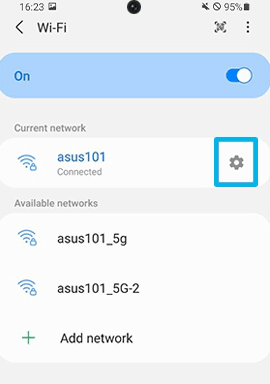
- Click on the WiFi option.
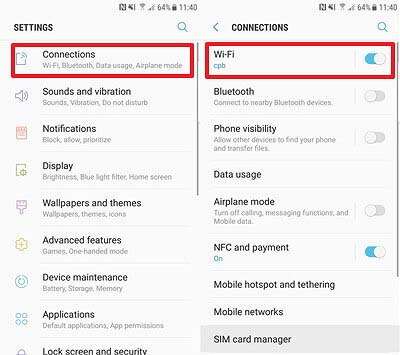
- Tap on the Settings icon given next to the WiFi network for which you want to recover the WiFi password.
- Now, click on the QR code.

- Tap on the Save as image button.
- Now, use Google Lens to scan the saved image of the QR code.
- Finally, you can see the password of WiFi on the Samsung phone.
Also Read: Fix WiFi Keeps Disconnecting On Android 11
How to Find WiFi Password on Android Phone Using 3rd Party Tools?
Besides the above-given methods, there is another easy way to reveal the WiFi password on Android devices, which is using the Android WiFi password-revealing apps.
There are so many 3rd party apps available on the Play Store that you can use to recover WiFi password on Android phones. Some of the apps can reveal the password of WiFi on the unrooted phone and some of them need the phone to be rooted to show the password.
Check Android WiFi Password Using WiFi Password Revealing Apps
Here, I am going to show you how to recover WiFi password on Android using the WiFi Password Viewer apps. To use this app, first, root your Android phone. Once the phone is rooted, proceed with the following steps:
- Download & install any WiFi Password Revealing app on your Android device.
- Once the app is installed, launch the app.
- While launching the app, you will be asked to grant Root permission. Tap the Allow button to give access to the app.
- On the app’s home screen, you will get a list of all WiFi networks saved on your phone.
- Now, tap on the WiFi network you want to check the password.
- Here, you’ll see different options to know the WiFi password.
- You can use the QR code to share or see the password. Or, hit Copy Password to see the WiFi password on Android.
- Now, paste the copied password on the clipboard to view the WiFi password.
Well, it is not the only WiFi password recovery app for Android there are plenty of others too. You can use any app and use it to check the saved WiFi password on Android.
Use ES File Explorer to See WiFi Password on Android
If you don’t know, all the saved WiFi network password saves in the phone’s root directory. And with the help of a file manager with high privileges, you can recover your WiFi password on Android. But for this, your phone must be rooted.
Now, if your phone is rooted, then follow these steps to see the saved WiFi password regardless of which Android version you’re using on your phone:
- Open the ES File Explorer and grant the root privileges to this app.
- For this, go to Root Explorer in the app.
- Now, a prompt will appear on the screen asking for granting root access. Here, tap the Allow button.
- Next, move to Device.
- Tap on the Data folder.
- Open the misc folder.
- Under the WiFi section, click on the .conf file to see the saved WiFi passwords.
- Select the HTM Viewer option on the prompt.
- After opening the files you can easily check the SSID & password of saved WiFi networks.
- Now, you can copy the WiFi password from the file.
You can perform the same thing on any file manager app with root access and high privileges to recover Android WiFi passwords.
Also Read: WiFi Password Hacker Apps For Android Without Root
How to Recover WiFi Password on iPhone?
If you’re an iPhone user and want to connect with the network to which you forgot the password, follow the below instructions to recover the password and connect to it.
- Open the WiFi Settings on your iPhone and click on the WiFi network that you want to connect with.
- Next, you will get a pop-up asking for password sharing. Tap on the Share Password option.
- Once you shared the password with the network, it got automatically connected.
- Now, click on the Done option and exit the Settings screen.
Conclusion
So, by following the above-given methods, you can easily see passwords for Wi-Fi networks you’ve connected your Android device to.
If you don’t want to use the manual methods or have a lower version of the Android phone, use the alternative methods to recover WiFi password on Android. Simply, use the 3rd party apps as explained in this article.
If you have any further queries, feel free to ask us on Facebook or Twitter.

James Leak is a technology expert and lives in New York. Previously, he was working on Symbian OS and was trying to solve many issues related to it. From childhood, he was very much interested in technology field and loves to write blogs related to Android and other OS. So he maintained that and currently, James is working for androiddata-recovery.com where he contribute several articles about errors/issues or data loss situation related to Android. He keeps daily updates on news or rumors or what is happening in this new technology world. Apart from blogging, he loves to travel, play games and reading books.