Recovering the lost phone data after factory reset can be very challenging. However, we have covered a few methods in this article, that you can try to recover Android data after factory reset.
So, keep reading further….
To recover Android data after factory reset, we recommend this tool:
This effective tool will recover lost, deleted, inaccessible data from any data loss situations in no time. Now recover your lost and deleted data in just 3 easy steps:
- Download this Data Recovery Tool (for PC only, for Mac) rated Excellent on Pcmag.com.
- Select the storage media you wish to recover data from and click on Scan.
- Preview the files before recovery and choose Recover option to restore deleted data from Android.
Why Factory Reset Your Android Device?
Well, factory resetting a phone is not something that needs to be done on a regular basis. It is generally done when –
- You have to sell your phone.
- Switch to a new phone to discard the old one.
- Or you need to get rid of the junk, harmful files and wipe the entire data
Now the question here is, how to recover the erased data after factory reset?
Also Read – How to wipe Android phone before selling?
How To Recover Android Data After Factory Reset?
In this section, we are going to discuss the recovery methods after a factory reset on Android (with or without backup).
Part 1: Recover Lost Data After Factory Reset Using Software (Without Backup)
If you haven’t backup Android phone before factory reset, check out the below list of the best Android data recovery software after factory reset.
1. iMobie PhoneRescue
If you are looking for a way how to restore data after factory reset without backup, you must try iMobie PhoneRescue.
It is the best and the most recommended software that is capable of recovering lost data after factory reset on Android phones.
The software scans the internal as well as external memory of the phone and restores all the deleted data. It can restore any deleted data such as photos, videos, audio files, documents, WhatsApp messages, contacts, and many more on your phone.
So, just download the software and follow the below user guide instructions to use it.
 btn_img
Note: It is recommended to download and use the software on your PC or laptop. It is because recovery of phone data on the phone itself is risky as you may end up losing all your data because of data overriding.
Steps To Use iMobie PhoneRescue Software

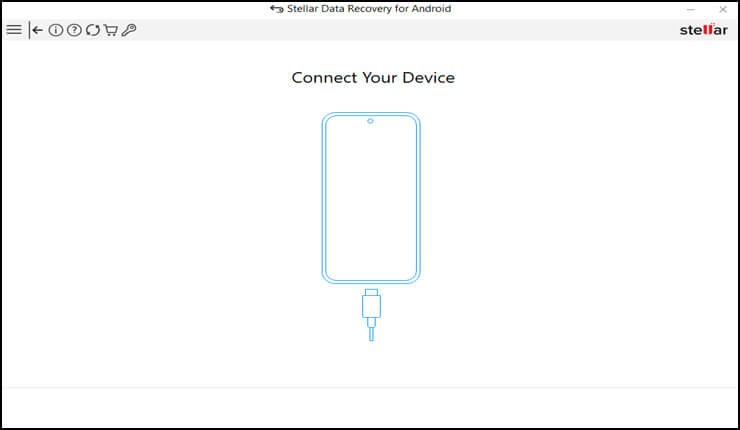
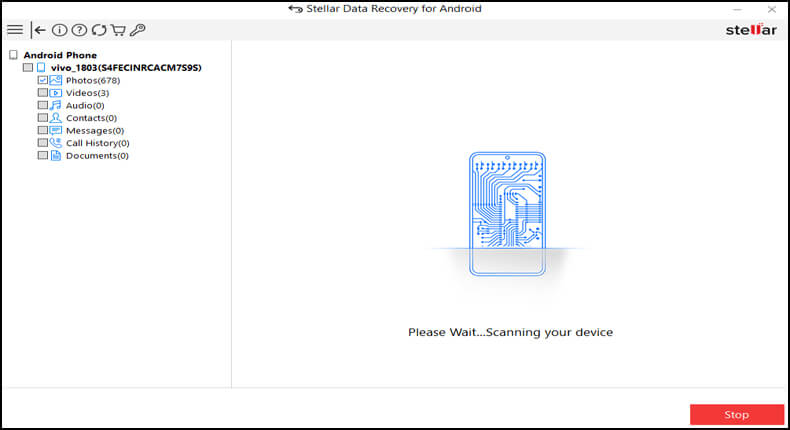
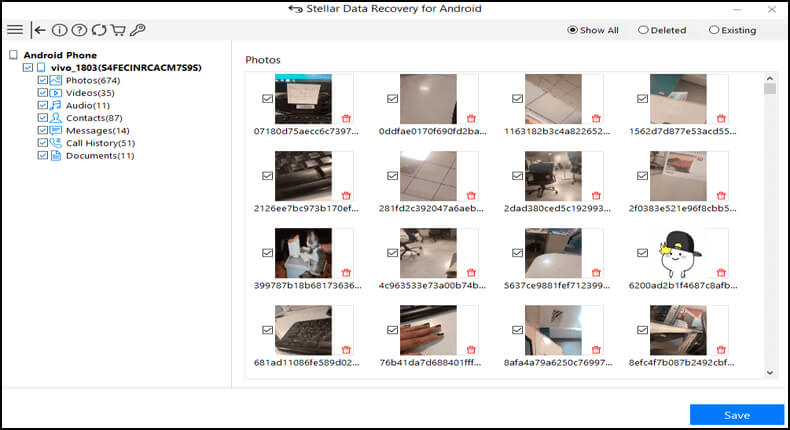
2. Dr.Fone – Data Recovery (Android)
Dr.Fone – Data Recovery (Android) is also one of the most effective and best Android data recovery software. It helps you recover lost or erased data from your phone after a factory reset. It is supportable on almost all Android devices.
Pros:
- Easy to use even for non-tech savvy.
- It has multiple recovery modes to recover lost data from different circumstances such as broken screen, dead phones, etc.
- Allows selective recovery of files.
- High success rate.
- Allows you to preview files before restoration to avoid duplicate recovery of files.
Cons:
- Limited free trial.
- It can be expensive.
- Incomplete data recovery.
- Limited support for some Android devices.
3. Tenorshare UltData for Android
Tenorshare UltData is another best data recovery software for Android after a factory reset. It can recover a wide range of lost or deleted files such as photos, videos, messages, call logs, WhatsApp messages, documents, and more.
Pros:
- It has a user-friendly interface.
- Recover a wide range of lost Android data including photos, videos, messages, call logs, etc.
- It allows selective recovery of files instead of complete data. This saves you time and storage.
- Compatible with a wide range of Android devices.
Cons:
- It can be costly.
- Limited free trial.
- The software can be time-consuming.
- It might not be compatible with some Android software.
- Low recovery guarantee.
Part 2: Restore Deleted Data After Factory Reset on Android (Using Backup)
If you have a backup, the task of recovering lost data after a factory reset is just a matter of a few clicks.
Here is a list of methods to restore lost data after factory reset when you have the backup.
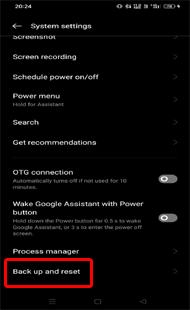
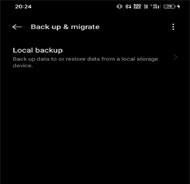
Method 1: Restore Lost Android Data Using Local Backup
Most Android smartphone comes with an in-built backup feature. So, if you have used this feature to back up your Android data, recovering lost data after a factory reset is relatively easy.
Local backup keeps the backup of contacts, messages, call logs, system data, and apps.
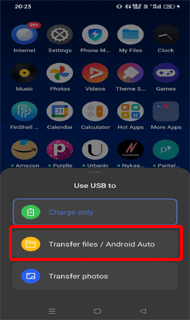
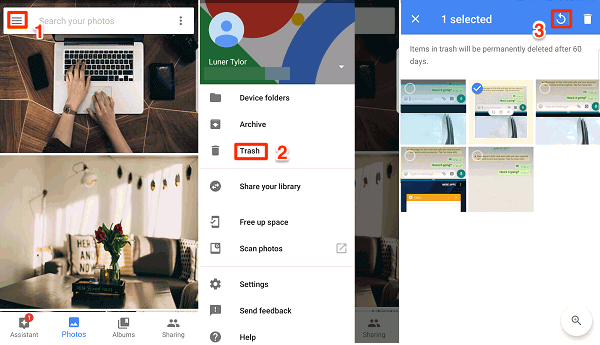
Follow the steps below to recover lost data using local backup: If you have backed photos and videos using Google Photos, you’ll be easily able to recover deleted photos from Google Photos. Note: [Remember, Google Photos keeps deleted photos for 60 days only.]
Here’s how you can do so: If you are a Samsung user and using the Samsung backup feature, you can recover data after factory reset Android without computer. Here’s how you can do so: Also Read: Samsung Phone Data Recovery Recovering data after a factory reset on an Android phone can be very challenging, especially if you don’t have root access. As on nonrooted devices, you have limited accessibility to the files and system and thus recovering lost data after factory reset on it becomes quite a hectic or difficult task. But still, there are some recovery software available that you can use to recover data after factory reset without root.
Yes, performing the Factory Reset on an Android device removes all the data on your phone except the inbuilt apps and data. However, you can recover it by using a backup or a good data recovery tool.
Yes, you can recover data after factory reset even if you have no backup of your deleted files. You can either use the Android Data Recovery tool or can use other tools such as Google Photos, Google Drive, Google Contacts. But you can only use these Google tools if you have enabled the sync option.
You can restore Android after a factory reset if you have checked the Automatic Restore option in settings. Lastly, it is suggested not to perform a factory reset until there is a requirement. However, the above methods will help you to recover Android data after factory reset if you fall into such situations. Also, must try Android Data Recovery software to get back erased data after a factory reset. I hope, the methods worked for you and you are able to recover the lost data. In case of further queries or doubts, feel free to ask us on Twitter or Facebook.



Method 2: Use Google Photos to Retrieve Photos & Videos
Method 3: Retrieve Erased Phone Data with Samsung Account


Part 3: Recover Data After Factory Reset Android Without Root
Frequently Asked Questions (FAQs)
Does Factory Reset removes all data?
Can I recover data after factory reset without backup?
How to restore Android after Factory Reset?
Conclusion