
Contacts are the most important piece of data on your phone. However it is quite easy to lose them either tapping the phone incautiously or due to various other reasons such as factory reset, Android update etc.
So today in this blog, we have covered all the methods by which you can easily restore contacts Android and use them again without any hassle.
So, let’s get started.
To restore deleted contacts Android, we recommend this tool:
This effective tool will recover lost, deleted, inaccessible data from any data loss situations in no time. Now recover your lost and deleted data in just 3 easy steps:
- Download this Data Recovery Tool (for PC only, for Mac) rated Excellent on Pcmag.com.
- Select the storage media you wish to recover data from and click on Scan.
- Preview the files before recovery and choose Recover option to restore deleted data from Android.
How to Restore Contacts on Android?
Here, are the different methods to recover deleted contacts on Android.
Method 1: Using Google Contacts
If you have synced your contacts to your Google account, your contacts are automatically got saved on Google Contacts. So, you can use this method to restore Android contacts.
Below are the steps referred from Google Help:
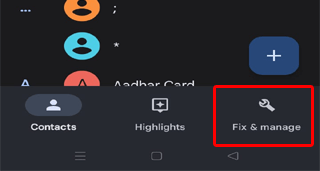
- Open the Google Contacts app on your phone.
- Go to Fix & manage tab.
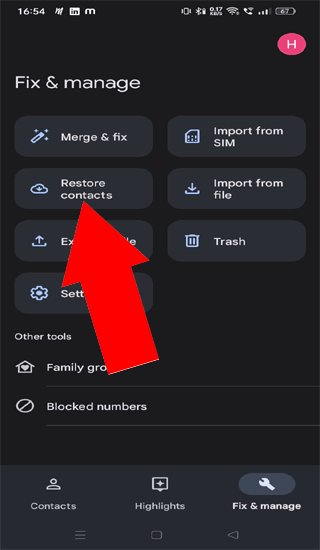
- Select Restore contacts option
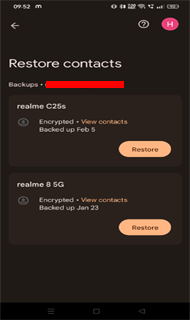
- Now, select the device if you have multiple devices synced and click on Restore.
Method 2: Using Google Contacts Website
Another easy way to restore contacts on Android using Backup is through the Google Contacts website. If you have used your Google account to back up all your Android contacts, you can use this method to easily restore contacts Android.
Here are the detailed steps to follow:
- Browse Google Contacts website on your phone.
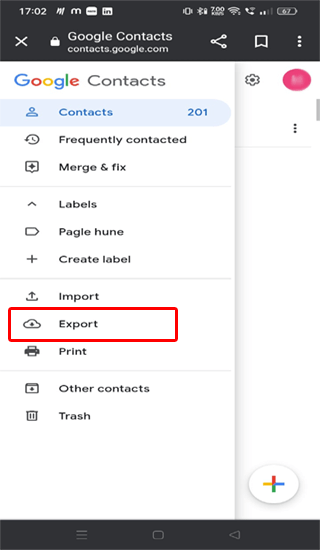
- Next, tap the hamburger icon at the top left side.
- Then, select the Export option.
- Now, select the contacts that you want to restore and also choose the file type for exportation
- Once selected, tap on Export.
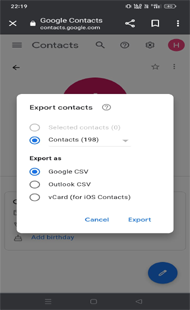
- When exported, head to the exported file and restore your contacts.
Also Read: How to Recover Contacts After Factory Reset?
Method 3: Restore from SIM Card
In case you have saved all your phone contacts in a SIM card you can use it to retrieve your lost contacts Android SIM card. Also, you can use this method to restore your old phone contacts to a new Android phone in case of a phone change.
You just need to follow the below instructions:
- Insert the SIM card into your Android phone.

- Next, open the Contacts application.
- Then, head to the Fix & Manage section.
- Then, select the Import from SIM card option.

- Choose the contacts that you want to import and click on Done.
Method 4: Restore from SD Card
If you have the backup of the lost or deleted contacts in a VCF/CSV file saved in an SD card, Android contacts recovery becomes even easier.
Here is what you need to do:
- Insert the SD card into your Android phone.

- Open Contacts and click on the Menu button.
- Select Settings and choose the Import/Export option.
- Then, click on Import and select Import from SD card.

- Choose the stored VCF/CSV file and import it to your Android phone.
How to Restore Contacts on Android Without Backup?
If you don’t have a backup of the lost or deleted contacts then, Android Contacts Recovery is the best software you can use to get your contacts back.
This tool is proficient in recovering deleted data including contacts, photos, videos, files, etc from your Android phone. It works on almost all Android phones.
The software can recover contacts from a broken phone, locked, unresponsive, or rooted phones as well. So, no matter how you lose your data, you can always recover them using this software.
Download the software and follow its user manual instructions to use the tool effectively.
 btn_img
Note: It is recommended to download and use the software on your PC or laptop. It is because recovery of phone data on the phone itself is risky as you may end up losing all your data because of data overriding.
Restore Contacts Using Samsung Cloud
If you are using a Samsung device and used Samsung Cloud to create backups of your data, you can easily recover your lost contacts using this drive.
Here’s how you can do so:
- Go to your phone Settings app.
- Go to the Accounts and backup section.

- Click on the Restore data option.

- Select the device from which you want to restore contacts.
- Ensure Contacts is marked. Then, click on Restore.
Note: [This method can also recover deleted contacts after a factory reset.]
Frequently Asked Questions
What is VCF/CSV file type?
VCF (Variant Call Format) and CSV (Comma-Separated Values) are both file formats used to store data in a tabular format. vCard is a common format for contact information storage.
Can deleted contacts be recovered?
Yes, you can recover your deleted contacts. Android stores the deleted contacts in the Trash folder on the Contacts app for 30 days before deleting them permanently. So, you can restore the contacts from there. Moreover, use Android Contacts Recovery to restore contacts Android without backup.
How to restore contacts after deletion using Google drive?
To use Google Drive for deleted contact recovery, follow the below steps:
- Open Settings on your Android phone.
- Next, scroll down and select Google.
- Select the Setup & restore option.
- Here, click on the Restore contacts option.
- Now, select the device if you have multiple devices synced and click on Restore.
Conclusion
So, above are some methods that you can use for deleted contact recovery. Follow the methods step-by-step and recover lost contacts on your Android phone. Also, don’t forget to use Android Contacts Recovery software to restore lost or deleted data on Android phones.
I hope the article has provided you with enough methods to restore contacts Android. In case, you have any further questions or doubts, feel free to ask us on Twitter or Facebook.

James Leak is a technology expert and lives in New York. Previously, he was working on Symbian OS and was trying to solve many issues related to it. From childhood, he was very much interested in technology field and loves to write blogs related to Android and other OS. So he maintained that and currently, James is working for androiddata-recovery.com where he contribute several articles about errors/issues or data loss situation related to Android. He keeps daily updates on news or rumors or what is happening in this new technology world. Apart from blogging, he loves to travel, play games and reading books.