
In this technology world, how to secure Android phones is not a big deal as there are several ways that can make your phone secure. Pattern lock, fingerprint, password protect and face detection, these are some of the best ways to lock Android devices for own security purpose.
But in this competitive world, another name occurs that protect your phone from getting hacked by others is Smart Lock.
This is just amazing for Android devices as after installing it, you don’t have to enter any PIN as your phone knows its in your hand.
But its not that this Smart Lock feature cannot put you in trouble. Trusted devices, Voice Match, Trusted Face and On-Body Detection are some of the features of this app that never fails. Even Trusted Places always work better to keep your device safe and secure.
But lots of users has reported that Smart Lock Trusted Places not working properly. How to fix it is a big problem itself?
Don’t worry, every problem has a solution and this has too. Here in this blog, I am going to give you some effective solutions to fix “Smart Lock Trusted Places Not Working” issue.
To Fix Smart Lock Trusted Places Not Working on Android, we recommend this tool:
This effective tool can fix Android issues such as boot loop, black screen, bricked Android, etc. in no time. Just follow these 3 easy steps:
- Download this Android System Repair tool (for PC only) rated Excellent on Trustpilot.
- Launch the program and select brand, name, model, country/region, and carrier & click Next.
- Follow the on-screen instructions & wait for repair process to complete.
What is Smart Lock?
Android Smart Lock is a tremendous app that keeps your phone secure without any problem. It has come into appearance in 2014 when Android 5.0 was launched. The concept behind this is to keep your mobile secure without using any PIN, pattern or passcode.
Generally, we as a user use the inbuilt lock function to secure our phone from accessing by third person. But Smart Lock is ahead of it and provides different ways to prevent your phone from vulnerability. Its Trusted Place feature is awesome but in this new era, you are not much secure for long time.
Some or the other things occur that can stop the feature to work and hence, your phone comes at risk.
So without any delay, let us go through the solutions that can help you to solve smart lock trusted places not working.
Practical scenario
Smart Lock Trusted Places not working since recent update
Since the last Samsung update my Galaxy s7 phone trusted places is not working to keep my phone unlocked AFTER it times out for the 4 hour period of inactivity.
It works fine after a reboot but then if I go past the 4 hour inactivity point and have to re-enter my PIN it then asks me for my PIN each time I use the phone.
I then have to go into settings and set up smart lock and trusted places and reboot.
Please let me know if a fix is coming and if so when.
How to fix Smart Lock Trusted Places stops working?
When I met with the same situation once on my Samsung Galaxy S8 device then I was upset and started to search the solutions for it. While going through several forums and discussion, I found that not only I but lots of people were on the same boat and they too looking for fixes.
After lots of searches, I have found the solutions that are mentioned below. So let us go through the fixes for the above error.
Solution 1: Remove the setup and again setup Smart Lock Trusted Places
Whenever you come across such error then the first thing you should do is to remove the setup and again later on do the same setup. This is one of the easy ways to get rid of such issue. Follow the steps:
- Go to Apps screen from Home and then click on Settings
- Click on Lock screen and security
- After that, click on Smart Lock
- Then enter every login details
- Now choose Trusted Places and add a location as you want
If this method does not work then move to next one.
Solution 2: Ensure location is updated correctly
Getting error on Smart Lock Trusted Places can be also due to location not updated. You should check the location is correct because this feature needs a recent location report to unlock your phone.
Therefore, simply go to Google Maps and click on compass icon at the corner. When screen zooms on your current location then your phone will obviously update the location report.
Solution 3: Update your phone to latest OS version
When this issue was not resolved then Google engineers released an update on phone targeting the error to resolve. Remember whenever any update comes then along with several features, it also has the capability to fix bugs and improves overall experience.

So you should follow the below steps to check if any update is available or not.
- First, go to Settings and then move to Software Update
- If you have enabled Download updates automatically checked then tap on it
- Then your device will search automatically for any updates and if found any then it will notify you.
- Install the update and after that check if Smart Lock feature is working or not
Solution 4: Select four corners
It means that whenever you drop a pin on location then you should drop one pin in every four corners of location. This will give you five locations including the original one of your place.
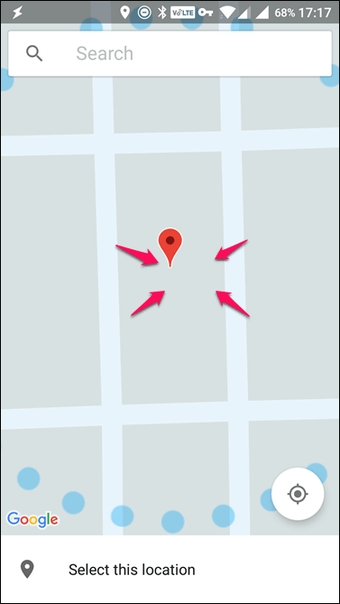
Now open the map of Trusted Places again and zoom it much as possible. Here you have to drop the pin carefully at East end and repeat the same process for other ends like on South, North and West. This is a useful step and worked for several users to solve the problem.
Solution 5: Check if problem is due to recent installed apps
Many times after you download any new app on your phone, the Smart Lock feature begins to act unexpectedly. So this can be due to the new app installed and to find this, you have start your device in Safe Mode.
You might know that in safe mode, no third party apps can run as all are disabled. Follow the below steps:
- First, press and hold Power button unless you get Power Off option on screen
- Now again hold and click Power Off button unless Safe Mode occurs
- Here to confirm, click on Safe Mode. Wait for some time to complete the process
If this method does not show any problem then make sure that any app installed recently is the culprit. So uninstall the app and check whether the issue is resolved or not.
Solution 6: Ensure Google Play Service has set location permission
All apps work properly because of a system app named as Google Play Services. This service should see your location so that Trusted Places of Smart Lock works properly.
Just to know whether Google Play services can use device settings, simply move to Settings > Apps > All Apps. Now move down and select “Google Play Services”, click on “Permissions” and ensure “Location” is enabled.

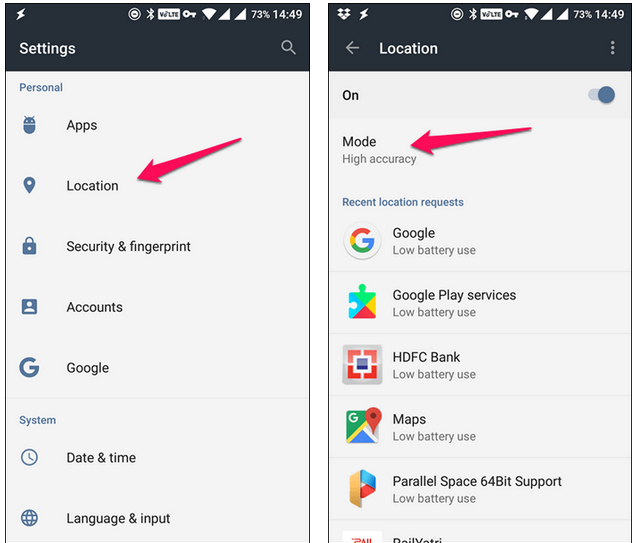
Solution 7: Location Accuracy mode should be high
Several times, because of location accuracy is not in high mode so you may come across Smart Lock Trusted Places not working issue. This is set as low because GPS drains more battery.
Follow the steps to make location accuracy high:
Step 1: First, Go to Settings > tap on Location > you will get Mode
Step 2: After setting location mode to high, your device will use Wi-Fi along with mobile networks and Bluetooth to search your location exactly
Solution 8: Calibrating Compass on phone
Calibrating compass is yet another useful way that can help you to fix error on Smart Lock. Every phones uses the compass utility to help the way for facing it. Remember that the more calibrated compass will be, accuracy will be more perfect.
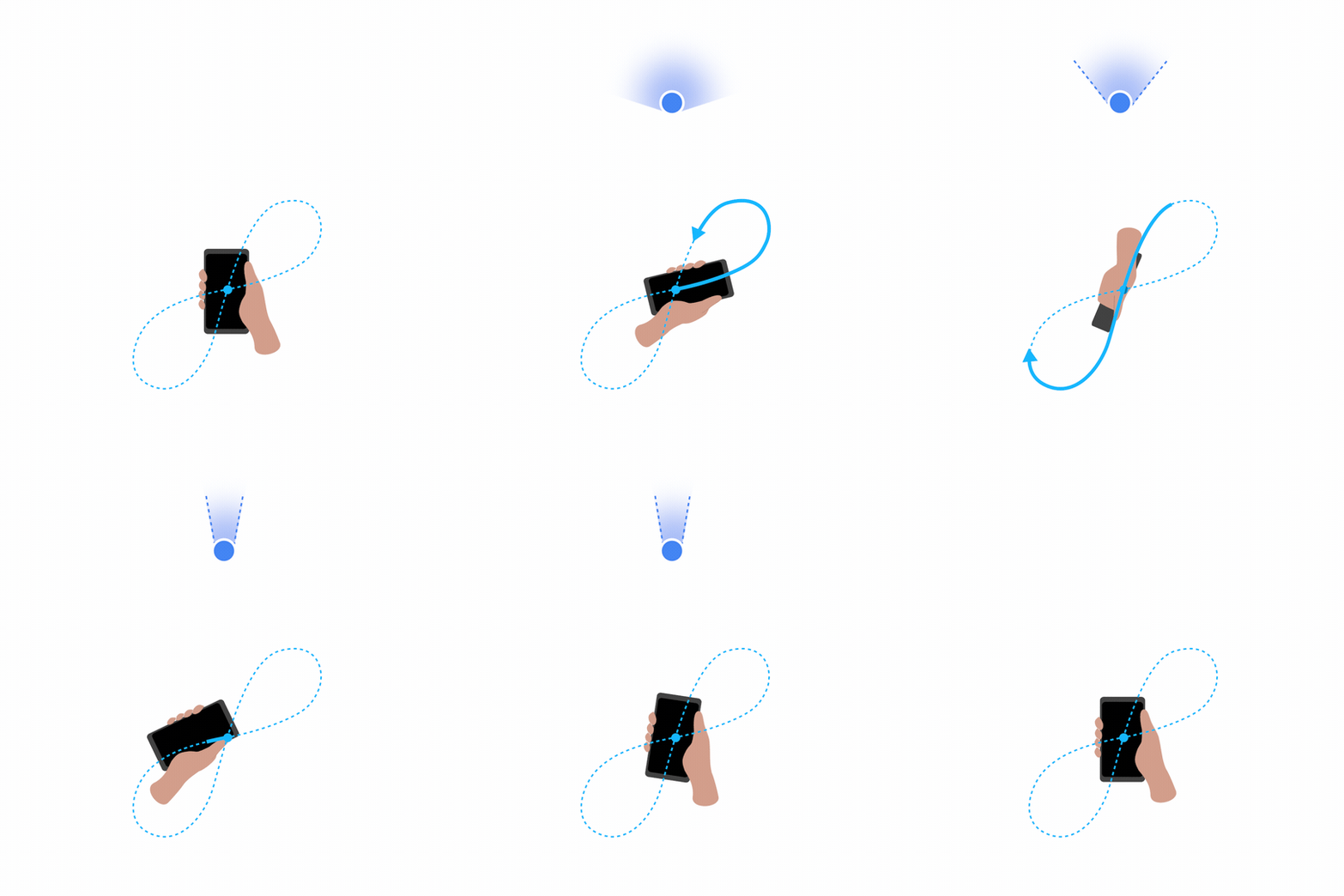
And when Maps will achieve accuracy then you will not face any kind of issue on Smart Lock feature. As Android devices don’t have the automatic option to calibrate so manually go to Google Maps on phone and create 8 rotation. Also ensure that you repeat this process many times before Smart Lock is used.
Solution 9: Clear Google Play Services data
Once you should clear data of play service because this can solve your problem you are coming across. Its simple, go to Settings > Security > Smart Lock and then disable all features of Smart Lock, especially check Trusted Places are properly disabled.
Then again go to Settings > Apps > All Apps and go to Google Play services. Click on it and select Storage option. Next, click on “Clear Storage/Data” and confirm it. After this, restart your phone and then enable Smart Lock features. Hopefully, now the app will work fine.

Solution 10: Remove other Google account from device
Another important thing that can put you in trouble is linking different Google accounts on same device. When more than one account is attached to device then it starts to pull data from different account, hence Smart Lock Trusted Places not working on Samsung S8 or other devices.
Generally, the app does not allow to select the account type but when signed in with multiple accounts then lots of data is pulled and this puts a stop on working Smart Lock features.

So the best way is to remove multiple accounts from the device by going to Settings > Accounts and choose any non-primary account. Then click on “Remove account” and confirm your selection. Do this process for other linked accounts as well and you can solve the issue of Trusted Places not working.
Solution 11: Alternative way to unlock Android phone using Android Unlock software
Whenever your Android phone gets locked and you don’t get any way to unlock it then you can use an alternative feature named as Android Unlock software. This is professional software that helps Android user to Bypass Android Screen Lock pattern. No matter whatever type of lock feature you have used like Pin, Pattern, Password or fingerprint, this software works easily on every types.
The software is 100% safe and it can be used to unlock any Android phone. There is no worry of data loss as it offers user friendly interface and supports every Android brands as well as OS.
 btn_img
Note: It is recommended to download and use the software on your PC or laptop. It is because recovery of phone data on the phone itself is risky as you may end up losing all your data because of data overriding.
Follow the steps to unlock Android phone using Android Unlock
Part 1- Unlock Phone Screen Without Data Loss
Step 1 - Connect the Locked Android Phone to PC
Launch Android Unlock Tool on your PC then choose 'Screen Unlock' option among various tools.
After that, connect your locked Android device to the PC with the help of USB cable. Next, click on 'Unlock Android Screen/FRP' option >> 'Unlock Android Screen' option on a program.
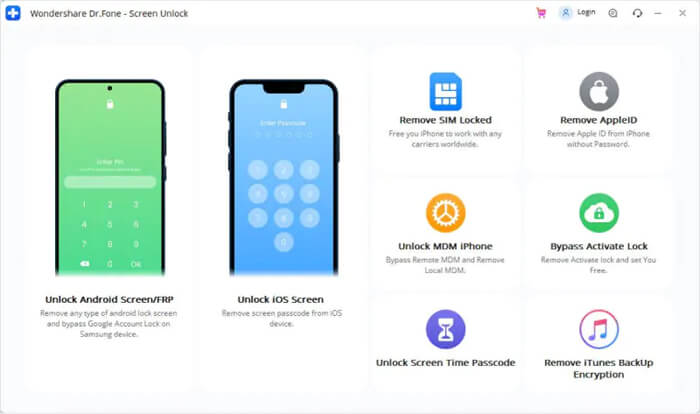
Step 2 - Select the Way to Unlock
Here, we will provide you 2 ways to bypass screen lock from almost all the Android devices. Select the 'Remove without Data loss' option to unlock part LG/Samsung devices without data loss.
Well, it is important to choose the correct device brand in order to unlock the screen lock. There you can see the list of all supported Android device models.

Step 3 - Get into the Download Mode
Follow the below steps to enter the Android mobile into the Download Mode.- Turn your phone ON.
- Then, press & hold Volume Down, Home button, Power button simultaneously.
- Now, press a Volume Up button to get into the Download Mode.

Step 4 - Download the Recovery Package
Once your device gets into download mode, it’ll start downloading a recovery package. You have to wait until the process completes.
Step 5 - Unlock Android Screen Lock without Data Loss
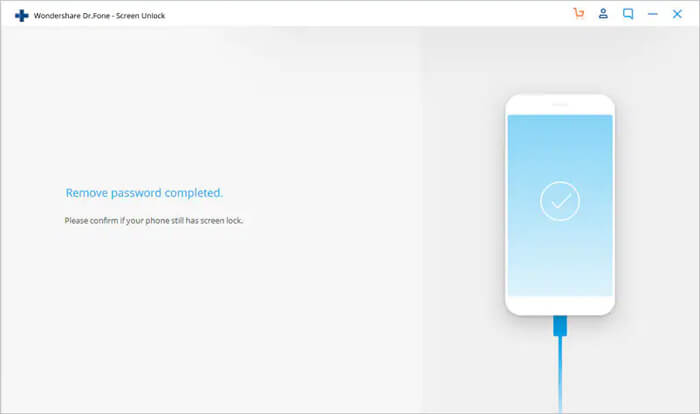
After completing a recovery package downloading process, click on 'Remove Now'. Doing this will not harm any data saved within your device.
When the whole progress gets finished, you can now access your phone without entering any PIN or password.
Part 2- Remove Screen Lock of Most Android Brands
In the list of devices, if you can’t find your phone model in the device list, select '100% Remove Screen Lock' option to unlock your Android phone. Here’s how:
Please Note: This mode will erase all your device stuff.
Step 1 - Choose ‘Unlock Android Screen’ Option
Here, you will see 2 options, but you will have to choose 'Unlock Android Screen' option.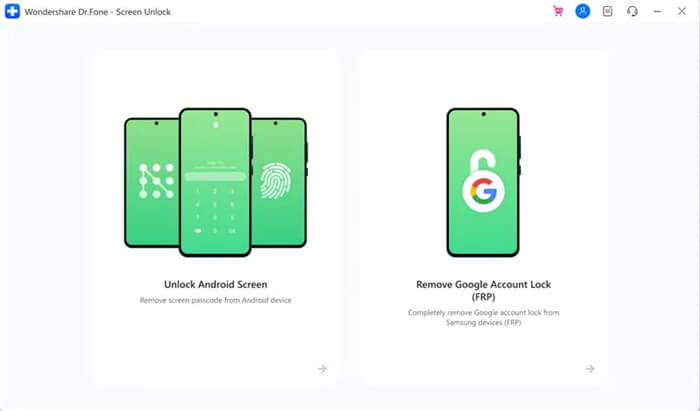
Step 2 - Select the Way to Unlock
Now, here you will also get two options to bypass your Android device screen lock for most of the brands, like Nokia, LG, Samsung, OPPO, Vivo, Motorola, etc. Then, click on '100% Remove Screen Lock' option.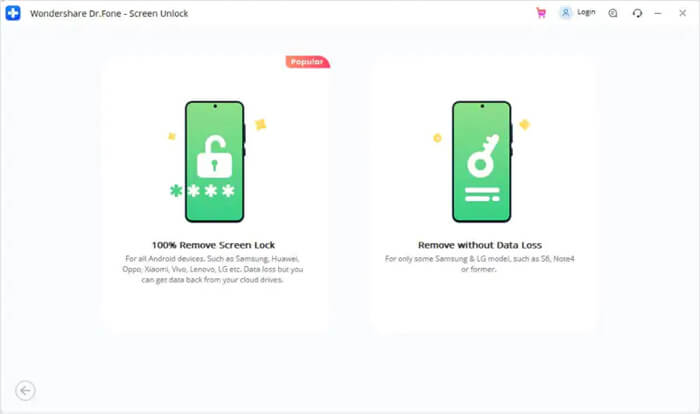
Ensure to choose the accurate device brand to complete the screen lock removal process successfully.

Step 3 - Get into the Recovery Mode.
Follow the program steps to get your phone into the Recovery Mode. Now, here we will take the example of Samsung phone (Processes may differ according to different brands/models):For Samsung Device with Bixby:
- Switch of your phone and ensure that it is connected to a PC.
- Next, press & hold the Volume Up, Bixby, Power Button simultaneously.
- Now, release all the buttons once Samsung logo seems.

For Samsung Device without Bixby:
- Switch of your phone and ensure that it is connected to a PC.
- Press & hold the Volume Up + Power Button together for 6-8 seconds.
- Now, release the buttons once Samsung logo seems and wait for some time.

For Samsung Device with a Home Button
- Switch of your phone and ensure that it is connected to a PC.
- Press & hold the Volume Up, Home Button, Power button simultaneously.
- Release all the buttons once Samsung logo seems and wait for some time.

Step 4 - Steps to Wipe Away Cache Partition
Once a Recovery mode is initiated, follow the onscreen instructions in order to wipe out all your device settings.- Simply, press a Volume Button in order to choose 'Wipe data/factory reset' option & then press a Power Button to proceed.
- Then, enter a screen above, and press a Volume Button. Choose 'Yes' >> press a Power Button in order to confirm.
- After this, press the 'Wipe Cache Partition' >> select 'Yes' in order to confirm.
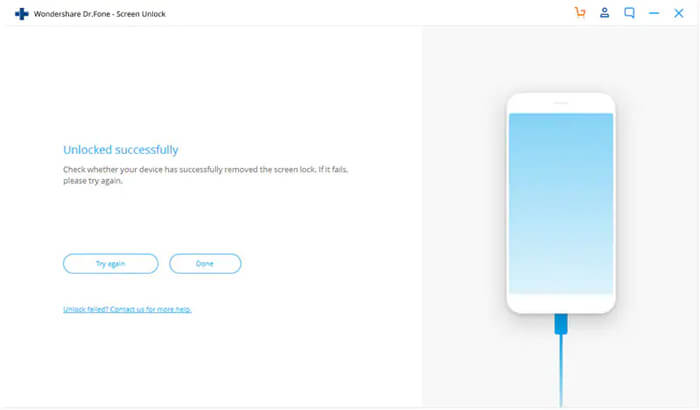
- Lastly, choose the 'reboot system now' option & press a Power Button in order to confirm. Now, you have to wait until your device to restart.

Conclusion
Well, Smart Lock is a helpful way to lock your Android phone and Trusted Places is one of the best feature in it. But sometimes, it does not work due to several reasons and show you an error message “Smart Lock Trusted Places not working”.
But no need to worry as I have mentioned some of the best ways to solve the error and hope, following them will allow you to get rid of it immediately.
Further, you can visit our Facebook, Twitter page and if you have, any questions then you can ASK HERE

James Leak is a technology expert and lives in New York. Previously, he was working on Symbian OS and was trying to solve many issues related to it. From childhood, he was very much interested in technology field and loves to write blogs related to Android and other OS. So he maintained that and currently, James is working for androiddata-recovery.com where he contribute several articles about errors/issues or data loss situation related to Android. He keeps daily updates on news or rumors or what is happening in this new technology world. Apart from blogging, he loves to travel, play games and reading books.