
Pop-up ads can be a nuisance, disrupting your online browsing experience and slowing down your device. However, with effective tricks, you can block these pop-ups from appearing unnecessarily. So, with this guide, learn how to stop pop-up ads on Android phone to enjoy an interruption-free experience.
To fix Android problems with ease, we recommend this tool:
This effective tool can fix Android issues such as boot loop, black screen, bricked Android, etc. in no time. Just follow these 3 easy steps:
- Download this Android System Repair tool (for PC only) rated Excellent on Trustpilot.
- Launch the program and select brand, name, model, country/region, and carrier & click Next.
- Follow the on-screen instructions & wait for repair process to complete.
How to Stop Pop-Up Ads on Android Phone?
Trick 1: Enable Pop-Up Blocker in Your Browser
Most browsers come with built-in pop-up blockers. You just need to enable them to block pop-up ads. Below are the steps to toggle on such settings as per your browser.
Chrome:
- Launch Chrome on your phone.
- Tap the three dots on the top-right corner and choose Settings.
- Scroll down to Site Settings and select Pop-ups and redirects.
- Ensure that the toggle button is on the left to block pop-ups.

Firefox:
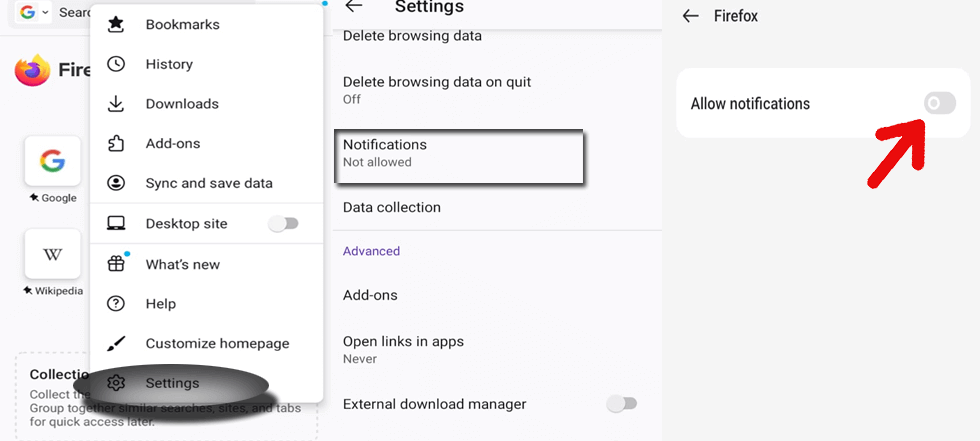
- Launch the Firefox browser on your Android phone.
- Click the three dots icon on the top-right and select Settings option.
- Choose Notifications options and ensure that the toggle button is disabled for Allow Notifications.
Trick 2: Disable App Notifications on Your Phone
Disabling the app notifications on your Android phone is another effective way to prevent unwanted ads from appearing on your device.
Here’s how to remove pop up ads on Android:
- Open Settings on your Android device.
- Select the Notification option and head to the App Notifications.
- Now, toggle off the button for the apps for which you are getting Ad pop-ups.

Also Read: How to Remove Ads from Android Lock Screen? – Taming Intrusive Ads
Trick 3: Clear Cache and Cookies Regularly
Whatever you browse, the apps and sites save such data and information in the form of cache and cookies. This later be used by sites to show you the ads pop-up based on your searches and browsing history.
So, by clearing the browser’s cookies and cache regularly, these Ads can be prevented from appearing. Follow the simple instructions below on how to remove pop up ads on Android as per your browser.
Chrome:
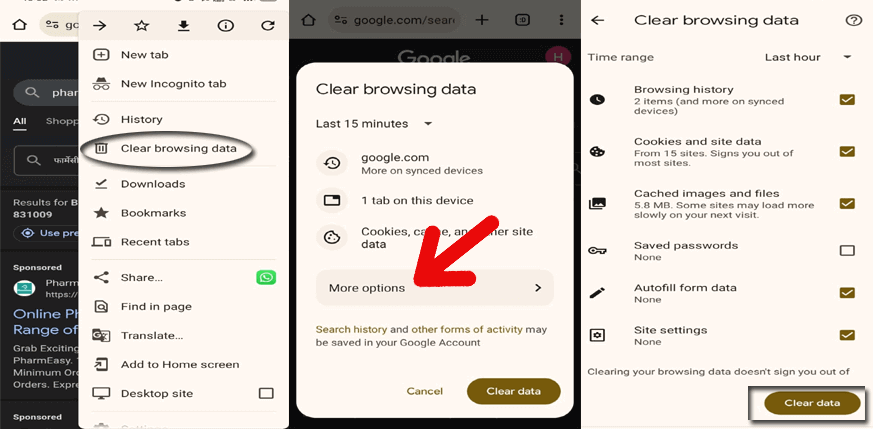
- Open Chrome browser on your device.
- Tap the three dots icon and select the Clear browsing data option.
- Select More options and select the time range of data deletion.
- Now, ensure that the check box for Browsing History, Cookies and site data, and Cached images and files are marked.
- Tap the Clear Data button at the bottom and confirm the same.
Firefox:
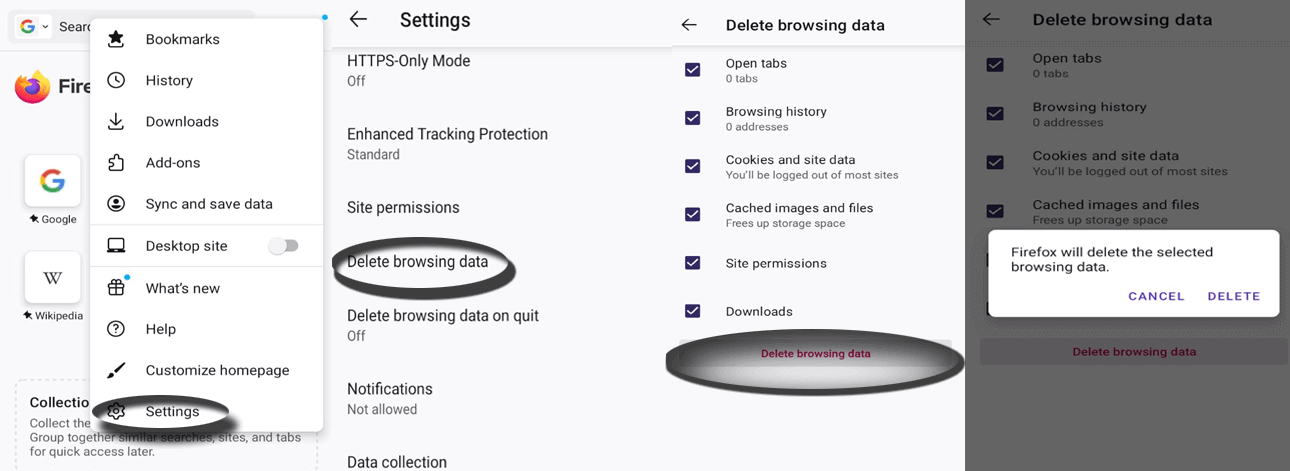
- Launch Firefox on your Android phone.
- Tap the three dots and select the Settings option.
- Choose the option Delete Browsing Data.
- Ensure all the check boxes for Open Tabs, Browsing History, Cookies and site data, Cached images and files, Site permissions, and Downloads are marked.
- Now, tap the Delete Browsing Data button and confirm by clicking the Delete button.
Trick 4: Use a VPN with Ad Blocking Features
A VPN with an in-built ad-blocking feature can help you block pop-up ads from appearing, safeguarding your online security and privacy.
Some of the best VPNs that provide Ad and malware-blocking features include ExpressVPN, NordVPN, and Surfshark. You can also refer to our blog best VPN for Android for detailed information.
Also Read: How to use VPN on Android?
Trick 5: Avoid Clicking on Suspicious Links
Pop-up ads often appear when you visit untrustworthy websites or click on suspicious links. They promise enticing offers like a discount coupon or gift, but instead lead you to harmful sites or malware.
So, be cautious while browsing through such unknown websites and avoid clicking on unknown links. This is another effective way how to stop pop up ads on Android.
Trick 6: Install a Reliable Ad Blocker App
Using a reliable Ad Blocker app can also help you prevent annoying ad pop-ups. There are several Ad blocker applications available on the Play Store such as Blokada, and Surfshark CleanWeb.
Look for the best Ad blocker for Android with high ratings and positive reviews to ensure their reliability.
How to Block Websites on Chrome Without Using an Extension?
Google Chrome allows you to block certain websites without an extension. Let’s see how you can do so:
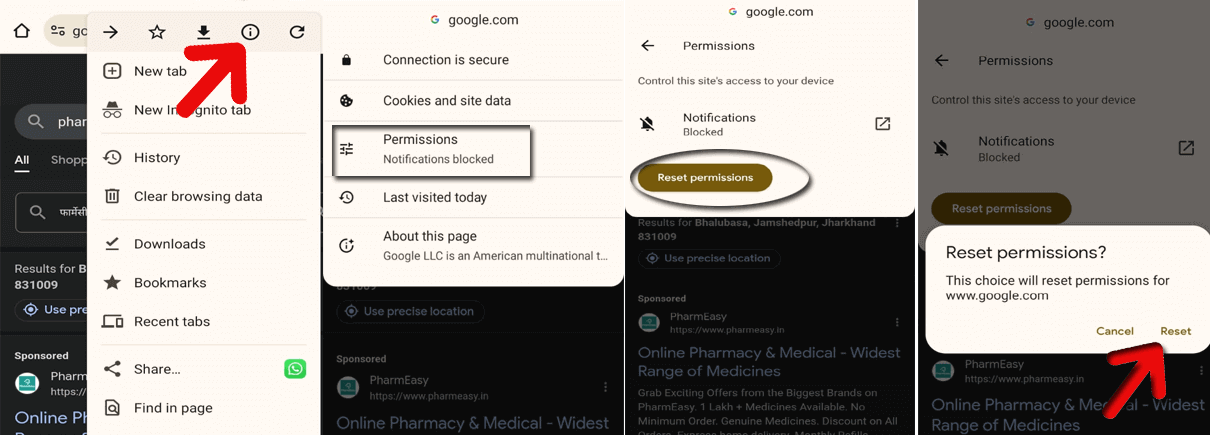
- Launch Chrome on your Android device.
- Visit a site and click the information icon (i).
- Head to the Permissions section.
- Select the permissions to change it and click on the Reset permissions button to delete site settings.
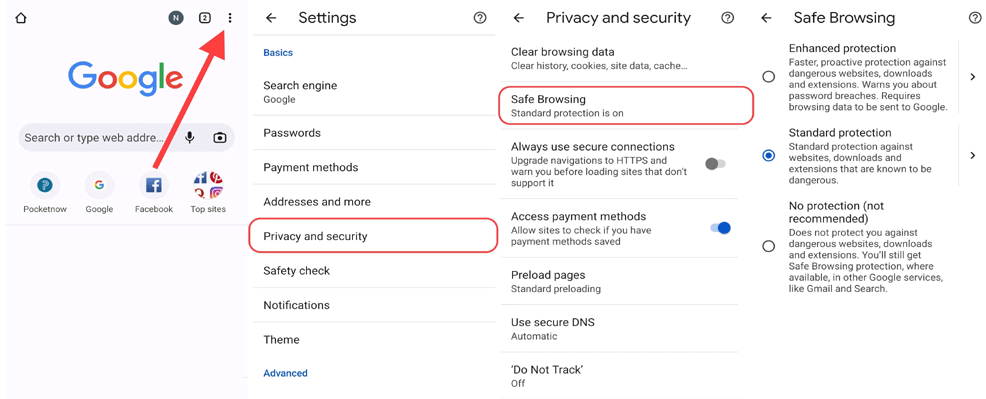
How to Do Safe Browsing to Avoid Unwanted Ad Pop-Ups & Malware?
Safe browsing helps you minimize the risk of encountering malicious or harmful content while browsing over the internet.
- On your Android phone, launch the Chrome browser.
- Tap the three dots icon and head to the Settings option.
- Select the option Privacy and Security on the settings screen.
- Scroll down to the Security section and choose the Safe Browsing option.
- Mark the level of safe browsing you want.
FAQs
How do I know if an app is causing pop-up ads on my Android phone?
If you are getting pop-up ads for a specific app, it is a clear indication that the app is the culprit. In such case, disable the notification for such apps to remove the Ad pop-ups.
Can pop-up ads on Android phones contain malware?
Yes, some pop-up ads notification may contain malware or lead to malicious websites. Exercise caution while clicking on those ads and use reliable antivirus software or ad blockers to protect your device.
Will Ad blocker usage affect the functionality of certain websites or apps?
Yes, the functioning of the websites and apps that rely mostly on ads for revenue may get affected, if you use the Ad blockers. While some ad blockers offer the feature to whitelist specific apps for their smooth functioning.
Is it possible to block pop-up ads without using third-party apps?
Yes, nowadays Android phones and browser offers an in-built feature to block pop-up Ads through their settings. So, with such features you don’t need a 3rd party Ad blocker app to block pop-up notifications.
Conclusion
Now that you know how to stop pop-up ads on Android phone, follow the outlined tricks in this guide and get rid of unwanted and annoying Ad notifications. Remember to stay vigilant while browsing and avoid clicking on suspicious links or ads.
References:
- https://support.google.com/chrome/answer/2765944?hl=en&co=GENIE.Platform%3DAndroid
- https://support.google.com/chrome/answer/95472?hl=en&co=GENIE.Platform%3DAndroid&oco=1
- https://support.mozilla.org/en-US/kb/clear-your-browsing-history-firefox-android
- https://support.google.com/accounts/answer/32050?hl=en&co=GENIE.Platform%3DAndroid
- https://support.google.com/chrome/answer/114662?hl=en&co=GENIE.Platform%3DAndroid
- https://support.google.com/chrome/answer/9890866?co=GENIE.Platform%3DAndroid&oco=1

James Leak is a technology expert and lives in New York. Previously, he was working on Symbian OS and was trying to solve many issues related to it. From childhood, he was very much interested in technology field and loves to write blogs related to Android and other OS. So he maintained that and currently, James is working for androiddata-recovery.com where he contribute several articles about errors/issues or data loss situation related to Android. He keeps daily updates on news or rumors or what is happening in this new technology world. Apart from blogging, he loves to travel, play games and reading books.