
Widgets make Android phones more useful and attractive. They offer fast access to applications and key functions. Nevertheless, many users face a common problem, which is the widget not appearing on home screen. Thus, if you are also facing this issue, you are in the correct place. This write-up explains the major factors and offers workable solutions to fix widgets not showing up Android in no time.
To fix Android-related issues, we recommend this tool:
This effective tool can fix Android issues such as boot loop, black screen, bricked Android, etc. in no time. Just follow these 3 easy steps:
- Download this Android System Repair tool (for PC only) rated Excellent on Trustpilot.
- Launch the program and select brand, name, model, country/region, and carrier & click Next.
- Follow the on-screen instructions & wait for repair process to complete.
Why Are My Widgets Not Showing Up on Android?
Before taking any action to tackle the situation, it is important to extract the major factors first. Widgets not displaying on home screen due to a wide variety of reasons, including:
- Disabled App or Removed Permissions- If there is insufficient permission to access the file, the widget disappears.
- Corrupted Cache or System Glitches- System bugs or corrupted cache stop widgets from working or showing up.
- Battery Optimization- The Enabled battery optimization feature can restrict background activity. As a result, widgets fail to load properly.
- Launcher Problems or Glitches- A faulty launcher often blocks widgets from appearing.
How to Resolve Widgets Not Showing Up Android Phone?
Follow the below step-by-step methods to get rid of it & bring your widgets back. Let’s try them.
Workaround 1- Restart Your Phone
Start with the basic trick, like restarting the Android device. Rebooting the phone has the power to tackle any kind of minor bugs or glitches. If this method fails to display the widgets, try the further solutions.

Workaround 2- Update Your Android OS
Many times, the widget not appearing on home screen because your phone OS isn’t updated. In such a situation, your mobile needs a software update.
Follow the steps below to do so:
- Firstly, open the Settings app on your Android.
- After this, tap on About phone >> System update to check for updates.
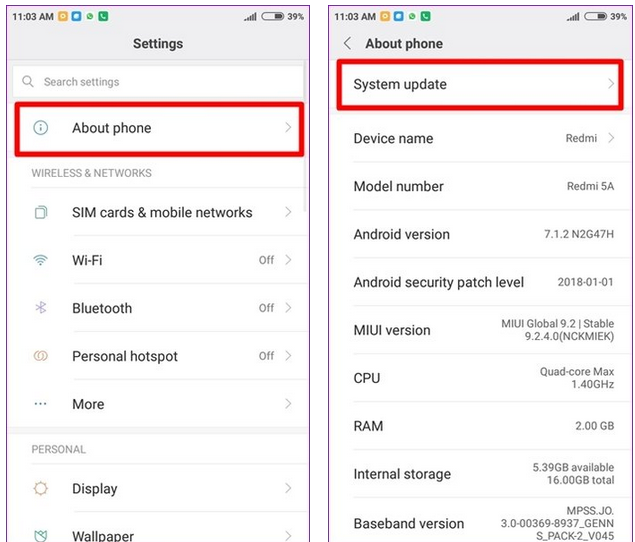
- If there’re any latest updates available, download & install it on your device immediately.
Also Read: 9 Ways To Fix Google At A Glance Widget Not Working
Workaround 3- Remove & Re-Add the Widget
When you can’t figure out the actual cause behind this issue, try removing and re-adding the widget. Many users have found this method helpful in their cases.
To do so:
- Long-press the Widget >> remove it from a home screen.
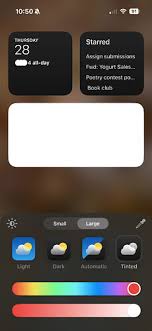
- Next, add it again from the widget menu.
Workaround 4- Clear Cache & Data of the App to Fix Widgets Not Showing Up Android
Since the Android widget is a customizable element or mini-app on your home screen, you can try clearing the app cache and data to troubleshoot this annoying problem.
Here’s how to clear the corrupted cache and data of an app on a mobile:
- Go to phone’s Settings>> “Applications” or “App Manager”.

- Choose the app >> tap on the “Storage” option.
- Tap on Clear cache and Clear data options, and confirm.
Workaround 5- Enable the Required App Permissions
Insufficient required permission to access the app and feature can trigger the Google Widget not working on Android. To tackle this problem:
- Go to phone’s Settings>> “Apps” or “App Manager”.
- Choose the app connected to the widget.
- Then enable all essential permissions. This ensures the widget loads correctly.
Workaround 6- Turn Off Battery Optimization for the App
As already mentioned in the causes, enabling battery optimization and power-saver mode can cause Widgets not to work properly or not be visible in the home screen. Disabling these options can help you to fix this problem effectively.
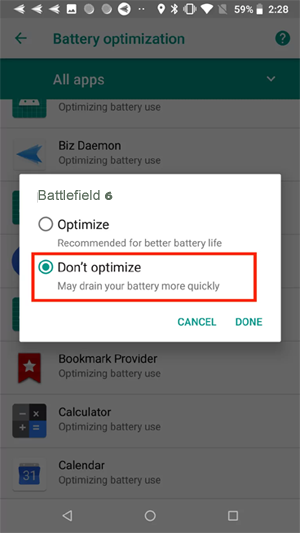
- Open Settings >> tap Battery option.
- Find the Battery Optimization. Choose the widget’s app.
- Now, select “Don’t optimize.” This allows the widget to update in real time.
Workaround 7- Reboot in Safe Mode
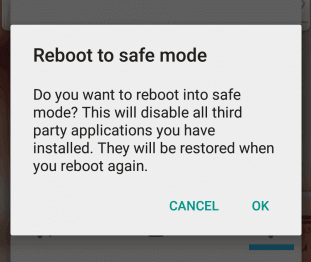
Last but not least, if none of the above fixes worked for you, consider rebooting your device in safe mode. Safe Mode disables third-party apps. If widgets work in Safe Mode, a conflicting app is the problem. Remove that faulty app to restore widget functionality.
Recommended Method: Android Repair Tool
If you face the black screen of death or Apps keep crashing issue, you must try the Android Repair Tool. This software is developed by specialists to deal with Android errors and complex situations with just a single click.
So, you can use this repair tool. To know how it works, you can check out the guide page.

Note: It is recommended to download and use the software on your PC or laptop only.
Prevent Widgets from Disappearing Again
Follow these tips to keep widgets stable:
- Keep your apps updated.
- Avoid installing heavy launchers.
- Disable strict battery-saving modes.
- Restart your phone weekly.
- Grant all required permissions to widget apps.
Taking these steps ensures your widgets stay visible and functional.
Related FAQs:
To restore a removed widget, follow the below steps:
Widgets fail to work on Android phone due to running an outdated version of operating system or app updates on your phones.
To enable widgets on Android phone, long-press on an empty area on your home screen & tap Widgets. From there, choose the application you need to get a widget from >> touch & hold a desired widget. Next, drag it to your home screen.
To fix Widgets loading problems on mobile, try the below tips:
Widgets make the home screen of your phone personal, but they can also drain your battery life sooner than you thought possible. How to Restore a Removed Widget?
Why Are My Widgets Not Working on Android?
How to Enable Widgets on Android?
How to Fix Widget Loading?
Do Widgets Slow Down a Phone?
Time to Closure
After reading this entire blog, I am sure now you will be able to fix the widgets not showing up Android problem & improve your Android experience. As you can see, here I’ve listed some quick ways to troubleshoot this issue & improve your Android experience.
So, just keep on trying the specified approaches until & unless your problem is fixed.
Thanks for reading!


James Leak is a technology expert and lives in New York. Previously, he was working on Symbian OS and was trying to solve many issues related to it. From childhood, he was very much interested in technology field and loves to write blogs related to Android and other OS. So he maintained that and currently, James is working for androiddata-recovery.com where he contribute several articles about errors/issues or data loss situation related to Android. He keeps daily updates on news or rumors or what is happening in this new technology world. Apart from blogging, he loves to travel, play games and reading books.