If you are using a OnePlus device and thinking to bypass its bootloader, must go through this blog to know the ways to unlock OnePlus bootloader. However, you can easily unlock the bootloader with a few simple fastboot commands.
OnePlus Bootloader is the core part of Android that provides it the instructions on which programs need to be started while booting. It verifies the recovery and boot partitions to make sure that your device runs the software that is authorized by the manufacturer.
However, unlocking the bootloader in the OnePlus phone will wipe all your OnePlus data by factory resetting it. So, it is strictly recommended to create a complete backup of your OnePlus data using Android Data Backup & Restore tool before proceeding for bypassing bootloader on your OnePlus device. Download the software and follow its userguide to back up your phone.
 btn_img
Note: It is recommended to download and use the software on your PC or laptop only.
Why OnePlus Device Comes with a Locked Bootloader?
The bootloader plays the role of a gatekeeper that guards your Android devices. Therefore, most Android devices nowadays come with a locked bootloader in order to prevent the users from flashing the device partitions and ROM.
So, with a locked bootloader, flashing the device firmware or custom ROM becomes a difficult task. Users cannot make any changes to the OS or root their devices without getting the bootloader unlocked. Once the bootloader gets unlocked, one can get full access to the device. Therefore, to maintain the security of the device and the firmware, the OnePlus device mostly comes with a locked bootloader.
If you are still curious and eager to unlock the bootloader then you can easily bypass it with a few command lines. But the question here arises why unlock the bootloader and is it worth taking a risk to unlock it?
Why Unlock Bootloader?
While discussing the bootloader the major question that was brought up is – Why the user may want to unlock the bootloader on OnePlus?
The reason most users want to take the risk of unlocking the bootloader on their OnePlus device is mentioned below:
- To install a custom recovery or custom ROMs.
- Gaining root access to the device.
- Flashing device partitions is strictly prohibited in a locked bootloader.
As the mentioned above actions are not allowed by a locked bootloader, some enthusiasts go for unlocking the bootloader. So, if you are one of those enthusiasts who wish to perform any of the mentioned modifications, you would need to first unlock the bootloader on your OnePlus phone. Moreover, an unlocked bootloader will be required if you ever needed to unbrick your device by flashing the factory image with Fastboot commands.
Now, when all is said, unlocking the bootloader on a device isn’t necessary. Don’t do it unnecessarily. Also, read more to know if it is worth unlocking the bootloader.
Things to Know Before Unlocking Bootloader on OnePlus Phones
Well, before going for unlocking the bootloader, you must know the consequences of unlocking the bootloader.
- Data Loss- The very first thing you need to know before unlocking the bootloader is that you will lose all OnePlus data. So, make sure to create a complete OnePlus data backup before commencing the unlocking process.
- Device warranty gets null and void- With unlock bootloader, your phone’s warranty gets null and void. So, no matter whether your device is in the warranty period if you performed the unlocking process, your remaining period will lapse.
- Few apps become non-functional- Once your OnePlus bootloader is unlocked, some of the apps on your device become non-functional or will start causing issues. Such as Google Pay or Pokemon Go might not going to work.
- Data safety gets hampered- Getting the bootloader unlocked on the OnePlus device, will you’re your device prone to attacks. Moreover, one with physical access to your OnePlus device will be easily able to bypass the pins and password locks to access your data. However, with Android’s real-time data encryption feature, one can easily protect their data from others having the device access from reading it.
How To Unlock OnePlus Bootloader?
Before initializing the unlock process on the OnePlus device, go through the below-mentioned prerequisites:
- Create a complete backup of your OnePlus device data. Otherwise, you have to perform OnePlus Data Recovery later to get back your lost data.
- Download and install the updated USB drivers on OnePlus.
- Charge your OnePlus device Recommended charge is 50% in order to prevent it from turning off midway.
Once having fulfilled the above prerequisites, move ahead and follow the instructions below step by step to unlock the bootloader on the OnePlus.
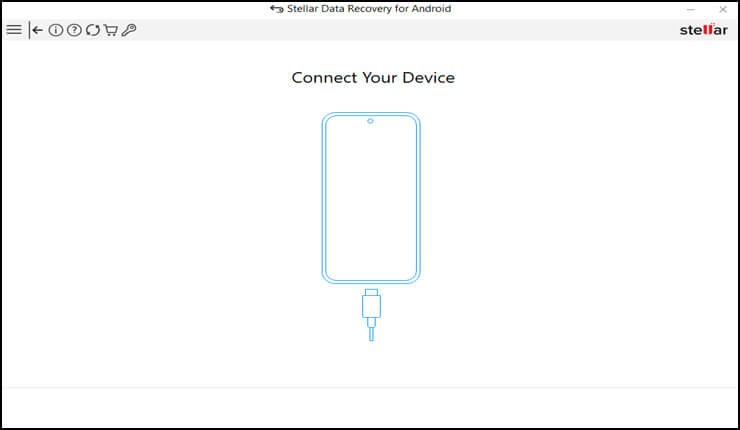
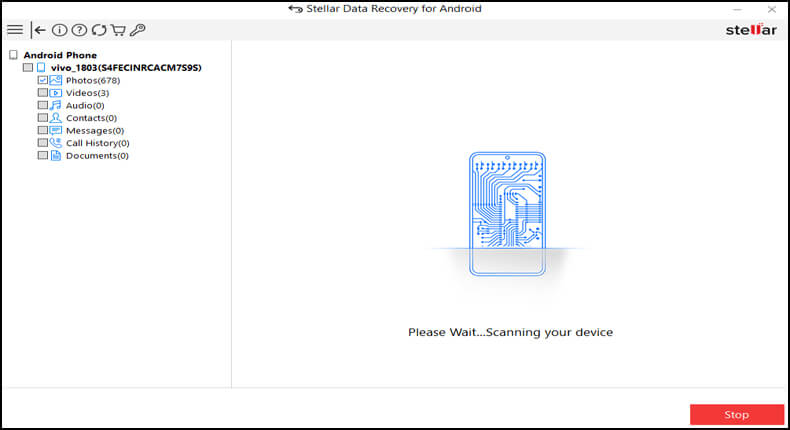
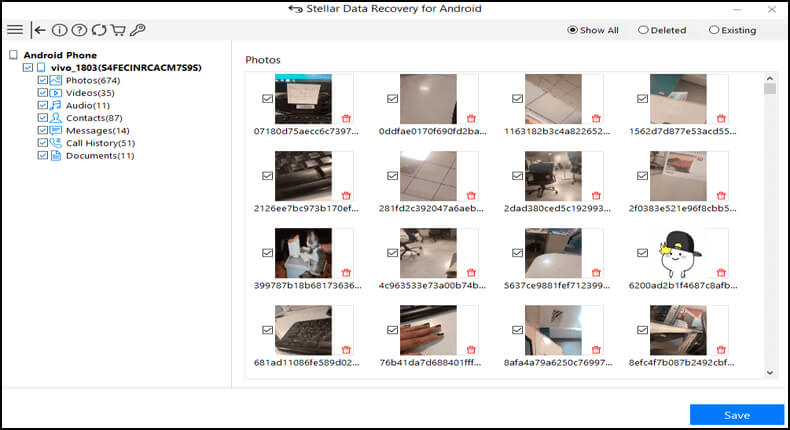
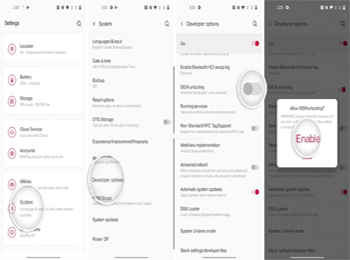
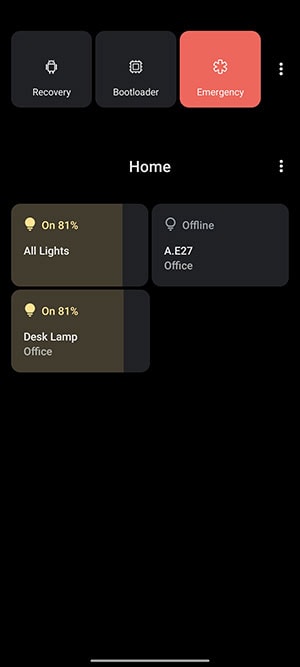
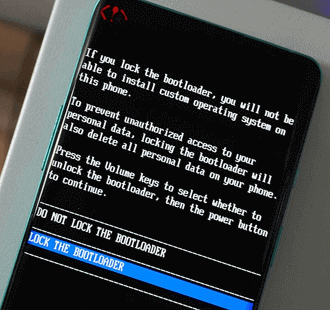
Android Platform tools are required while executing the fastboot commands between your PC and OnePlus device. So, the first thing you need to do is to download and install the platform tools on your system. Download the latest tools package compatible with your system’s OS: Once done with downloading the tools package, extract the ZIP package and go to the extracted folder. The folder includes the binary files of needed tools like Fastboot and ADB. Now, the second thing you need to do is to launch the command line window within the platform-tools folder. Follow the below instructions to do so on Windows OS: After opening the command-line windows on your desktop, the next thing you have to do is to toggle off the OEM Unlocking switch on your OnePlus device. OEM Unlocking switch guards the bootloader. It instructs your OnePlus device whether or not to accept the unlock bootloader command. So, to toggle off the OEM Unlocking switch, follow the steps guide below: Once you have turned on the OEM Unlocking feature, the next thing you need to go for is booting your OnePlus device into Fastboot Mode. As Fastboot tools will be able to connect with your OnePlus phone only when it is in Bootloader Mode. Well, there are different ways of entering into Bootloader Mode. So, we have covered all the different methods to enter into Fastboot Mode. However, you can refer to any one of them as per your preference. Using the ADB command on your PC you can make your OnePlus phone enter into Fastboot Mode. For this, follow the steps as instructed. Another way of entering Bootloader mode is by using a physical key combination. This is the highly-recommended method as it is the only way among others that works even while your device is turned off. So, follow the below steps and enter your Oneplus phone into Fastboot Mode: Device Name Key Combinations Volume Up + Volume Down + Power Another method you can use to boot your Oneplus device into Fastboot mode is by using the advanced reboot menu. This is the simplest way of entering into Bootloader Mode. Follow the instructions below to do so: Now, when your OnePlus device is in Fastboot Mode, you need to connect it to the PC using a USB cable. Once connected, check the connection and make sure that your system must communicate with your OnePlus phone over the bootloader interface. To ensure communication between your OnePlus or system, follow the following instructions below as guided: Once you are done with the above steps, you are all set to unlock the bootloader on your OnePlus phone. You just need to follow a few simple steps t do so: That’s it! Your OnePlus bootloader has been successfully unlocked on your OnePlus device. Even unlocking the bootloader is exciting as you can customize ROMs and do many great things. But there will be a time, when you may feel like returning your OnePlus phone to its factory state. So, here’s a quick guide to relocking the bootloader. To relock the bootloader of your OnePlus phone: In case you haven’t made the backup of your OnePlus data before performing the unlock bootloader process then retrieve your lost OnePlus data with our professional OnePlus Data Recovery Tool. OnePlus Data Recovery Tool is professional software that can easily restore missing/inaccessible data from the OnePlus phone. It is the most recommended tool as it has the highest chance of recovering deleted items from the phone. The tool is amazing as it can retrieve any sort of deleted data such as contacts, call logs, videos, etc from the OnePlus phone without backup. Moreover, it supports all OnePlus phones like OnePlus 3/3T, OnePlus 5/5T, and OnePlus 6/6T to recover deleted data. OnePlus Data Recovery software is user-friendly and you won’t require any technical knowledge to use it. You need to download the software on your PC and connect your OnePlus Phone to the system and then follow the below user manual instructions to retrieve lost data using the software. Note: It is recommended to download and use the software on your PC or laptop. It is because recovery of phone data on the phone itself is risky as you may end up losing all your data because of data overriding. Well, unlocking the bootloader isn’t a necessity or a requirement. However, if you still, want to explore your device and are curious to flash ROM or device partitions, gain root access, etc then this article will be helpful. We have prepared this extensive guide that will not only provide you with unlocking bootloader methods but will give you complete information on the topic including the consequences and requirements. I hope the article serves you well thereby helping you to unlock OnePlus bootloader. In case of any queries or doubts, feel free to comment to us on Twitter or Facebook. James Leak is a technology expert and lives in New York. Previously, he was working on Symbian OS and was trying to solve many issues related to it. From childhood, he was very much interested in technology field and loves to write blogs related to Android and other OS. So he maintained that and currently, James is working for androiddata-recovery.com where he contribute several articles about errors/issues or data loss situation related to Android. He keeps daily updates on news or rumors or what is happening in this new technology world. Apart from blogging, he loves to travel, play games and reading books.Step 1: Download & Install Android SDK Platform Tools
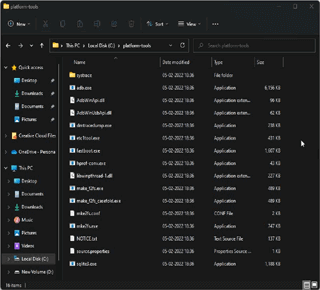
Step 2: Launch the Command-Line Window

Step 3: Turn on OEM Unlocking

Step 4: Boot Your OnePlus Device into Fastboot Mode

USB ADB Command

Use the Physical Key Combination
OnePlus One
Volume Up + Power
OnePlus 2
Volume Up + Power
OnePlus 3, OnePlus 3T
Volume Up + Power
OnePlus X
Volume Up + Power
OnePlus 6, OnePlus 6T
Volume Down + Power
OnePlus 8, OnePlus 8 Pro, OnePlus 8T
Volume Up + Volume Down + Power
OnePlus 9, OnePlus 9 Pro, OnePlus 9R, OnePlus 9RT
Volume Up + Power
OnePlus 7, OnePlus 7 Pro, OnePlus 7T, OnePlus 7T Pro
Volume Up + Volume Down + Power
OnePlus 5, OnePlus 5T
Volume Up + Power
OnePlus Nord, OnePlus Nord N10, OnePlus Nord CE, OnePlus Nord 2
Use the Advanced Reboot Menu


Step 5: Connect Your Device to the System

Step 6: Unlock the Bootloader


How to Relock the Bootloader on Oneplus?
Bonus Tip: OnePlus Data Recovery Tool
btn_img
Final Verdict