
Read this article and learn how to fix GroupMe failed to add member issues with the 9 best fixes.
GroupMe is a well-known application for messaging and group chatting. Though it has smooth operation & UI, but sometimes users unable to add the members to GroupMe group.
Recently many Android users have reported that they failed to add members to their GroupMe groups.
Thus, if you are also going through the same problem then continue reading this post and find out the reasons behind ‘failed to add member’ on GroupMe and how to fix it.
Common Reasons Behind The “GroupMe Failed To Add Member” Issue
There could be numerous reasons behind this problem but a weak internet connection is the primary one. Besides, below I have listed some other root causes that can result in failed to add member to GroupMe problem.
- Due to GroupMe app cache and files.
- If the member has left a group.
- A problem in the app GroupMe itself.
- Technical problems.
Let’s proceed to troubleshoot this issue on your Android by applying the solutions mentioned in the next section.
How To Fix “GroupMe Failed To Add Member” On Android Phone?
Check out the step-by-step methods and fix can’t add member on GroupMe by yourself.
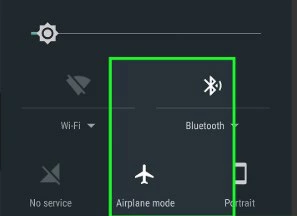
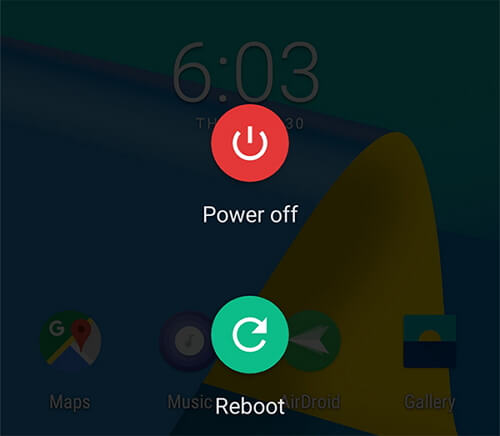
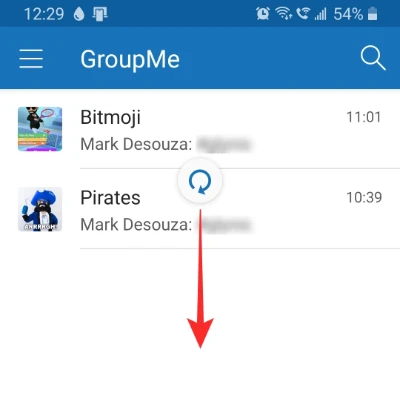
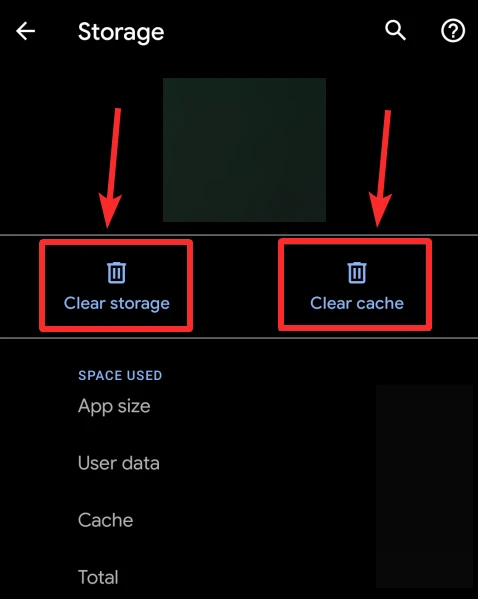
As I have already said in my previous article that apps need a stable internet connection to work smoothly. Maybe you are unable to add member to your GroupMe group due to network problems. So, make sure that you have strong internet. If you’re using mobile data then switch on & off an ‘Airoplane mode’ on your phone by following the below steps: Step 1: Open the “Settings” Step 2: Tap on “Connections” from various options. Step 3: Select the option “Airoplane mode” & switch it on by simply tapping on it. This will disable your Bluetooth, Wi-Fi connection, and mobile data as well. After some time, turn off your “Airoplane Mode” and check if your mobile data is working and you are able to add members. If not working, then switch to any strong Wi-Fi network. You Might Also Read: 11 Ways To Fix ‘WhatsApp Keeps Crashing’ On Android Restarting the phone is a basic trick that users are often doing when they face any glitches on their smartphone. Once you should reboot your device to solve ‘GroupMe failed to add member’. For this, you need to press & hold a Power button on your phone then tap on a Restart option. Let it reboot/restart, then launch the GroupMe application & attempt to add the member again. Well, if you are getting the error ‘Name cannot be added’ when trying to add the member on GroupMe group, just stop worrying. Refreshing the page of an application can help you to resolve this issue. To do so, simply swipe downward the page to refresh and then tap on reloads. After that, return to your group. Here, you’ll get a notification that says an individual has been invited. Just copy this link provided & send it to a member whom you want to invite. Continuously using any app stores cache and files which can lead to several issues related to that app. You can tackle the situation by simply clearing the app cache. Here, you should attempt to clear GroupMe cache and data to fix failed to add member to GroupMe by following the beneath instructions: Step 1: On your mobile, go to the Settings >> Apps Step 2: Find and click on the GroupMe then Storage. Step 3: After that, tap on Clear Cache OR ‘Clear Data‘ option. Step 4: Launch the GroupMe application & try to add the member now. After completion of these steps, this should solve the issue, I guess. You May Also Like: Fix “Unfortunately, TouchWiz has Stopped” On Samsung Actually, GroupMe doesn’t let you to add users again to those who have left the specific group previously. Thus, if you will try to add any member who has left that specific group then you’ll get a notification that adding a person isn’t allowed. So, check once whether that person has previously left the group or not. Most of the time, it happens that an outdated app can lead to several unexpected issues like GroupMe failed to add members on Android. In such a situation, updating a GroupMe application to its recent version can deal with the problem. Here is how you can update the GroupMe application on your device: Step 1: Launch Play Store app on your smartphone >> tap on a profile icon which you can see at a top right corner. Step 2: Choose My Apps & Games >> head to an Installed tab. Step 3: Now, open the GroupMe (here, you need to scroll) Step 4: Tap on an Update option. Once the GroupMe application is updated successfully, launch it & see if you are now able to add a member in the group. Another best solution that you can try to solve fix cannot add member on GroupMe is to send a group link to that person whom you wish to add. Follow the below easy steps to do so: Sometimes, it may happen that your phone works fine, nonetheless, the app itself doesn’t. At that time, uninstalling and reinstalling the problem-causing app can help to get rid of the bug. So, here I would also like to suggest you to do the same thing. In order to uninstall & reinstall the GroupMe app, you have to try the below steps carefully: Step 1: Open the “Applications Icon Tray” >> select a “GroupMe” app. Step 2: Then long-press the GroupMe app icon >> tap on an “Uninstall” option. Step 3: After some time, open the Google Play Store and search for GroupMe Step 4: Now, tap on Install. Wait until the app installs successfully & attempt to add fellows now. Even after trying the above solutions, if still GroupMe failed to add members then the last option left for you is to perform a factory reset. Applying this method will remove all your important files including photos, videos, music, chats, SMSs, and other documents that are saved within the device. So, before trying this approach, don’t forget to keep a backup of all your crucial files somewhere else. To do a factory data reset, you need to follow the step-by-step guide mentioned below: You Might Also Read: 100% Solved: “Unfortunately, Messenger Has Stopped” Error on Android Alright, that’s all guys! I hope after going through this complete article, you must have gained enough knowledge regarding how to fix can’t add member on GroupMe Android. Just apply the solutions one by one and see which method is helpful according to your situation. If you liked this article then don’t forget to share it with others who are also facing the same issue. Good luck! James Leak is a technology expert and lives in New York. Previously, he was working on Symbian OS and was trying to solve many issues related to it. From childhood, he was very much interested in technology field and loves to write blogs related to Android and other OS. So he maintained that and currently, James is working for androiddata-recovery.com where he contribute several articles about errors/issues or data loss situation related to Android. He keeps daily updates on news or rumors or what is happening in this new technology world. Apart from blogging, he loves to travel, play games and reading books.Fix 1: Check The Network Connection
Fix 2: Restart Your Android Device
Fix 3: Refresh Application
Fix 4: Clear GroupMe App’s Cache & Data To Fix GroupMe Failed To Add Member
Fix 5: Check If A Member Has Left A Group
Fix 6: Update GroupMe App
Fix 7: Add A Person Via Group Link


Fix 8: Uninstall & Reinstall the GroupMe
Fix 9: Perform a “Factory Reset”

Time To Verdict
