
While updating/downloading apps, games, or subscriptions from the Google Play Store, Android users often encounter errors. One such annoying message is- “The item you requested is not available for purchase.” However, the error often relates to account, region, or payment settings. Hence, fixing it requires systematic troubleshooting steps.
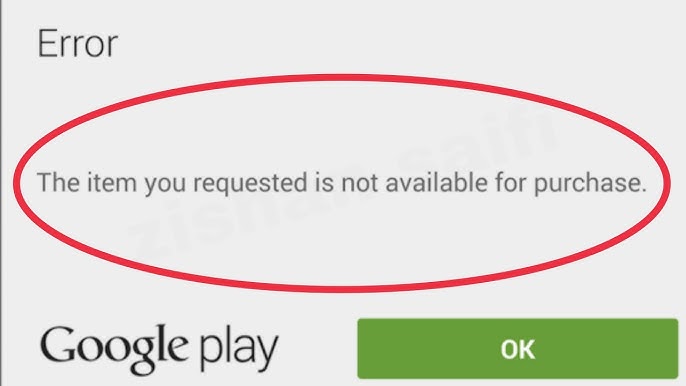
In this blog, I will explore why this error occurs in the Play Store and how to fix it with less effort.
To fix Android-related issues, we recommend this tool:
This effective tool can fix Android issues such as boot loop, black screen, bricked Android, etc. in no time. Just follow these 3 easy steps:
- Download this Android System Repair tool (for PC only) rated Excellent on Trustpilot.
- Launch the program and select brand, name, model, country/region, and carrier & click Next.
- Follow the on-screen instructions & wait for repair process to complete.
Why Does It Say This Item Isn’t Available on the Play Store?
This error mainly occurs when you try to purchase any app from the Play Store. This happens due to a wide variety of factors, including:
- Regional restrictions
- Corrupted Google Play cache
- Outdated Play Store services cause purchase conflicts
- Account-related issues
- Invalid payment methods
As a result, users encounter repeated purchase failures. Now, it’s time to tackle the situation with the best methods.
How to Solve the Item You Requested Is Not Available for Purchase Google Play Error?
In this section, you’ll find workable fixes to tackle this hectic error. Therefore, let’s try them.
Solution 1- Remove Regional Restrictions
Regional restrictions are the major factor in displaying this warning message. Some applications remain limited to selected countries only.
So, Google Play Store blocks purchases outside supported regions.
All you need to do is use the best VPN app for Android to change the location.
Solution 2- Clear Google Play Cache & Data
An overloaded cache & data of the Play Store app can even cause the item you requested is not available for purchase Android error. In such a case, clearing the app cache and data can aid you handle the current situation.
Follow the steps below to do so:
- Open Settings on your mobile.
- Find & tap on Apps or App Management.
- Select the Google Play Store >> Storage Usage
- Finally, tap on Clear cache >> Clear data

Solution 3- Check the App Compatibility & Device Support
If your Android device version isn’t compatible with a specific app, it is important to review app requirements carefully. If unsupported, try upgrading your operating system to solve such a limitation.
Also Read: Solved- Google Play Store Error Your Device Is Not Compatible on Android!
Solution 4- Update or Change Payment Method
Many users have reported in the community sites that modifying the payment method in the Google Pay settings helped them to fix this error. So, open the Play Store to change such settings as invalid payment methods stop purchases abruptly.
Here are the complete steps to do so:
- Open Google Pay settings.
- Go to profile icon >> tap on Account or Payments & Subscriptions.
- Now, tap on Payment Methods >> Add a valid card or pay with UPI.
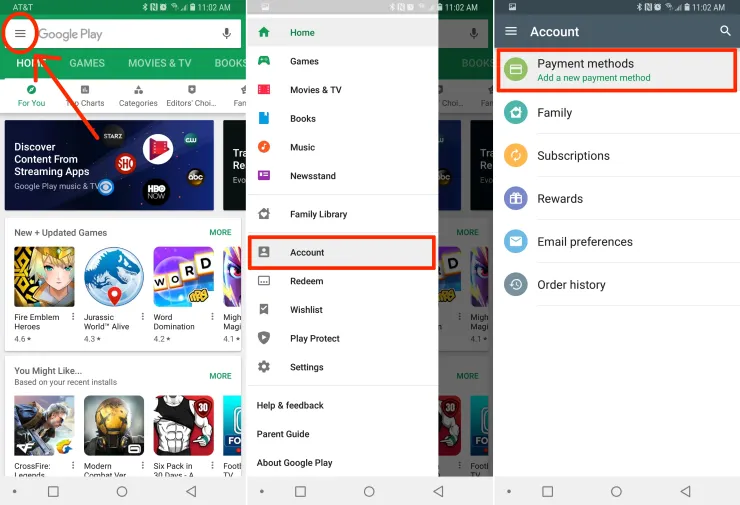
- Also, remove expired or unused options.
Solution 5- Remove and Re-add Google Account
Using multiple accounts for creating billing and purchasing items in the Google Play can cause conflicts regularly and trigger the item you requested is not available error. Henceforth, keep only one primary Google account to avoid such annoying problems.
Here are the steps to be followed to remove and re-add the Google account:
- Go to Settings>> Users & accounts.
- Next, tap on specific account that you’re using for the Play Store.
- After that, tap on the 3-dotted menu at the top right corner & tap Remove account.
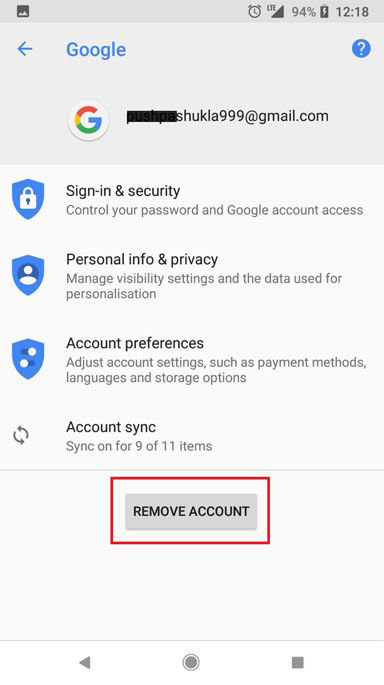
- Choose the Login & add your account again.
Solution 6- Use Google Play Web Version
Another quick method you can try is to use a web version of the Google Play Store. Sometimes mobile apps malfunction suddenly. So, visit Google Play using your browser and sign in with your Google account. After that, you can attempt the purchase again. Often, web purchases bypass app bugs.
Also Read: Fix Google Play Services Not Supported By Your Device
Solution 7- Contact Google Play Support to Fix the Item You Requested Is Not Available for Purchase Error
Last but not least, if none of the above methods work, try contacting Google Play support directly for assistance. Simply, provide screenshots and transaction details clearly. Support teams resolve account-level restrictions.
Eventually, access gets restored.
Unique FAQs:
Why Is Google Play Not Letting Me Purchase?
If your payment method isn't update in the Payments center, then Google Play won’t let you purchase. Ensure you have sufficient money in your account for the purchase.
How to Fix This Item Is Not Available in Your Country Google Play?
To fix ‘this item is not available in your country’ error on the Play Store, you have to use a VPN to modify your virtual location or try to change your Google Play country in account settings
How Do I Remove Country Restrictions from Google Play?
To eliminate country restrictions on Google Play Store, you to change your country by being actually in the new country. To do so:
- Go to Settings > General >> Account & device preferences.
- Next, tap on Country & profiles.
Also Read: Fix Google Play Store “No Internet Connection, Retry” on Android
Summing Up
Resolving the item you requested is not available for purchase Google Play error can be a bit of a journey. However, with patience & persistence, you will likely find a solution that actually works for you.
From easy fixes like verifying billing information to more involved steps like correcting the Play Store country settings, many strategies are discussed in this post. By following the above methods, you can ensure smooth app purchases.


James Leak is a technology expert and lives in New York. Previously, he was working on Symbian OS and was trying to solve many issues related to it. From childhood, he was very much interested in technology field and loves to write blogs related to Android and other OS. So he maintained that and currently, James is working for androiddata-recovery.com where he contribute several articles about errors/issues or data loss situation related to Android. He keeps daily updates on news or rumors or what is happening in this new technology world. Apart from blogging, he loves to travel, play games and reading books.