
Recovering permanently deleted emails from Gmail can be challenging, but it is not entirely impossible. However, remember the chances of recovering permanently deleted emails diminish over time. So, it’s crucial to act quickly and recover permanently deleted emails Gmail.
Therefore, we have come up with this detailed guide to help you with the email recovery process and let you have the deleted emails back on your phone.
Let’s get started….
To recover permanently deleted emails Gmail, we recommend this tool:
This effective tool will recover lost, deleted, inaccessible data from any data loss situations in no time. Now recover your lost and deleted data in just 3 easy steps:
- Download this Data Recovery Tool (for PC only, for Mac) rated Excellent on Pcmag.com.
- Select the storage media you wish to recover data from and click on Scan.
- Preview the files before recovery and choose Recover option to restore deleted data from Android.
How to Recover Permanently Deleted Emails Gmail?
In this section, you are going to discover the various methods to recover deleted emails from Gmail.
Method 1: Check for the Trash Folder
When you delete an email, it usually goes to the Trash folder first. So, it is better to check this folder before moving on to some other ways.
Here’s how you can do so:
- First, log in to your Gmail account.
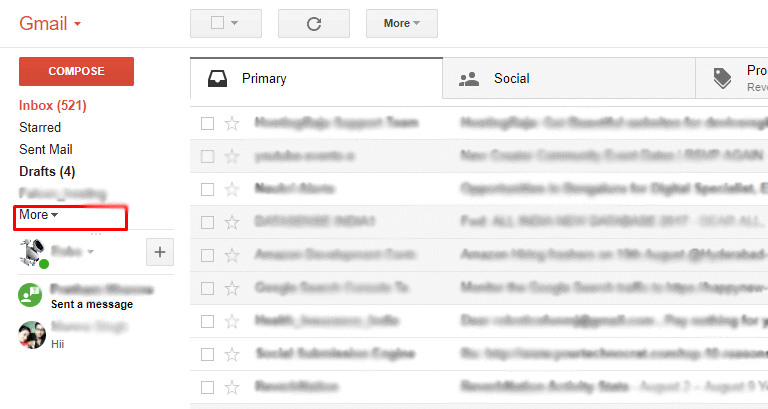
- Now, click on the More option on the left panel.
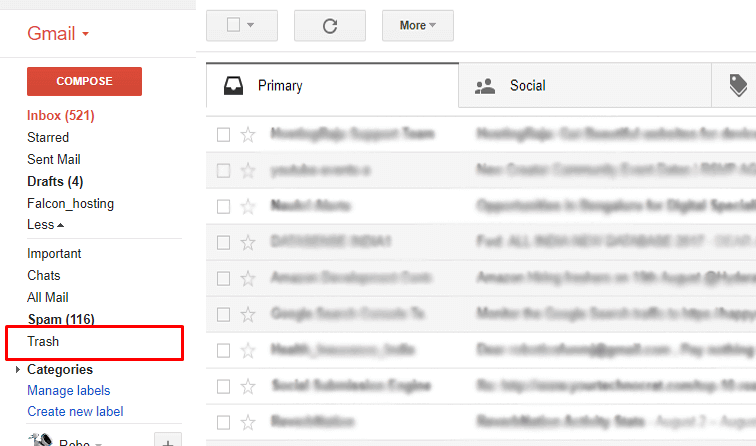
- Now, tap on the Trash folder. Here you will get the deleted email.
- Open the deleted email that you want to recover.
- Now, click on the folder icon (Move to) that you will get at the top and then select, ‘move to inbox’.

- Finally, all your deleted emails are recovered successfully
Method 2: Look in the “All Mail” Folder
Sometimes, emails bypass the Trash folder and go directly to the “All Mail” folder. Therefore, we suggest you check this folder once for deleted emails.
Follow the steps to recover permanently deleted emails Gmail.
- Open your Gmail
- Click on More in the left-hand sidebar and select All Mail.
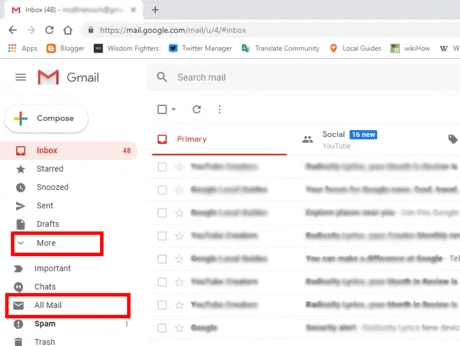
- Here, look for the deleted emails, and if you find them, move them back to your inbox or other folders.
Method 3: Restore Gmail Emails from the Admin Console
If you are wondering how to recover deleted emails from Gmail after 30 days, visit Admin Console. Admins Console stores deleted emails for 25 more days after 30 days of deletion.
Here are the steps referred from Google Support:
- Browse the Google Admin Console on your device.
- Then, sign in with your administrator account credentials.
- In the Admin console screen, click on the Menu icon.
- Then, go to the Directory>Users.

- Now, select the user from the list.

- On the user’s page, click on the three-dot icon in the right corner and select Restore Data.

- Choose the date range for the emails you want to restore, from within the last 25 days.
- And choose the Gmail option.
- Lastly, tap on Restore Data.

Method 4: Recover Deleted Emails from Gmail Via Mail & Spam & Trash
Gmail has a service “Mail & Spam & Trash” which is useful in searching emails among spam. So, use this service to recover permanently deleted emails from Gmail.
Check out the below steps to do so:
- First, open Gmail on the computer, and in the search box, tap on the Down arrow option
- Then, tap on “All Mail” and choose “Mail & Spam & Trash“

- Here you have to enter some information about the missing email like “From who” and if you don’t remember then leave it blank
- Now at the bottom, click on “Search” after which all wiped emails will be listed. And from here you can recover them.

Method 5: Contact Gmail Support
If none of the above solutions doesn’t help you recover deleted emails, you can reach out to Gmail Support for further assistance.
For this, follow the instructions below:
- First login into your Gmail account
- Then, go to the missing email support page (https://support.google.com/mail/contact/missingemails)
- Fill the complete form with proper and correct details like an email address in which you want to recover the emails
- After that mention the last date you remember of missing emails

- After that, you have to add all the necessary information about the issue and steps to reproduce it. Here you have to mention that you have accidentally deleted the emails or it mistakenly disappeared.
- At last, after everything is finished, click on the ‘Submit’ option.
Recommended: Use Android Email Recovery Tool
If you are looking for a Gmail email recovery tool to recover deleted emails, we recommend you use Android Email Recovery.
This fascinating tool has been amazingly designed to recover deleted emails from the Gmail. Not only emails, but the tool can also recover deleted/lost videos, photos, audio, documents, call history, text messages, and many more.
This software is capable of recovering data from any critical situations including broken screen, black screen, SD card issues, factory reset, rooted phones, and others.
So, download the software on your system and follow its user guide.
 btn_img
Note: It is recommended to download and use the software on your PC or laptop. It is because recovery of phone data on the phone itself is risky as you may end up losing all your data because of data overriding.
Also Read: How To Retrieve Deleted Voicemails Android?
How to Backup Emails on Your Android Phone?
If you’re using Gmail as your email provider, you can use the Google Takeout service to create a backup of your emails.
Here are the detailed steps to do so:
- Go to the Google Takeout website and sign in with your Google account.
- To back up your emails, click on Deselect All and then scroll down to find and select Mail.
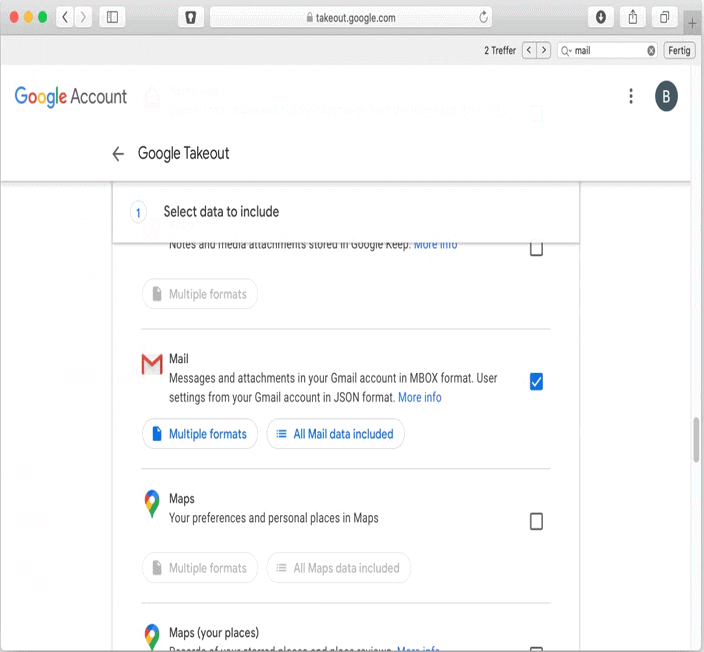
- Scroll down and click on Next.
- Now, select the backup format, frequency, and delivery method. You can also choose to receive the backup download link via email or add it to Google Drive, Dropbox, or other cloud storage services.
- Click on Create export to start the backup process.

- Google Takeout will create a backup of your selected emails and provide you with a download link or deliver it through the chosen method.
Also, for a hassle-free backup of your all emails, you can go for Backup & Restore software. Using this tool, you can easily back up your data with a few simple clicks.
Later, you can use the same software to recover the backed-up data in case of deletion. So, use the below button to download it and follow its user manual.
btn_imgNote: It is recommended to download and use the software on your PC or laptop only.
FAQ (Frequently Asked Questions):
Are Gmail emails deleted forever?
The deleted email message can go forever after they are removed from the Trash folder. However, the copies of deleted messages and accounts are still on servers for 60 days. Even the wiped items remain on an offline backup system for some time.
How can I recover deleted emails from Gmail on my phone?
- First, open Gmail on your Android phone
- Now click on Menu on the top left and click on Trash
- After that, click on letter or photo next to emails you wish to recover
- Then click on More > click on Move to
- Now, select where you wish to move messages such as inbox
How do you find old emails on Gmail?
There are ways by which users can find their old emails on their Gmail. The steps are as follows:
- First, open Gmail
- Go to the search box and then click the down arrow button.
- Next to ‘search’ in the drop-down menu, select Mail & Spam & Trash.
- Now here you have to fill in the information that you are searching for in the box
- Finally, click on the search option
How can I see more emails in Gmail?
Many users do not know how to see more emails in their Gmail account, though they are using for a long period. Well, for those people and for others who want to see more emails, they should follow the below steps:
- First, you have to select the gear icon
- After that select ‘Settings’
- Now under General, find Maximum page size
- Then from drop down just next to conversation per page, you have to select how many emails you want to show
- At last, click on Save changes just at the bottom of the page
Conclusion
Here comes the end of this article. I hope, with the guided methods, the deleted emails Gmail recovery process becomes quite easy and possible.
Also, do not forget to use Android Email Recovery software to recover permanently deleted emails Gmail.
For any further assistance, visit our Facebook or Twitter page.

James Leak is a technology expert and lives in New York. Previously, he was working on Symbian OS and was trying to solve many issues related to it. From childhood, he was very much interested in technology field and loves to write blogs related to Android and other OS. So he maintained that and currently, James is working for androiddata-recovery.com where he contribute several articles about errors/issues or data loss situation related to Android. He keeps daily updates on news or rumors or what is happening in this new technology world. Apart from blogging, he loves to travel, play games and reading books.