
The “touch input blocked” error message shows up when the touch sensor on your phone is not responding or malfunctioning, preventing you from accessing your device. This error is mainly encountered by Samsung users. So, if are in such a situation and wondering a way to exit it, here’s a post.
The error pops up with a message stating: “Touch input blocked. To prevent this from happening again, check if the proximity sensor is blocked. Tap OK to continue using your phone”.
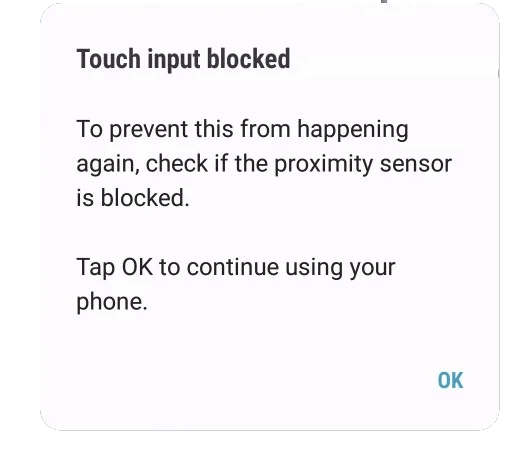
So, in this guide, we have discussed why your touchscreen malfunctioned and show you this error along with a handful of solutions to resolve it. So, let’s delve in and find out the best solution that works for you.
To fix touch input blocked error on Samsung, we recommend this tool:
This effective tool can fix Android issues such as boot loop, black screen, bricked Android, etc. in no time. Just follow these 3 easy steps:
- Download this Android System Repair tool (for PC only) rated Excellent on Trustpilot.
- Launch the program and select brand, name, model, country/region, and carrier & click Next.
- Follow the on-screen instructions & wait for repair process to complete.
How to Fix “Touch Input Blocked” on Samsung?
The entire sections cover the practically tested workarounds that have proved successful in resolving this error. Check them out and try step-by-step as mentioned to eliminate the error message.
Solution 1: Restart Your Samsung Device
Sometimes, running your device continuously for a longer period leads to overheating which further starts causing various problems and touch input blocked is one of them.
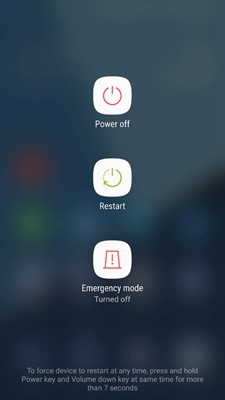
Here, giving your device a fresh restart can refresh its processes and helps it in eliminating temporary issues caused by continuous usage.
Just hold the Power button for a second and tap the Restart option on the power menu.
Solution 2: Remove the Screen Protector
In most cases, the screen protector or case that you are using blocks the proximity sensor, turning it to be unresponsive and giving you touch input blocked Samsung error.
So, in order to fix the error, you need to temporarily take out the screen protector and clean the proximity sensor.
Here are the instructions to do so:
- Gently remove the cover from your device.
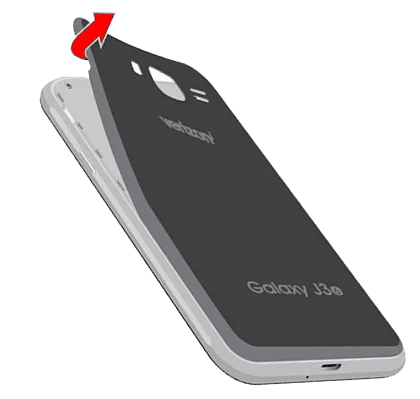
- Now, clean the touch sensors with a soft cotton cloth.
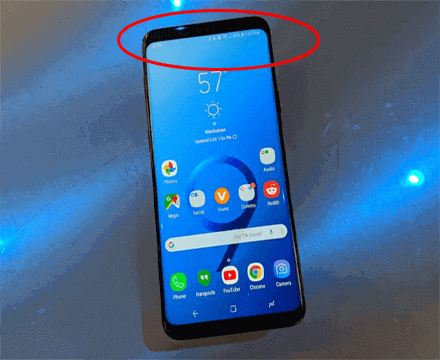
- Then, restart your device once, and try accessing your phone to check if the touch input is working fine.
Solution 3: Turn Off “Easy Screen Turn On” Feature
The “Easy Screen Turn On” accessibility feature allows you to do some activities on your phone just with a hand wave, without needing to use the touchscreen.
But at times, there can be instances where this feature might interfere with touch sensors and prohibits it from processing the touch input.
So, we recommend you temporarily turn off this feature to fix ‘touch input blocked’ in Samsung. Here are the steps to follow:
- On your phone, go to Settings.
- Then, head to the Accessibility section.
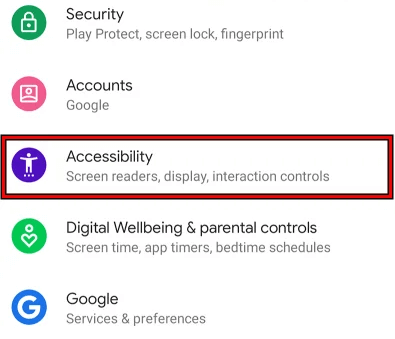
- Tap on the Easy Screen Turn On option.
- Here, toggle off the option button for it.
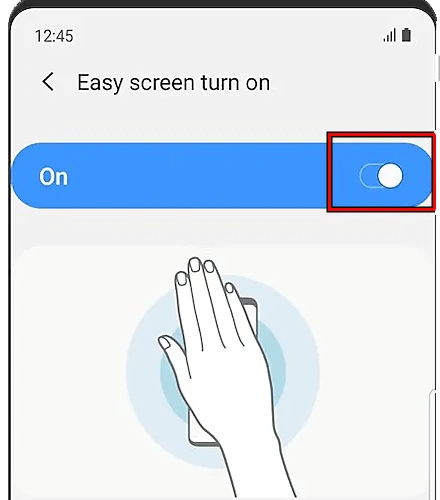
If working fine, you are good to go. If not, proceed to the next solution.
Solution 4: Toggle Off “Block Accidental Touches” Option
The Samsung devices come with an inbuilt proximity sensor that is of great use. But many times, this may show you a “Touch Input Blocked” error. So to get rid of it, you must switch off “Block accidental touches” on your Samsung phone.
Here are the steps to follow:
- First, go to Settings on your phone
- Then search and click on the “Display” option.
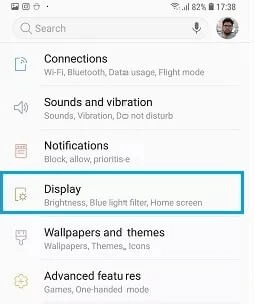
- After that, move down to “Block accidental touches” and switch it off by moving the slider to the right.

- At last, reboot your device and see if the error occurs again
Solution 5: Close Background Applications
At times, running too many background applications can consume your memory and may dysfunctional touchscreen functionality. Avoid using multiple applications at a time or close the ones not in use to see if you are able to use the touchscreen properly.
Follow the steps below:
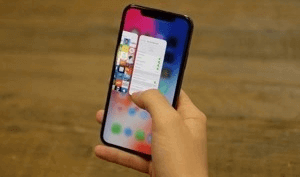
- On your Home screen, tap the Menu icon (i.e. Hamburger).
- Now, on the open app previews, tap the ones not in use and swipe up or left to close.
Solution 6: Clear Cache Partition in Recovery Mode
This is yet another effective method that can solve the error easily. You have to run your device in recovery mode and it works well when the problem is service-related.
Here are the steps to follow:
- First, make sure your device is turned off
- Then press and hold the Volume up button along with the Home button for sometime
- Now along with the above buttons, press the Power button unless you get the “Recovery Booting” option on the screen
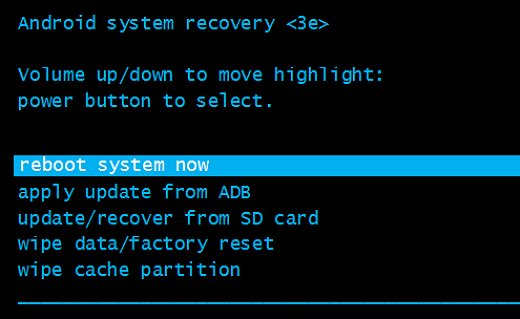
- Next, using the Volume Up/Down button, select Wipe cache partition tapping the Power button.
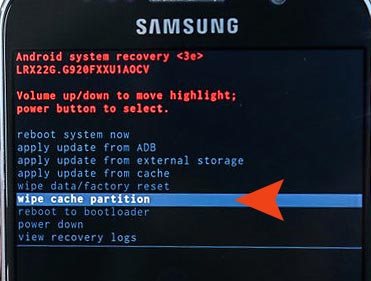
- At last, choose the Reboot system now.
Solution 7: Update Your Device
An outdated OS may cause compatibility issues and hence trigger such errors. Make sure you use the latest OS build on your phone to avoid such problems in the near future.
Also, the latest version includes bug patches and the latest features that have the capability to address known features and fix them.
Below are the steps to do so:
- Open Settings and head to the Software update section.
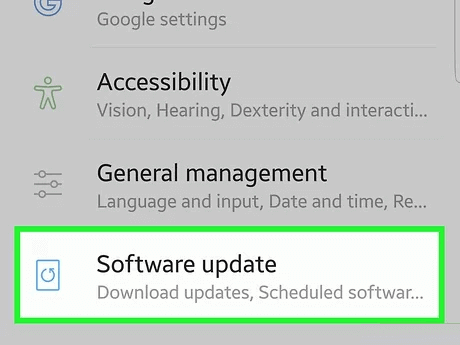
- Here, check for the available update.
- If any appears, tap the Download now button to install it.
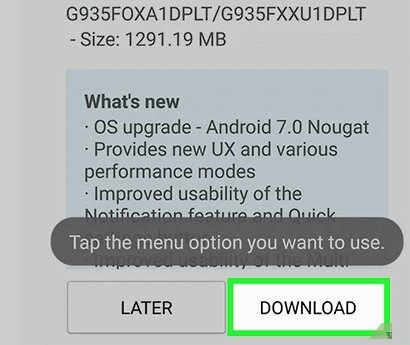
- Wait for the process to complete.
- Once done, your device will automatically reboot.
- Now, use your phone to see if the problem is resolved.
Recommended: Try Android Repair Tool to Fix Samsung “Touch Input Blocked”
If you don’t have the patience and time to perform manual troubleshooting, go with our amazing Android Repair Tool.
This software has the capability to resolve Android issues and errors within minutes in a few clicks. The problems include: Samsung stuck on purple screen, Samsung TouchWiz has stopped, Samsung screen frozen & several others.
Besides Samsung, the software is compatible with various other Android phones such as Sony, Huawei, Motorola, Oppo, Vivo, and many others. So, no matter what device and model you have, the Android Repair tool has your back.
It has an easy installation process and offers a user-friendly interface for easy and quick navigation and repair. Download it on your system and follow the user manual instructions to rescue your device from the problem.

Note: It is recommended to download and use the software on your PC or laptop only.
Tips To Avoid “Touch Input Blocked” Error in Near Future
Below are some set of tips that you can follow to avoid this error in the near future.
- Make sure to use a screen protector that doesn’t block the proximity sensor.
- Do not use a phone with wet or dirty hands.
- Clean the touch sensors regularly.
- Avoid exposure of your device to heat or cold temperatures.
- Reboot your device frequently in case of continuous usage.
Related FAQs to “Touch Input Blocked” Error
What is meant by “touch input blocked”?
The message “touch input blocked” states that the touch sensors are blocked to process your touch input and hence failed to provide the desired result. This happens when touch sensors fail to sense or detect your touch input.
Where is the proximity sensor on a Samsung phone?
Well, every model is different in design and interface. However, in most Samsung models, the proximity sensor locates on top of the front screen. The proximity sensors help your device to sense your touch or wave and process the same input to the desired results by displaying the output.
Why the touch sensor on my phone not working?
Usually this happens, when the phone is used for a prolonged period, exposed to heat or water, proximity sensor covered by the screen protector, and overloaded RAM. These factors can be responsible for your dysfunctional touchscreen.
Conclusion
In conclusion, “touch input blocked” is a common error and can be resolved easily with proper measures and troubleshooting steps.
So, just try the mentioned solutions step-by-step and get your Samsung touchscreen back on track. Also, do not forget to use Android Repair Tool for an easy and quick escape from Android issues.
For any further queries or doubts, comment us on Twitter.

James Leak is a technology expert and lives in New York. Previously, he was working on Symbian OS and was trying to solve many issues related to it. From childhood, he was very much interested in technology field and loves to write blogs related to Android and other OS. So he maintained that and currently, James is working for androiddata-recovery.com where he contribute several articles about errors/issues or data loss situation related to Android. He keeps daily updates on news or rumors or what is happening in this new technology world. Apart from blogging, he loves to travel, play games and reading books.