
Recently Android Auto communication error 16 has been reported by many users after an update. It refers to the connection issue between your device and Android Auto. Well, if you are facing this error, read this article to learn the reasons for triggering the error and know the fixes to troubleshoot it.
Since the error is new, it is not yet confirmed how long it lasts. But with a few researches, it has been found that it is temporary and can be resolved easily with a few simple troubleshooting.

So, let’s proceed further…
To fix various issues on your Android phone, we recommend this tool:
This effective tool can fix Android issues such as boot loop, black screen, bricked Android, etc. in no time. Just follow these 3 easy steps:
- Download this Android System Repair tool (for PC only) rated Excellent on Trustpilot.
- Launch the program and select brand, name, model, country/region, and carrier & click Next.
- Follow the on-screen instructions & wait for repair process to complete.
Factors Responsible for Android Auto Communication Error 16
There can be various reasons why Android Auto encountered an error 16. However, some of the major ones have been highlighted below:
- Faulty connection between the device and Android Auto
- Running apps on your Android devices might be interfering.
- Network issues can also trigger communication error 16 on Android Auto.
- Hardware issues such as a faulty USB port on your card can result in this error.
- Compatibility issue between Android Auto with the device and the car’s infotainment system.
- Corrupted cache data of the Android Auto app on your phone can cause such an error.
- An outdated Android Auto app can lead to such an error.
How to Fix Android Auto Communication Error 16?
Solution 1: Restart Your Device & Car’s Infotainment
It’s possible that the device or car’s infotainment is having a glitch and the same is causing the error issue. In such a case, restarting both your device and your vehicle’s infotainment system can fix the problem currently.
Here’s what you need to do on your device:
- Switch off your device by holding the Power button for a second.
- Then, wait for a few seconds, and turn on your device again.
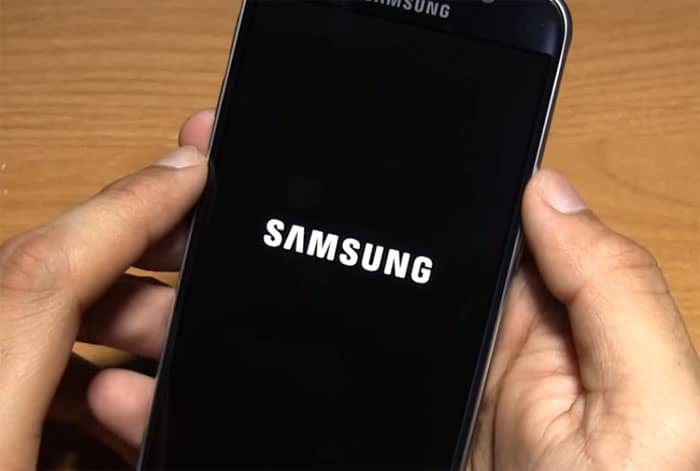
To restart the car’s infotainment system, turn off the car’s ignition and start it again.
Also Read: Fix “Android Auto Is Not Working” Issue
Solution 2: Check the Connection & Device Network
If you’re using a USB cable to connect the car’s infotainment, make sure that the cable and the USB port are in good condition. Also, check it is properly connected to both the car’s USB port and your phone.
Additionally, check for network connection on your device. Some features on Android Auto require a good internet connection to work smoothly. So, ensure to have strong internet on your device.
Also Read: Android Auto Keeps Disconnecting
Solution 3: Clear Cache & Data of Android Auto App
Corrupted cache data in either the car’s infotainment system or the Android Auto app on your device could lead to communication error 16 on Android Auto. Here, clearing the app cache and data or performing a reset on the car’s infotainment might help.
Steps to clear the cache on Android Auto:
- Launch Settings on your phone.
- Go to App Management or Apps section.

- Scroll down the list and choose Android Auto.
- Click on the Storage Usage option.

- Hit the Clear Data and Clear Cache options.

Below are the steps to reset the car’s infotainment:
- Using the infotainment system’s touchscreen, go to Settings.

- Head to the System and select System Reset, Factory Reset, or similar options.

- Confirm the reset process and wait until it gets finished.
Solution 4: Reset Bluetooth Connections
If you are using a Bluetooth connection, ensure that it is enabled on your phone and is paired correctly with the car’s system. It is better to reset the Bluetooth connection once to fix communication error 16.
Here are the detailed steps to follow:
- Open the Bluetooth Settings screen.
- Then, tap on the name of infotainment system and select Unpair.

- Now, pair them again and check if the error disappears from the screen.
Solution 5: Disable the Dual App Feature on Your Phone
So far it has been found that disabling the dual app feature on your Android device most probably fixes the issue.
Here are the steps referred from Google Support:
- Head to the Settings application on your device.
- Next, go to the Apps>> Dual Apps.

- Choose the app whose app cloner has been created.
- Lastly, toggle off the button next to it to disable the cloner.

Solution 6: Update Android OS to Latest Version
Using an outdated version of Android OS and a car’s infotainment system can lead to compatibility issues, causing such an error. Make sure that you are using the latest software on both devices.
Steps to be followed to update Android OS:
- Go to Settings on your phone.
- Then, select the Software update category.
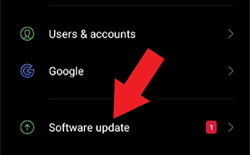
- Check for the available update.
- Hit the Download Now button if any is found.

Also Read: Android Auto Spotify Not Working
One Click Solution to Android Issues & Errors
If the above error is triggered due to a system problem or an OS issue on your Android phone, try the Android Repair Tool to fix it.
This advanced tool can fix various Android problems such as problem parsing the package, phone won’t charging, black screen of death, rooting errors, and many more with a single click. So, doesn’t matter what trouble you are into, this software always has your back.
It is easy to use and gets you out of any critical situation on an Android phone within a few minutes. So, just download this tool on your system and follow the user guide instructions to fix your Android problem.

Note: It is recommended to download and use the software on your PC or laptop only.
FAQs Related to Android Auto
Why isn’t Android Auto not working?
If your Android Auto not working, the very first thing you need to ensure is that the car’s company must supported by the app. Currently, 25 car company is supported by Android Auto. So, check for your car company here (https://www.android.com/auto/compatibility/#compatibility-vehicles).
What to do when Android Auto keeps disconnecting?
If the Android Auto keeps on disconnecting, check the connection properly, Faulty USB cable, port, or Bluetooth connection can cause such issues. So, ensure that the cable and the port are working fine, and if connected through Bluetooth, check that it is enabled on both the device and is connected.
Can Android Auto work over Bluetooth?
Yes, Android Auto can work over Bluetooth. The car’s infotainment system has built-in enabled Bluetooth, so you just need to enable the same on your phone and get both devices paired correctly to each other. Once paired, you are all set to go.
Final Verdict
So, this is all about Android Auto communication error 16. I hope the solutions above will help you better in dealing with the error and get your hands back on Android Auto to enjoy its features again without interruptions.
Further, if you find any queries or doubts related to the article, ask us on Twitter or Facebook. Also, connect with us to stay updated on our latest articles and posts.

James Leak is a technology expert and lives in New York. Previously, he was working on Symbian OS and was trying to solve many issues related to it. From childhood, he was very much interested in technology field and loves to write blogs related to Android and other OS. So he maintained that and currently, James is working for androiddata-recovery.com where he contribute several articles about errors/issues or data loss situation related to Android. He keeps daily updates on news or rumors or what is happening in this new technology world. Apart from blogging, he loves to travel, play games and reading books.