
Stuck with the error message “App not installed as package appears to be invalid” on Android? Well, it occurs during manual app installation attempts, but Android blocks an APK installation. However, this error appears due to a wide variety of reasons. Regardless of the reason, it can be easily fixed. This article describes the possible ways to solve the app not installed as a package error, along with the major factors.

So, let’s get started…
To fix Android-related issues, we recommend this tool:
This effective tool can fix Android issues such as boot loop, black screen, bricked Android, etc. in no time. Just follow these 3 easy steps:
- Download this Android System Repair tool (for PC only) rated Excellent on Trustpilot.
- Launch the program and select brand, name, model, country/region, and carrier & click Next.
- Follow the on-screen instructions & wait for repair process to complete.
Common Factors Behind Android Apk App Not Installed Error
Well, there are a dozen reasons that could lead to package installation errors. So, I have shortlisted some of the major causes below:
- Conflicting packages
- Android security settings often cause this problem.
- Application signature mismatch
- Corrupted/incomplete APK files
- Problem with permissions
Methods to Fix App Not Installed as Package Appears to Be Invalid Error on Android
Try out the methods to deal with this issue on Android.
Fix 1- Check APK Compatibility with Your OS Version
Since the error is associated with the Android app so, it is vital to check whether the app supports specific OS versions. Hence, incompatible apps fail installation checks. Consequently, download the app designed for your Android version to tackle this situation.
Also Read: 5 Tricks to Troubleshoot Package Installer Keeps Stopping
Fix 2- Clear Cache of Package Installer
Overloaded app cache data over time gets corrupted & this is the reason why the package appears to be invalid. Clear the cache overcome such a problem.
Steps to be followed to clear the package installer cache & data:
- Open Settings >> choose Applications or App Manager.

- On the next screen, tap on 3 vertical dots at the top-right corner.
- Choose System >> find and tap on the Package installer.
- After that, tap on Storage option, then tap on Clear Data & Clear Cache.

Fix 3- Re-Download the APK File from a Reliable Source
Sometimes, partial downloads corrupt the APK packages, and as a result, Android marks them invalid. So, it is recommended to download the APK file from a reliable platform, or you can use trusted APK websites with verified signatures.
Re-downloading the file often fixes this problem quickly.
Fix 4- Update Your Android OS
If your phone is still showing app not installed as package appears to be invalid Android error, you may be using an outdated version of the Android operating system. Running the older version of the OS can cause this problem.
Here are the complete steps to get the latest update of the Android OS:
- Open the Settings on phone.
- Now, choose the “Software Update/Download” option. (Note: Options may differ according to the device model.)
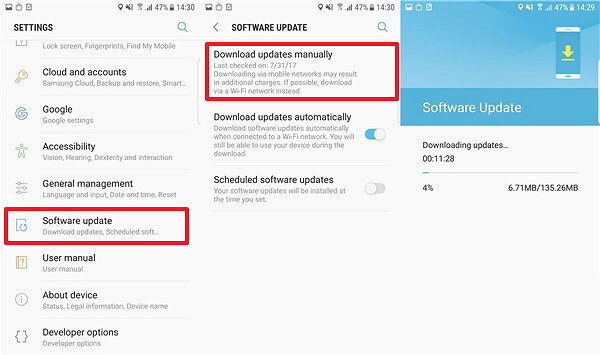
- As soon as the device gets updated, check for the problem.
Fix 5- Check the App Signature Conflicts
Most probably, signature conflicts occur with duplicate app packages when installing modified APKs. All you need to do is uninstall the existing app version first. Android blocks mismatched signatures automatically.
After some time, reinstall the new APK version.
Fix 6- Check the Device Storage
Another possible reason for the occurrence of this peculiar message is not having sufficient storage space on the device. Simply check the available space on your phone to solve it easily.
Here are the steps to do so:
- Go to Settings> About Phone.
- Next, tap on the Storage.
- Now, check the Total Storage Space and Available Storage Space on your Android smartphone.

- If the device is nearly full, delete unused apps or files temporarily. Clear media cache, if necessary, before APK installation.
Fix 7- Disable Play Protect Temporarily to Solve App Not Installed as Package Appears to Be Invalid
Last but not least, Google Play Protect scans apps aggressively. Sometimes, it blocks safe APK files incorrectly. To get rid of it,
disable Play Protect temporarily from Play Store settings. After that, try the APK installation again. Once the installation process is over, re-enable Play Protect instantly.
Also Read: Fixed: “There Was A Problem Parsing the Package Error” On Android
Recommended: Try Android Repair Tool to Fix Package Installing Errors
The best & hassle-free way to fix the Android apk app not installed as package appears to be invalid error is to use the Android Repair Tool. It can solve various Android-related issues like Android firmware update issues, black screen of death, apps crashing problems, battery issues, etc.
You can check out its user guide and follow it to know how this software works. So, go ahead and give it a try!!!

Note: It is recommended to download and use the software on your PC or laptop only.
Frequently Asked Questions:
Package mostly conflict with an existing package if the same application has installed for numerous users in the same mobile and didn’t properly uninstall for all the users.
To fix an invalid package error, you have to re-download the APK file from a reliable source and ensure the file is ready before installing.
You can prevent package conflicts by downgrading packages to match the version necessities of other dependencies. Why Does Package Conflict with an Existing Package?
How Do I Fix an Invalid Package Error?
How Do I Prevent Package Conflicts?
Wrapping Up
Android apk app not installed as package appears to be invalid is a common error that can easily be fixed by applying the solutions mentioned above. So, try them accordingly & get the apps installed on your phone smoothly.
Similarly, keep in touch with us on Twitter to get more updates on our recent posts.


James Leak is a technology expert and lives in New York. Previously, he was working on Symbian OS and was trying to solve many issues related to it. From childhood, he was very much interested in technology field and loves to write blogs related to Android and other OS. So he maintained that and currently, James is working for androiddata-recovery.com where he contribute several articles about errors/issues or data loss situation related to Android. He keeps daily updates on news or rumors or what is happening in this new technology world. Apart from blogging, he loves to travel, play games and reading books.