
When Instagram says “Sorry there was a problem with your request”, it means your IP address is disabled or blocked.
However, the error generally occurs at the time of account login. This further prevents the users from accessing their Instagram accounts.
So, today we are here with all the possible fixes to help you escape the error and get access to your account once again.
To fix Android-related issues, we recommend this tool:
This effective tool can fix Android issues such as boot loop, black screen, bricked Android, etc. in no time. Just follow these 3 easy steps:
- Download this Android System Repair tool (for PC only) rated Excellent on Trustpilot.
- Launch the program and select brand, name, model, country/region, and carrier & click Next.
- Follow the on-screen instructions & wait for repair process to complete.
What Causes “Sorry There was a Problem With Your Request” Instagram error?
There can be numerous reasons that can cause this error to pop up on Instagram. However, we have mentioned some of the common reasons below:
- Server problem
- Internet connection
- Incorrect login credentials
- Internal issues on your device
- Outdated Instagram app version
- Blocked or locked account due to Instagram policy violation
How To Fix “Sorry There Was a Problem with Your Request” Instagram?
To fix login error on Instagram, make sure you use stable or uninterrupted internet, check the server for downtime, or use the updated app.
You can even watch the video tutorial to find the best practical fixes:
Solution 1: Restart Your Device
Most of the time, such an error occurs due to internal issues with your device. So, here simply restarting your device can help you solve this error.
This will restart your device fresh by closing all the other interrupting applications and solves temporary issues on it as well.
Follow the steps to do so:
- Long hold or press the Power button.
- Click on the Restart option.
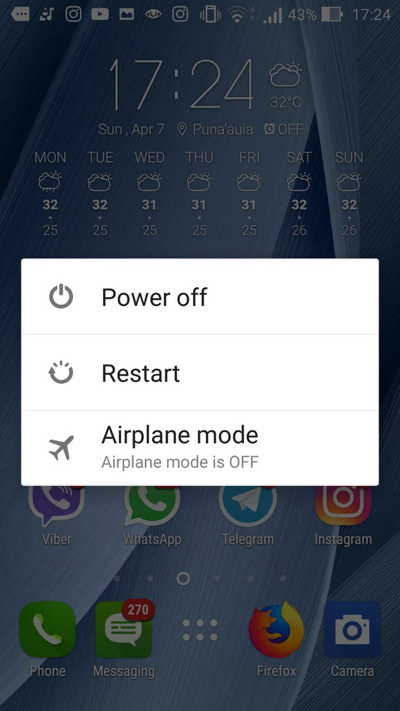
- Now, wait for the device to restart.
- Once restarted, try logging into your account and check if the error disappeared.
Solution 2: Use a Stable Internet Connection
The Instagram error “sorry there was a problem with your request” can also be a result of a poor internet connection.
So, check your internet connection and ensure to have uninterrupted internet. You can check your internet speed through SpeedTest.

If the problem lies with the internet, try fixing it by turning on & off the Airplane mode. This will reset your network and solves the internet problem.
Also Read: Instagram “Couldn’t Upload Try Again” Error
Solution 3: Check Instagram Server
Sometimes, the server outage or downtime can also restrict you from logging into your account and shows this error.
So, check the Instagram server once to confirm whether the issue is with the server or something else. To check Instagram server downtime, visit Downdetector or Instagram’s official Twitter page.
If found faulty, there is nothing you can do from your side instead of waiting for it to fix its issues.
Method 4: Reset Instagram Account Password
If you can’t log in to your Instagram account & getting this error, resetting your account password will work for you.
Doing this will reset your account and you’ll be able to log into your account with a new password easily. To do so, follow the instructions below:
- Open the Instagram app on your Android phone.
- On the Login screen, tap on the Forgot Password.

- Now, enter your phone number/email address/username and click on Next.
- Then, verify your identity by following the screen prompts. You’ll receive a verification code on your linked email or phone number.
- Enter the code to verify your identity.

- When verified, you’ll be prompted to create a new password. Here, provide the new password and confirm the same.
- Next, tap on Reset Password to complete the process.
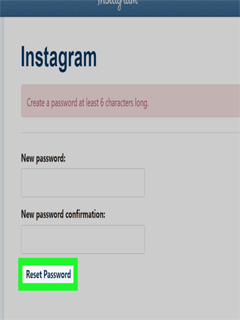
- Once done, log in using a new password and check if Instagram “sorry there was a problem with your request” error is solved.
Also Read: Fix Instagram “Checkpoint Required” Error!
Solution 5: Re-install Instagram App
At times issues with the app itself can occur such an error. So, here uninstalling and then reinstalling the app can help you fix the error. Also, with reinstallation, the app will get updated to the latest version.
Here are the steps for reinstallation:
- Go to the Instagram app icon on the Home screen.
- Long press the app icon and select Uninstall option.
- Click on the Uninstall option again to confirm.
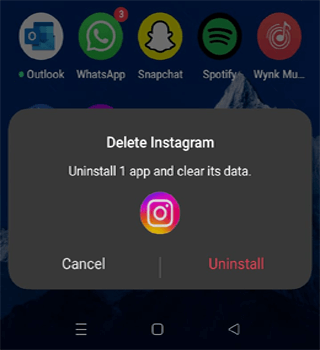
- Once uninstalled, visit Play Store and look for Instagram’s latest version.
- Now, tap the Install button to download the latest version.

Also Read: Fix Instagram Keeps Crashing On Android
Solution 6: Clone the App Using the Parallel Space App
Parallel Space is a 3rd party app that allows you to use multiple instances of the same app. So, using Parallel Space, you can use two different Instagram accounts at the same time.
Here are the steps to clone the Instagram app using Parallel Space:
- Download and install the Parallel Space app from the Google Play Store.
- Next, launch the app and click on the “+” icon.
- Choose Instagram from the appeared app list and click on Add to Parallel Space.

- Now, wait until Parallel Space clones the Instagram app.
- Once done with cloning, another Instagram icon appears on your home screen or in the Parallel Space app.
- Click on another Instagram icon to launch it.
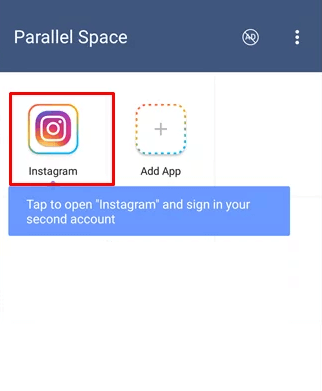
- Then, sign in on the cloned app using your Instagram account credentials.

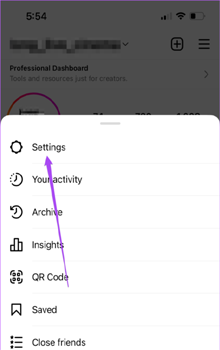
If none of the above steps helps you fix the error, you can contact Instagram support for further assistance. You can do this by addressing your issue in the mail and sending it to the email ID: support@instagram.com. Also, you can seek help from the support team through the app itself. For this, you need to: So, these are some of the workarounds that you can try to fix the “sorry there was a problem with your request” Instagram error. I hope, the mentioned solutions helped you fix this error and let you access your Instagram account again. If you have any further doubts or questions, feel free to comment on Facebook or Twitter. James Leak is a technology expert and lives in New York. Previously, he was working on Symbian OS and was trying to solve many issues related to it. From childhood, he was very much interested in technology field and loves to write blogs related to Android and other OS. So he maintained that and currently, James is working for androiddata-recovery.com where he contribute several articles about errors/issues or data loss situation related to Android. He keeps daily updates on news or rumors or what is happening in this new technology world. Apart from blogging, he loves to travel, play games and reading books.Solution 7: Contact Instagram Support


Conclusion
