
Did you get the following message “Unfortunately, WhatsApp has stopped” on your Android phone?
If yes then not only WhatsApp but other apps can also give you the same error message on your phone.
We all know that WhatsApp is one of the top rated social media apps used by millions of people around the world. It’s used daily by we people to make calls, send messages, share pictures and videos to all relatives and friends.
But as usual, no app is perfect so you can come across different types of problems related to it just like “Unfortunately, WhatsApp has stopped”.
Now this is very annoying and users just want to get rid of it immediately but how?
Don’t worry; I am here to help you as this complete blog will guide you on fixes for WhatsApp keeps stopping Android.
So let’s go through it but before that, lets know what this error is actually and then following the solutions to fix the error.
To Fix “Unfortunately, WhatsApp Has Stopped” Error On Android, we recommend this tool:
This effective tool can fix Android issues such as boot loop, black screen, bricked Android, etc. in no time. Just follow these 3 easy steps:
- Download this Android System Repair tool (for PC only) rated Excellent on Trustpilot.
- Launch the program and select brand, name, model, country/region, and carrier & click Next.
- Follow the on-screen instructions & wait for repair process to complete.
Contents in blog:
About Unfortunately, WhatsApp Has Stopped Working On Android
Well, the error itself says that it’s not working and has stopped. It’s not responding and it means that something has either crashed or stopping it from working on phone.
All in whole, the WhatsApp don’t function normal and it should be fixed.
So now let’s move to the solutions that can fix the WhatsApp error on Android.

Video Guide: Fix “Unfortunately, WhatsApp Has Stopped” Error Android
What are the ways to fix “Unfortunately, WhatsApp has stopped” on Android?
Go through some of the best and effective ways to solve WhatsApp has stopped error.
Method 1: Restart your Android phone once
One of the simple and easy ways to solve any kind of errors on phone is simply restarting it. Soft reset of phone fixes several minor issues or bugs and without any problem, you can access the app now.

In fact, it’s a good idea to switch off your phone after few days because continuously using the phone makes it sluggish and other issues as well.
But if this method does not solve your problem then move to next one.
Method 2: Clear data and cache of the app
Whenever you come across such kind of error or issues on WhatsApp or any other apps then you should try to clear out the cache and data of that particular app. Cache saves the frequently used information and when it is cleared then the error you are coming through will be resolved.
Follow the steps as mentioned below:
- First, go to Settings on your phone
- Then move to Applications and click on Application Manager unless you get All option
- Now move down to get WhatsApp and tap on it
- You will get Clear cache and Clear data First, clear cache and restart your device and see if the error is fixed or not. If not then do the same process and clear data to get rid of the error on WhatsApp.

Method 3: Not having enough storage space on phone
When your phone does not have enough storage space then you can come through the error message “WhatsApp has stopped working” on Android. The reason is when memory is low then some apps don’t work as they need to and WhatsApp is one of them.
If the problem is due to low storage space then follow the below steps:
- First, go to Settings > click on Storage. Ensure it has at least 100MB to 200MB
- After that, remove those apps which you don’t need further. Doing this will create more space on your Android phone and hopefully, now WhatsApp will work properly.
Also Read: [4 Methods]- How to Recover WhatsApp Audio, Videos and Photos from Android
Method 4: Look for any updates available
If the problem of WhatsApp has occurred after updating apps from Play Store then the same issue was reported by plenty of users. So in this situation, you can expect any updates from WhatsApp team to fix the problem.
This was found to be useful previously and WhatsApp team is fast in fixing such kind of issues. What you have to do is:
- First, go to Google Play Store app on your phone
- Then select My Apps & Games

- A list of all will be available and an Update option beside it
- Simply click on Update option and your app will be updated to its latest version.
Method 5: Uninstall and reinstall WhatsApp again
You can do another thing is simply uninstall WhatsApp from your phone and again reinstall it. This process might work and will solve “Unfortunately, WhatsApp has stopped” on Android.
Follow the steps below:
- First, go to Settings and then Applications and Application Manager
- Look for All option here and tap on WhatsApp
- Then click on Uninstall and your will app be uninstalled

- After this, restart your device
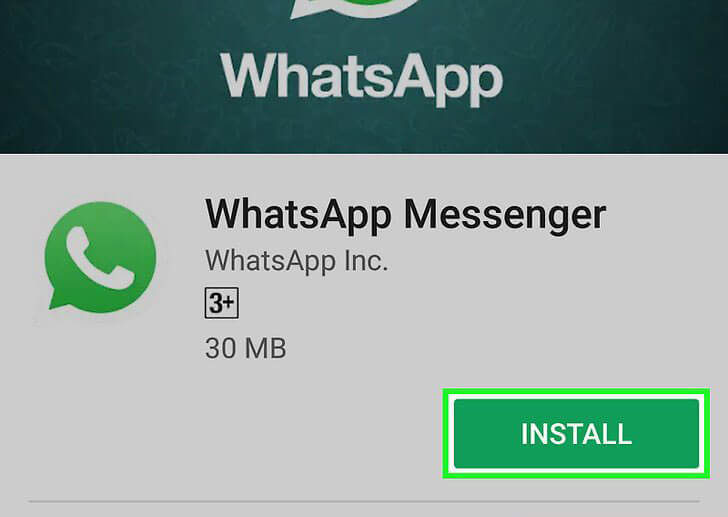
- And now go to Google Play Store and type WhatsApp in search bar. Select WhatsApp and tap on Install option
Method 6: May be Gmail account is hacked or invalid
You already know that your phone is linked with Gmail account and when your WhatsApp stops working then it might be due to Gmail account that becomes invalid. The Gmail ID might be not working so, in this situation you have to logout from your email account and again login to it using another user id.
Just follow the below steps:
- Go to Settings and click on Accounts to logout from Android phone
- Now select Google account and click on “Remove Account”

Method 7: Alternative way to fix “Unfortunately, WhatsApp has stopped” on Android
Apart from the above described methods, there is still another alternative method that can help you to solve WhatsApp has stopped working on Android. You need to use Android Repair tool which is one of the best and safe way to fix the WhatsApp error.
Using this tool, whatever errors you are coming on your Android phone will be resolved without any further issue. It helps to bring the phone to normal state. This is easy to use and helps you to fix some of the popular errors like apps keep crashing, setting has stopped, stuck on download failed, black screen of death/blue screen of death and many more.

Note: It is recommended to download and use the software on your PC or laptop only.
Conclusion
WhatsApp is the most used apps by people and when any error occurs on it or stops working then how to fix it or get rid of it is a serious issue. To help you out, I have discussed some of the best ways to fix “Unfortunately WhatsApp has stopped” error on Android.
I hope following those methods will surely help you to solve the WhatsApp error and if you have more solutions then mention them in below comment section.

James Leak is a technology expert and lives in New York. Previously, he was working on Symbian OS and was trying to solve many issues related to it. From childhood, he was very much interested in technology field and loves to write blogs related to Android and other OS. So he maintained that and currently, James is working for androiddata-recovery.com where he contribute several articles about errors/issues or data loss situation related to Android. He keeps daily updates on news or rumors or what is happening in this new technology world. Apart from blogging, he loves to travel, play games and reading books.