FRP (Factory Reset Protection) is an additional security feature in Samsung phones that prevents unauthorized access to your device. However, bypassing this can breach your privacy. But if you are in a situation where you need to bypass FRP, this article will help you with different ways to bypass factory reset protection Samsung.
So, keep reading further…
To bypass factory reset protection Samsung, we recommend this tool:
This effective tool can remove lock screen with PIN, pattern, password and fingerprint quite easily. Now bypass Android locked screen in just 3 easy steps:
- Download this Android Lock Screen Removal tool (for PC only, for Mac) rated Excellent on Trustpilot.
- Launch the program and select the device information such as brand, model name etc. to unlock the phone.
- Click Next & wait for unlock process to complete.
How to Bypass Factory Reset Protection Samsung?
In this section, we have covered the different ways to bypass Factory Reset Protection on Samsung devices (with or without a PC).
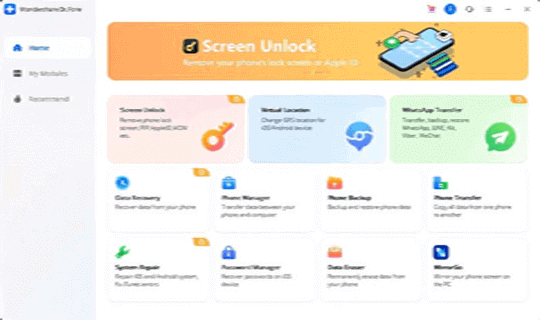
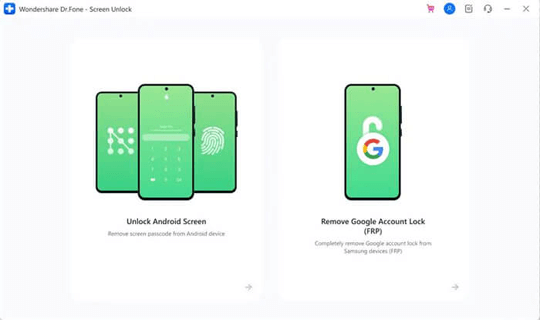
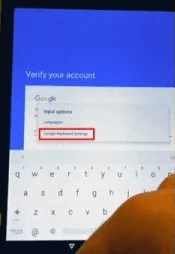
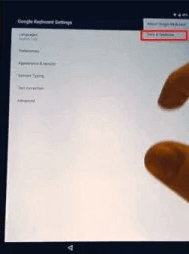
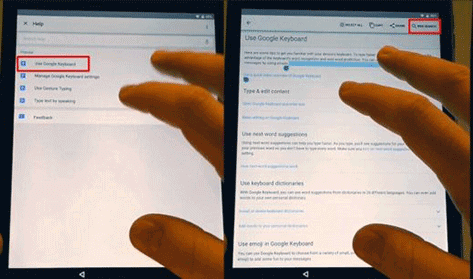
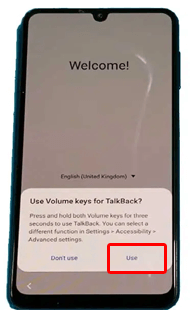
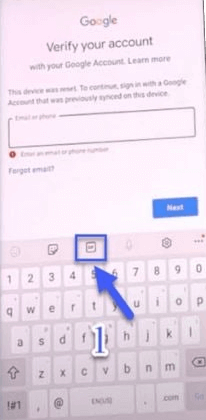
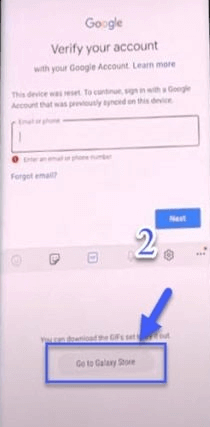
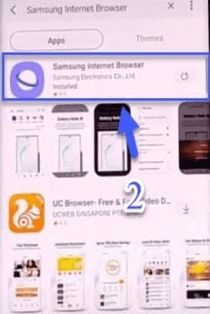
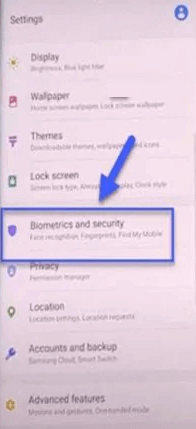
If you are looking for a way to remove FRP on Samsung phone using computer, Android FRP Removal is the best and highly recommended software. The tool is effectively designed to remove Google FRP on Android devices without any data loss. Besides FRP, the tool can bypass the lock screen on Android with ease. It is capable of removing any kind of screen locks such as pattern, PIN, face lock, fingerprint, and password. Key Features: So, just download the software using the below button and follow the below instructions to remove FRP lock on your Samsung phone. Firstly, connect your Samsung phone to the PC using an official USB cable. Now, launch Android FRP Removal tool on your system. Now, choose the “Screen Unlock” option. Here, select the option “Remove Google Account Lock (FRP)” among the two options that appeared on the screen. Now, follow this guide link for complete steps to remove Samsung FRP. You can use Google Keyboard to bypass factory reset protection Samsung. You just need to follow the below instructions as guided: This time you won’t be asked for Samsung FRP. You need to use a new Google account to activate the phone. If you are wondering how to bypass FRP on Samsung without PC, use the Talkback feature. For this method, ensure your Samsung device must have a SIM card and is connected to Wi-Fi. Follow the below steps as instructed: Another way to remove factory reset protection on Samsung devices is by using SIM PIN Code. Here are the steps to be followed: Bypassing or disabling Factory Reset Protection on Android has several drawbacks. Hence, it is highly advised not to disable or bypass it until and unless there is an urgent requirement. Below are some of the consequences of bypassing or disabling FRP on your device:
FRP Bypass APK are tools that are designed to bypass FRP locks on Android devices. So, in case you forgot your Google login credentials, you can use any reliable FRP bypass apk to remove the FRP lock without credentials.
Yes, usually bypassing Google FRP on Android phones leads you to data loss. It erases all your internal data from the phone. Well, bypassing FRP can lead your device to vulnerabilities and potentially compromise your personal data. So, we don’t recommend this. However, if you are experiencing any kind of difficulty with your device’s FRP lock and are not able to access it legitimately, it’s best to visit the authorized service center or contact Samsung Support for assistance. Also, in case of further assistance and help, feel free to ask us on Twitter or Facebook.Part 1: Remove Samsung FRP Lock Using PC
Step 1: Connect Samsung Phone To PC
Step 2: Choose Remove Google Account Lock (FRP)
Part 2: Bypass Factory Reset Protection Without PC
Method 1: Use Google Keyboard to Bypass Samsung FRP
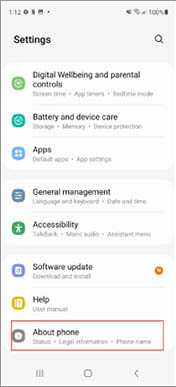

Method 2: Bypass Factory Reset Protection on Samsung Using Talkback

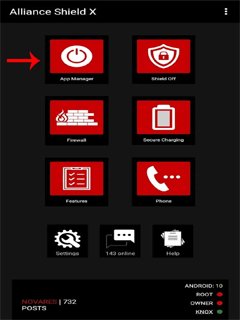

Method 3: Use SIM Pin Code to Remove FRP on Samsung

Drawbacks of Bypassing Factory Reset Protection
FAQs: (Frequently Asked Questions)
What do you mean by FRP Bypass APK?
Is bypassing FRP on Samsung phone leads to data loss?
Conclusion