
Chrome is the most widely used browser around the world. However, it can be frustrating when Chrome keeps crashing, freezing, or stopping. Well, whatever the situation, this guide has got you covered.
Here, we’ve mentioned some effective solutions to help you deal with such problems and enjoy a seamless Chrome experience. So, sit tight and have a brief look over the fixes to get yourself out of these annoying interruptions.
To fix Chrome keeps crashing on Android phone, we recommend this tool:
This effective tool can fix Android issues such as boot loop, black screen, bricked Android, etc. in no time. Just follow these 3 easy steps:
- Download this Android System Repair tool (for PC only) rated Excellent on Trustpilot.
- Launch the program and select brand, name, model, country/region, and carrier & click Next.
- Follow the on-screen instructions & wait for repair process to complete.
Chrome Keeps Crashing: Unravel the Mystery & Find Fixes Here!
Solution 1: Restart Your Android Phone
A simple and best way to get rid of Chrome keeps stopping on Android is by restarting your phone once. Restarting fixes lots of minor glitches on Android including this one as it refreshes the Android process by closing all the interrupting background apps.
- Hold the Power button for a few seconds.
- Next, on the options menu, select Restart.
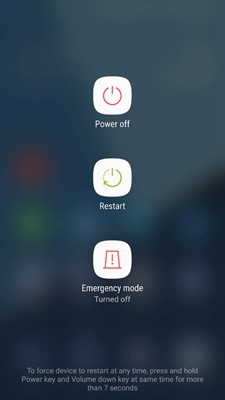
- Your device will start a rebooting procedure.
When your device is turned on, try using Chrome for a while to see if working fine this time. If not, move on to the next solution.
Solution 2: Ensure Strong Internet
If you are not on a stable internet, you might face difficulties using Chrome and sometimes even end up with constant crashing. Make sure that you use strong internet while browsing on Chrome for a seamless experience without interruptions.
For this, check your internet on mobile with SpeedTest, if using cellular data. When found slow or weak, switch to a reliable WiFi network.
Solution 3: Clear Chrome Cache Data
Corrupt app cache data can most of the time be responsible for such issues. So, to fix this problem, clear the cache on Chrome.
Clear cache through Settings:
- On the Android Settings app, go to Apps category.
- Look for the Chrome app in the list and select it.
- Then, tap on the Storage usage category and click the Clear cache button.

On Chrome App:
- Launch the Chrome app on your Android phone.
- Tap the three dots icon and select Settings.
- Click on the Privacy & security>>Clear browsing data option.
- Make sure that the option boxes for Browsing history, Cookies & site data, and Cached images and files are marked.
- Now, tap the Clear Data button at the bottom right corner.

Solution 4: Browse on Chrome in Safe Mode
In fixing Chrome crashes on Android, the Safe Mode feature is one valuable tool that acts as a protective cocoon for the browser. So, try browsing through Safe mode to eliminate crashing issues.
In this mode, Chrome’s extensions are disabled, ensuring to fix the problem in case triggered by extensions.
Here’s what you need to do:
- Open Chrome on your phone.
- Tap the three dots icon and select the New Incognito tab.

That’s it! You are now in Safe mode. Use the Chrome and see if the problem is fixed.
Solution 5: Wipe Cache Partition
Cluttered memory of your Android device can create chaos. Wiping the cache partition will clear cache files as well as other temporary data on your device, fixing the Chrome keeps closing problem.
Follow the steps here:
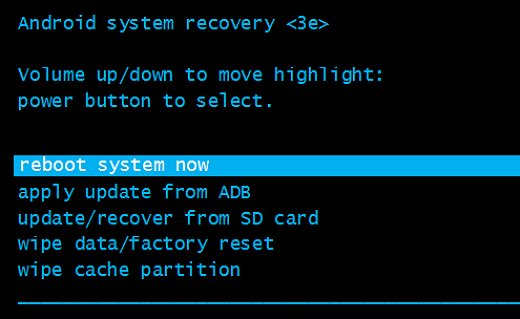
- Turn off your phone and press Volume Up + Power + Home buttons altogether.
- When the Android logo appears, release the buttons.
- Now, use the Volume Down button to highlight the Wipe Cache Partition option, and hit the Power button to select it.

- Again, use the Volume buttons to go to the Yes option and confirm it by pressing the Power button.
- Wait for the process to complete. When done, go to the Reboot System Now option and press the Power button to confirm.
Solution 6: Update Chrome Browser
Outdated versions with time can face compatibility issues, resulting in crashing, freezing, and frequent stoppage issues. Here, make sure to update the app to the latest version to resolve Chrome keeps freezing Android.
Follow these steps here:
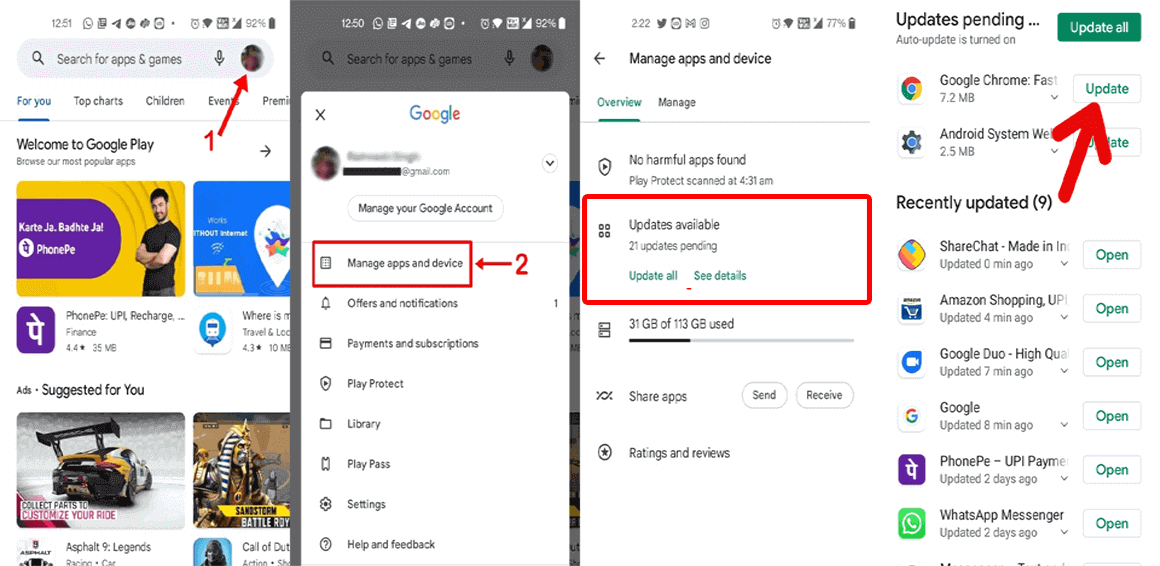
- Open the Play Store on your Android device.
- Head to your Profile and opt for the Manage Apps and Devices option.
- Then, click on the Updates available option and search for Chrome update.
- Hit the Update button to install the latest version.
Solution 7: Install the Latest Android Software
If your Android software is not updated, it might face compatibility problems with certain apps, including the Chrome browser. So, make sure to use the updated software to avoid such problems.
These are the instructions to be followed:
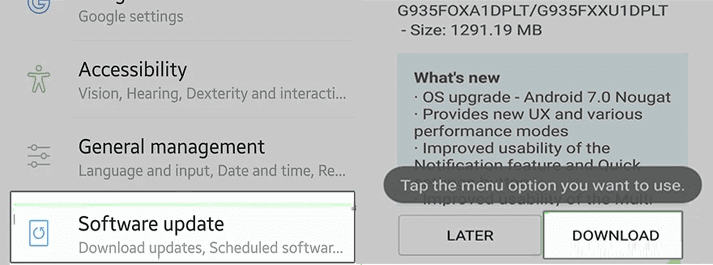
- Go to Settings>>scroll down to Software Update category.
- Look for an available update here.
- When there, tap the Download button and get the latest version.
Note: Make sure you are on a strong WiFi network for interruption-free updates. Do not perform any other actions while the update is in process. Interruptions may lead to further problems on your device.
Also Read: How to Fix Android System Crash? Here’s 6 Fixes to Try!
Android Repair Tool: An Alternative Solution to Crashing Issues
Software corruption can also be one of the reasons for crashing problems, so here Android Repair can be helpful.
This professional tool can resolve various kinds of errors and problems on Android phones including apps crashing, update failed errors, rooting errors, blue/black screen issues, bricked phone problems, and many more.
It supports almost every Android phone including the most famous ones such as Samsung, Nokia, Sony, Huawei, Xiaomi, Motorola, Oppo, and others.
Simply, download the software and get your problem solved on Android with these steps here.

Note: It is recommended to download and use the software on your PC or laptop only.
FAQs (Frequently Asked Questions)
Chrome crashes due to various factors, such as poor internet connectivity, incompatible extensions, outdated Chrome version, cluttered cache, and memory issues.
Clearing your browser cache regularly is a good practice to prevent unwanted interruptions and problems while browsing. However, it is recommended to clear cache data every few weeks to maintain optimal browser performance.
There is no doubt that Chrome Beta offers various exciting features, however, it often comes with potential risks. So, weigh the cons and pros carefully before venturing into the beta version.
Yes, it is necessary to be extra cautious while granting permissions to Chrome. Allow only those that are required for Chrome functionality and avoid giving unnecessary permissions to ensure a private and secure browsing experience. Why does Chrome keep crashing on my Android device?
How often should I clear my browser cache?
Is using Chrome Beta risky for my Android device?
Should I be concerned about granting permissions to Chrome?
Conclusion: A Crash-Free Chrome Experience
Now, we wrap up our journey through Chrome keeps crashing on Android. Remember, a crash-free Chrome experience is within reach. Follow the provided solutions to get your Chrome back on track and enjoy a seamless browsing experience.
References:
- https://support.google.com/chrome/answer/142063?hl=en&co=GENIE.Platform%3DAndroid
- https://support.google.com/android/answer/7680439?hl=en
- https://support.google.com/chrome/answer/95414?hl=en&co=GENIE.Platform%3DAndroid
- https://www.htc.com/nz/contact/productissue/htc/7ab75ac0-3a03-d04a-29a2-57d25e275a64/
- https://support.google.com/accounts/answer/32050?hl=en&co=GENIE.Platform%3DAndroid

James Leak is a technology expert and lives in New York. Previously, he was working on Symbian OS and was trying to solve many issues related to it. From childhood, he was very much interested in technology field and loves to write blogs related to Android and other OS. So he maintained that and currently, James is working for androiddata-recovery.com where he contribute several articles about errors/issues or data loss situation related to Android. He keeps daily updates on news or rumors or what is happening in this new technology world. Apart from blogging, he loves to travel, play games and reading books.