
When Android displays a “system UI not responding” error message, it indicates that your device’s user interface has become unresponsive or currently encountering issues. However, if you come across such an error message, here’s a guide for you explaining why it happens and how to fix it.

So, get started…
To fix System UI not responding, we recommend this tool:
This effective tool can fix Android issues such as boot loop, black screen, bricked Android, etc. in no time. Just follow these 3 easy steps:
- Download this Android System Repair tool (for PC only) rated Excellent on Trustpilot.
- Launch the program and select brand, name, model, country/region, and carrier & click Next.
- Follow the on-screen instructions & wait for repair process to complete.
Alternative Error Variations of System UI Not Responding
This error has alternative variations and they are:
- android.systemui has stopped
- Unfortunately, System UI has stopped
- System UI isn’t responding
- Android SystemUI Error
How to Fix the “System UI Not Responding” Error?
- Solution 1: Restart Your Device
- Solution 2: Clear Google App Cache
- Solution 3: Look for Rogue Apps & Uninstall Them
- Solution 4: Manage the Storage of Your Device
- Solution 5: Uninstall Google App’s Update
- Solution 6: Reset App Preferences
- Solution 7: Update Your Android Phone
- Solution 8: Factory Reset Your Device
Solution 1: Restart Your Device
The basic and simple way to fix this error issue is by restarting your device. A clean restart refreshes the system processes and fixes temporary glitches, restoring system UI functionality.
Turn off your phone holding the Power button. Wait for a few seconds and then turn on again to check if an error has disappeared.

Also Read: Fix Unfortunately App Has Stopped Error On Android
Solution 2: Clear Google App Cache
A cluttered cache on the Google app burdened the system and resulted in an unresponsive UI. If you haven’t cleared the cache for a longer period, clear it to get rid of the error message.
Here’s what you need to do:
- Go to Android’s Settings app and select the Apps category.
- Select Google and click on the Storage Usage option.
- Click the Clear Cache option.

Solution 3: Look for Rogue Apps & Uninstall Them
Malicious or poorly coded 3rd party applications can cause system UI isn’t responding. So, if you have recently installed any application and started getting this error, boot your device in Safe mode to check if that app is the culprit.
Check out the below steps to do so:
- Hold the Power button until you see the power menu.
- Next, press the Power Off option until you see the menu.
- Then, on the Reboot to Safe Mode prompt, hit OK.

- Now, if the error disappears, uninstall all the recently installed apps.
Solution 4: Manage the Storage of Your Device
Low storage on your device can also be the reason why process.com.android.systemUI has stopped. So, try managing storage on your device to deal with the error problem.
To do so, follow the instructions given:
- Go to Settings on your device.
- Head to About phone and click on Storage.
- Here, check for the available space. If full, try clearing unused apps or files.

Also Read: Fix android.process.media Has Stopped Unexpectedly
Solution 5: Uninstall Google App Updates
If you have recently installed the Google updates, it might be the reason why the system UI isn’t responding. Uninstall the updates to escalate this error message.
Follow the steps here:
- Go to Settings and head to the Apps.
- Choose the Google app from the list.
- Now, tap the More icon (i.e. three dots) and select Uninstall Updates.

Solution 6: Reset App Preferences
Resetting the app preferences on your device will refresh all the app’s processes, fixing the unresponsive UI problem.
These are the steps to follow:
- Open the Settings application on your device.
- Then, head to the Apps or Application Management category.
- Now, tap the More icon on the top-right side.
- Select the Reset App Preferences option.
- Click the Reset Apps option to confirm.

Solution 7: Update Your Android Phone
Outdated Android software versions can have bugs and face compatibility issues, contributing to UI errors. Always check for OTA updates Android and make sure to operate on an updated Android version.
- Open the Settings app and head to the Software update section.
- Here, check for the available software update.
- If available, click on the Download Now button to install it.
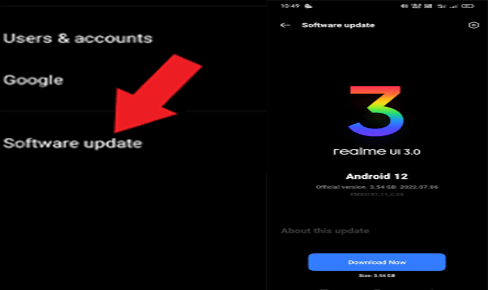
- When installed, your device will automatically reboot itself.
Solution 8: Factory Reset Your Phone
Lastly, if nothing helps you escape the error, perform a factory reset as a last resort. Remember going with factory reset will delete all your phone data. So, it is recommended to backup your Android data before factory reset.
Follow the simple steps here to reset your phone:
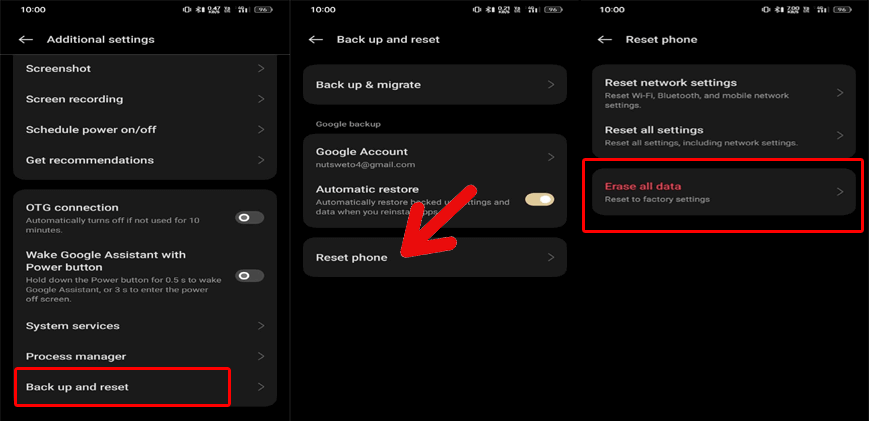
- On the Settings app, go to the Additional Settings.
- Navigate to the Backup and Reset option and select it.
- Click on the Reset phone option and tap on Erase All Data (Factory Reset).
- Now, provide your phone lock screen password and confirm resetting.
Also Read: Recover Android Data After Factory Reset
Recommended: Use Android Repair Tool to Fix “System UI Isn’t Responding” Error
The best and hassle-free way to fix the “system UI not responding” error is to use the Android Repair Tool.
This software can not only fix this error but can fix various other Android issues such as Android firmware update issues, apps crashing problems, black screen of death error, battery issues, and many more.
You can check out its user guide to see how this tool works and then follow all the given instructions to use it. So, go ahead and give it a try!!!

Note: It is recommended to download and use the software on your PC or laptop only.
FAQs (Frequently Asked Questions)
What is Android’s System UI?
The SystemUI is a system app on Android devices that works as a global UI that works during the device booting process. So, whatever functions or operations are performed on Android devices are just because of the System UI. In simple words, it is the core of the Android OS user interface.
What will happen if System UI is disabled?
With disabled System UI, your device will not able to perform smoothly. Instead, it gets hung on the start-up process and never boots up successfully.
Is it safe to perform a factory reset to fix System UI not responding?
Factory reset should always be the last approach to resolve any issues. It leads to data deletion, so it’s important to back up your data before proceeding. However, if you are not sure of performing this action, it is always better to seek professional help.
Wrap Up
So, this is all about the “System UI not responding” error. I hope the guide has provided you with enough information and now you’ll be easily able to fix the error with guided solutions.
If you have further doubts, visit us on Twitter or Facebook.
References:
- https://www.samsung.com/us/support/answer/ANS00077611/
- https://www.samsung.com/uk/support/mobile-devices/how-can-i-check-how-much-storage-space-i-have-left/
- https://support.google.com/googleplay/answer/113410?hl=en-AU&co=GENIE.Platform%3DAndroid&oco=1
- https://support.google.com/files/thread/208473270/should-i-reset-app-preferences?hl=en
- https://support.google.com/android/thread/226094620/system-ui-not-responding-blank-screen-can-t-power-off-reset?hl=en

James Leak is a technology expert and lives in New York. Previously, he was working on Symbian OS and was trying to solve many issues related to it. From childhood, he was very much interested in technology field and loves to write blogs related to Android and other OS. So he maintained that and currently, James is working for androiddata-recovery.com where he contribute several articles about errors/issues or data loss situation related to Android. He keeps daily updates on news or rumors or what is happening in this new technology world. Apart from blogging, he loves to travel, play games and reading books.