
In this digital era of AI, ChatGPT has gathered users’ attention worldwide as a powerful tool for natural language processing. Unfortunately, like other technologies, ChatGPT itself is also not immune to technical hiccups. One such frustrating issue that users are currently encountering is ChatGPT unable to load history.

Well, if you have also come across such an issue on ChatGPT, here is our guide, providing you with the solutions to resolve this problem and make your conversations more personalized and coherent.
To fix Android problems and errors with ease, we recommend this tool:
This effective tool can fix Android issues such as boot loop, black screen, bricked Android, etc. in no time. Just follow these 3 easy steps:
- Download this Android System Repair tool (for PC only) rated Excellent on Trustpilot.
- Launch the program and select brand, name, model, country/region, and carrier & click Next.
- Follow the on-screen instructions & wait for repair process to complete.
Why ChatGPT Unable to Load History? – Unveiling the Mystery
ChatGPT problem loading history can stem from various reasons such as:
- Technical glitch: A temporary glitch in the ChatGPT server can lead to such a problem.
- Internet issue: Poor internet connection can also be the reason why ChatGPT fails to load past conversations.
- Browser cache: The Browser’s cached data might cause conflict with the history loading process.
- Incompatible browser: If the browser in which you are trying to use ChatGPT is not updated or is not compatible, ChatGPT might find difficulty loading history.
- Device-specific issues: If your device is not updated, you may face compatibility issues with the ChatGPT version, leading to unable to load history error on ChatGPT.
How to Fix ChatGPT Unable to Load History? – Fixes
Solution 1: Restart Your Device
A fresh restart on your device mostly resolves every temporary problem on your Android phone. This will refresh the ChatGPT session and boost it to start afresh. So, it is always better to start with a basic solution.
Let’s see how:
- Hold the Power button on your phone.
- Select the Restart option on the menu.
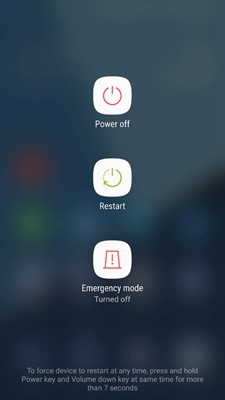
- Wait until your device restarts. When turned on, launch ChatGPT and try loading history to see if problem resolves.
Solution 2: Check for Service Downtime
ChatGPT servers may be currently being overloaded. So, check OpenAI’s website for announcements of any ongoing maintenance or server outages.
If going through a maintenance period, wait for some time until the problems are resolved.
Solution 3: Ensure to Use of Strong Internet
To use ChatGPT without issues and errors make sure you use stable internet. If you are facing a problem with mobile data, switch to a trusted WiFi network with a strong internet or vice versa.
Solution 4: Clear Browser Cache
Clearing the cache on your browser can also help you resolve unable to load history ChatGPT problem.
Here’s how you can do so in Chrome:
- Open Chrome on your Android device.
- Next, tap the three horizontal dots at the top-right corner.
- Scroll down and select Settings on the menu.
- Tap on Privacy and Security>>Clear browsing data.
- Make sure to mark all these three options i.e., Browsing history, Cookies & site data, Cached images and files.
- Now, click on the Clear Data button below.

Solution 5: Update Your Current Browser
Update your current browser to the latest version to eliminate compatibility issues with ChatGPT and resolve the history loading problem.
Here’s how you can do so:
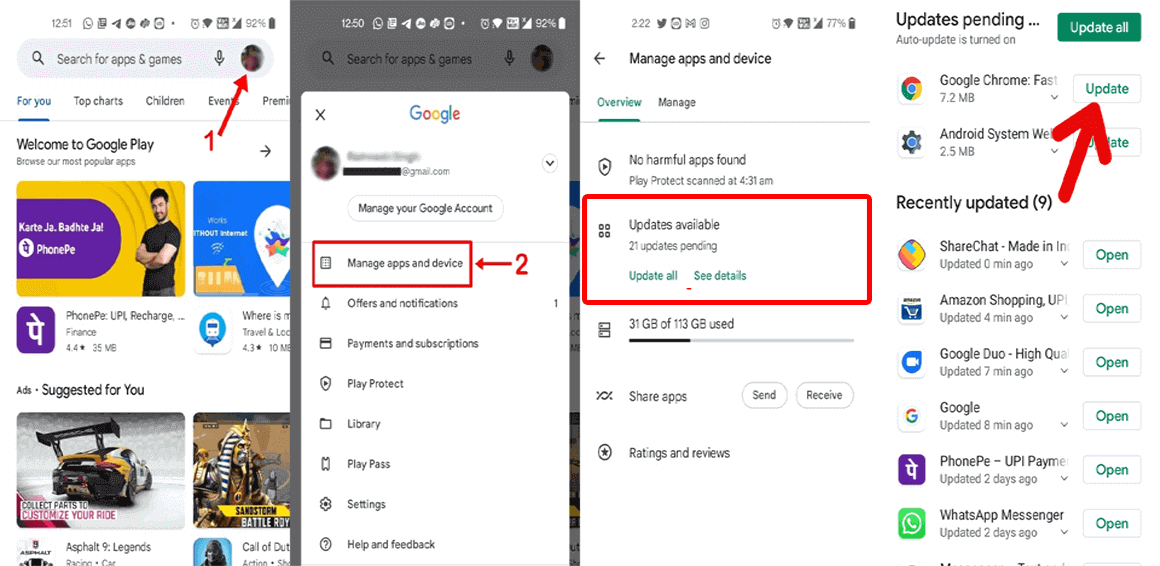
- Go to Play Store and tap on the Profile icon.
- Select Manage Apps and Devices.
- Head to the Updates available section and look for Chrome update.
- If any is available, tap the Update button to install the latest one.
Solution 6: Log Out & Re-Login to ChatGPT
Logging out of ChatGPT and signing in again will help tackle session time-out issues and fix the ChatGPT history not available error.
Follow the detailed steps here:
- Launch ChatGPT on your browser.
- Click on the Menu icon at the top-left corner.
- Click on your Account name and select the Log out option.

- Now, wait for some time login back into it to see if it loads history this time.
Solution 7: Update Your Android OS
Upgrading your Android software to the latest one can help you fix many issues and update includes big patches and new features that address such issues easily.
Below are the steps to follow:
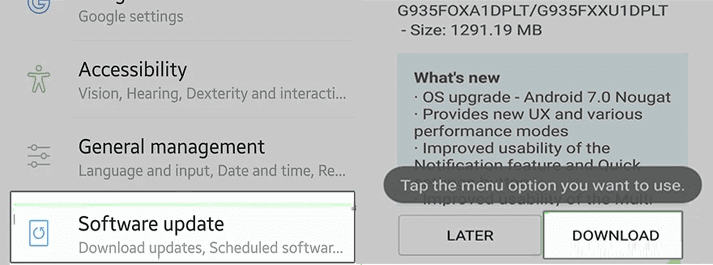
- Go to Android Settings>>head to Software update section.
- Check here for the available update.
- If any appears, tap the Download Now button and wait patiently until the process completes.
Try Android Repair Tool – Resolve Android Issues with A Click
If you are constantly hogged with software issues or any other errors on your Android phone, give it a try – Android Repair Tool.
This tool can fix various issues on Android phones including problem parsing the package, apps keep crashing, update failed errors, bricked phone issues, black screen problems, rooting errors, and many more.
Moreover, the software is compatible will all Android phones and is very easy to use. So, get the software by tapping the download button below and follow the guide here to use.

Note: It is recommended to download and use the software on your PC or laptop only.
FAQs: Your Burning Questions Answered
Does ChatGPT store my conversation history?
Yes, ChatGPT does store your conversation for maintaining context throughout a conversation, but privacy is a concern. So, ChatGPT follows strict data security measures to protect user information.
Can I use ChatGPT for professional communication?
Absolutely! ChatGPT is a versatile tool that can be used for various communication needs including the professional one.
How can I provide feedback on ChatGPT issues?
ChatGPT has community forums for users where you can report any issues or feedback related to it and get responses directly from the developers.
Verdict
In conclusion, ChatGPT unable to load history is a common issue that simple troubleshooting methods can overcome. Now, follow the solutions step-by-step and stay tuned in smoother AI-driven conversations.
However, if even after trying the above fixes, the problem continues to persist, contact OpenAI Support.

James Leak is a technology expert and lives in New York. Previously, he was working on Symbian OS and was trying to solve many issues related to it. From childhood, he was very much interested in technology field and loves to write blogs related to Android and other OS. So he maintained that and currently, James is working for androiddata-recovery.com where he contribute several articles about errors/issues or data loss situation related to Android. He keeps daily updates on news or rumors or what is happening in this new technology world. Apart from blogging, he loves to travel, play games and reading books.