
Google Photos save to device not working due to various reasons like network issues, multiple images downloading simultaneously, device storage error, etc. However, the good news is that Google Photos can’t save to device problem can easily be fixed by restarting your phone, checking the internet connection, downloading media in the correct manner, clearing the Google Photos app cache, and updating the Google Photos app.
If you have been using different social media apps, the chances of uploading a picture directly from cloud platforms such as Google Photos aren’t feasible.
Especially apps such as Facebook and Instagram, for which you need to download these images from Google Photos to your phone and upload them individually to any of these platforms.
However, sometimes, the Google Photos download to device feature doesn’t work and users face difficulties while restoring the photos/videos. Thus, if you are also facing the same issue, then let’s check out how you can tackle Google Photos not downloading issue on Android.
To fix any Android-related errors or issues, we recommend this tool:
This effective tool can fix Android issues such as boot loop, black screen, bricked Android, etc. in no time. Just follow these 3 easy steps:
- Download this Android System Repair tool (for PC only) rated Excellent on Trustpilot.
- Launch the program and select brand, name, model, country/region, and carrier & click Next.
- Follow the on-screen instructions & wait for repair process to complete.
What Causes Google Photos Download Option Missing Issue?
You might have found this issue and can’t save photos from google photos. Let us check the main reasons causing the problem,
- Existing Picture in your Device: If you have the same picture already existing in your phone, you won’t see the Save to Device option on Google Photos.
- Multiple Images Downloading issue: When you download multiple images from Google Photos on an Android Device, the option to save vanishes.
- Downloading Albums: You would likely encounter the Google Photos download option missing with this step. Only individual images can be downloaded and this is applicable to the previous step too.
How to Fix Google Photos Save To Device Not Working on Android?
- Reboot your Device
- Check Your Internet Connection
- Approve Necessary Permission
- Downloading Images Properly
- Check Storage Space
- Clearing Cache Memory
- Update the App
- Unmount & Remount SD Card
- Ensure to Save the Photos in Correct Location
- Reinstalling the App
- Downloading from Shared Albums
- Do Factory Reset on Your Phone
Reboot your Device
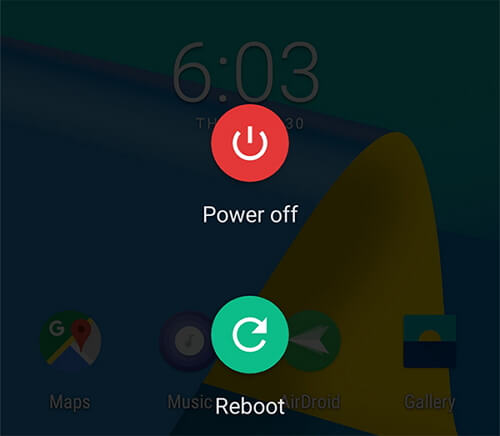
Giving the benefit of doubt to your device and the entire system, the best and the easiest way to resolve this Google Photos issue is rebooting your phone. If this is not a major issue, then doing this will resolve the problem. However, if the problem persists, check the next option.
Check Your Internet Connection
Most probably Google Photos save to device missing issue arises due to weak or unstable internet connection. So, if you’re having any kind of network issues on your device, then fix it by trying some basic tips listed below.
- Turn Off & Turn on The Mobile Data.
- Enable And Disable the Airplane Mode.
- Switch From Mobile Data to The Wi-Fi Connection.
Approve Necessary Permission
Much like any other important device permission, downloading images from Google Photos requires permission from your end. To check if Google Photos has all the required permissions or not, perform these steps:
- Open the phone Settings.
- Go to the Apps & Notifications.
- Check for Photos under All Apps.
- Tap on Permissions.
- Check if you have Permissions.
- If not, then click to turn on the same.
- Restart the app to check the problem of Google photos trouble saving photos on device gone.
You Must Read This– Google Photos – Store, Backup & Organize Your Photos With Ease
Downloading Images Properly
Many of the users use an incorrect method to download images from Google Photos. They choose whatever image they want to download and then click on the three-dot option only to find the delete and archive options.
To download these, all you need is to click on one image at a time and find three dots at the top corner of the page. This comprises a Menu and comprises the option to Save to Device.
If you are using the right way and still getting the Google Photos save to device not working problem on Android, then there must be some other reason behind it. Hence, I would suggest you follow the next solution.
Check Storage Space
One of the most common problems users complain about is the storage space. If your device is brimming with a lack of storage space, then this can culminate in Google photos trouble downloading photos/videos.
Make sure to clear the storage and remove all the unnecessary junk files to free up more space on your Android phone.
Clearing Cache Memory
Much like removing the junk files from your mobile, sometimes, it is a good idea to clear the cache storage of the app. Remember, none of the images would be deleted in this move and instead, this would easily free up the app. To perform this step, you need to,
- Open Settings.
- Tap on Apps & Notifications.
- Find “Photos” among the list of apps.
- Tap on Storage.
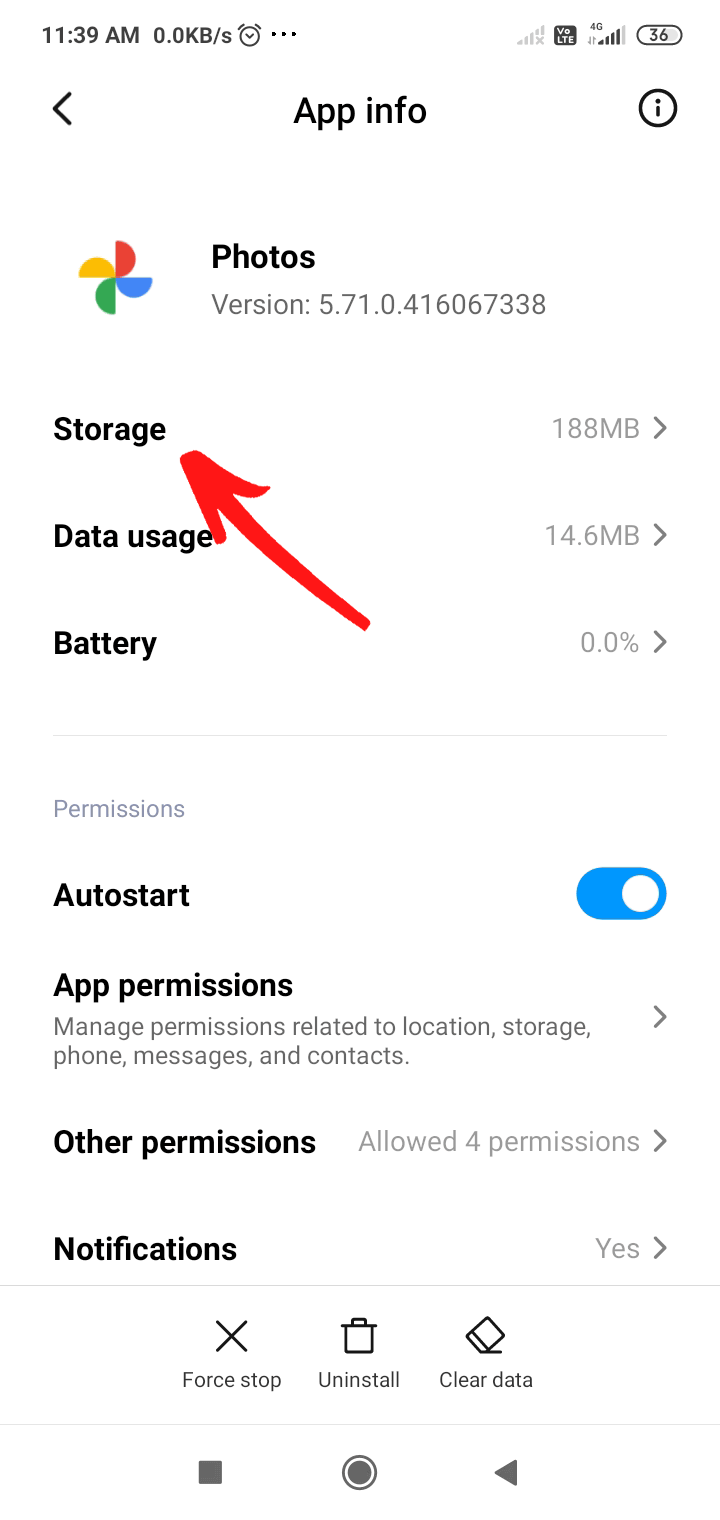
- Tap on Clear Cache.

Update the App
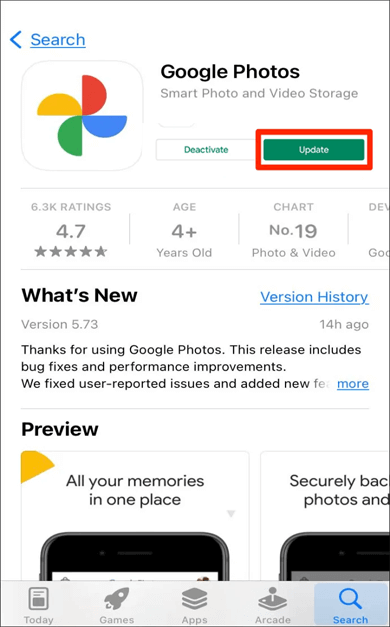
Like any Android App, Google Photos require frequent updates to perform without any flaws. However, if you haven’t updated the app, the chance of Google Photos save to device missing becomes prominent.
Thus, keep track of the app updates by checking on Play Store. If you find a relevant update available for Google Photos, don’t wait any longer and update it as soon as possible.
Unmount & Remount SD Card
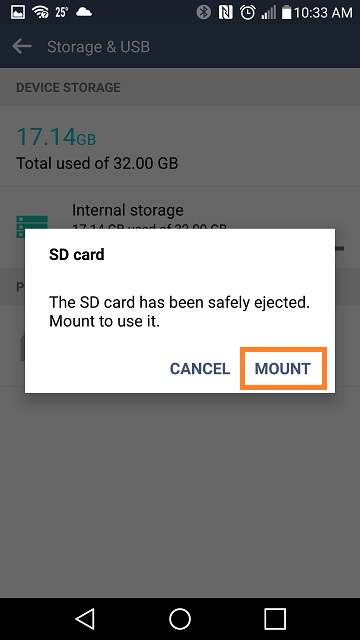
Many users have reported that they fixed this issue by unmounting and then remounting the SD card that is inserted into their phone. Thereby, you can also try this method once to tackle the situation. Here is how you can do so:
- Go to the Settings application on your Android >> tap on the Storage.
- After that, choose the option “Unmount SD Card” & wait for a few instants.
- After some time, tap on Mount SD card option.
Ensure to Save the Photos in Correct Location
Occasionally, even after saving any photograph from the Google Photos app, several users can’t find it. This happens because the Google Photos keep on changing the definite location where the downloaded pictures are saved.
Therefore, you have to ensure to download the images to the chosen location. Instead, you can even check all your saved pictures in “Downloads” folder that you can find in the File Manager.
Reinstalling the App
Those who face problems even after having an up-to-date app might reconsider reinstalling the app. To re-install, uninstall the app from the Play Store end and install once again.
Downloading from Shared Albums
It is possible to download one or more images via shared albums. To perform the step, click open the shared album located under the Sharing tabs, choose the photos and click on the download icon to start the process.
Also Read: Recover Deleted Photos From Google Photos
Do Factory Reset on Your Phone to Fix Google Photos Save To Device Not Working
Last but not the least, if none of the above solutions worked for you, the last option left is to factory reset your Android and check for Google Photos no save to device option problem.
But do remember that performing a factory reset on your phone will erase all the data saved within it. So, ensure to create a backup of all your stuff saved on your phone.
- First, go to the Settings then tap on System >Reset options on your phone.
- Finally, tap on the option “Erase all data (factory reset)”.

Recommended Solution to Fix App Issues on Android
If you are facing any issue with the apps installed on your Android device and no manual solution is helping you to fix the problem, then you may give try to Android Repair Tool.
Using this tool you can not only fix the app’s issues but many other problems, such as Android stuck at the boot loop, apps keep crashing, black screen of death error, battery issue on Android, etc.
This is a one-stop solution for many Android errors and issues. So, go ahead, download this tool and let it do the rest of the work. To find out how this tool works, follow the user guide.

Note: It is recommended to download and use the software on your PC or laptop only.
Frequently Asked Questions:
Why Can't I Download My Photos from Google Photos?
If you are unable to download photos from Google Photos then it might happen due to network issues, multiple images downloading simultaneously, corrupt Google Photos cache or device storage error,
How Do I Save My Google Photos to My Device?
In order to save the Google Photos to your Android/iPhone device, follow the below steps:
- On your phone, open Google Photos application.
- There, you have to choose a picture or video.
- After that, tap on More >> Download.
Where Is Save To Device on Google Photos?
On the Google Photos app, locate the photo or video file that you need to save >> select it. After this, tap on the 3 dots icon & select the option Download or Save to device from a menu.
Final Thoughts
These were some simple and effective ways you can use when you encounter Google Photos save to device not working on your turn. Try these fixes step by step to resolve this simple problem in no time.
If you have any other issues with your Android phone, then do let us know on Facebook or Twitter. Our team will help you to fix the problem in all possible ways.

James Leak is a technology expert and lives in New York. Previously, he was working on Symbian OS and was trying to solve many issues related to it. From childhood, he was very much interested in technology field and loves to write blogs related to Android and other OS. So he maintained that and currently, James is working for androiddata-recovery.com where he contribute several articles about errors/issues or data loss situation related to Android. He keeps daily updates on news or rumors or what is happening in this new technology world. Apart from blogging, he loves to travel, play games and reading books.